Participating Frequently
November 19, 2020
Question

(Help/Question) Creating brush pattern with multiple shapes

  • November 19, 2020
  • 4 replies
  • 335 views

Hello,

I need to paint-cover a car with a lot of colored balls in different sizes. Here are the shapes:
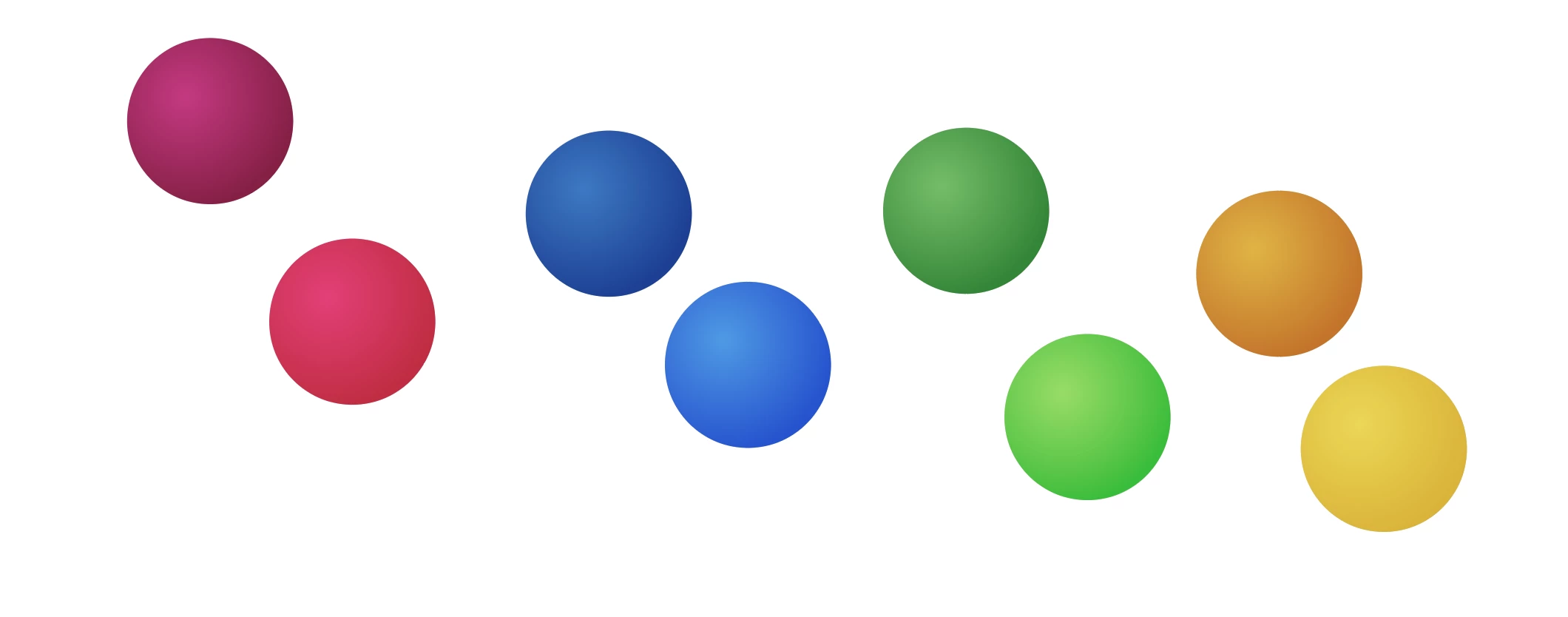
I'm looking for a way to randomize their look and how they are applied on the car but still having control over it. I'm thinking the best approach will be to create a custom brush/pattern.

Question is, is it possible to make a brush consisting of multiple shapes, using the ones shown in the above image?

I'm interested in ending up with randomizing the position and size without having to do it entirely manually. "A bit similar" to this image, but does not need to look as 3D:
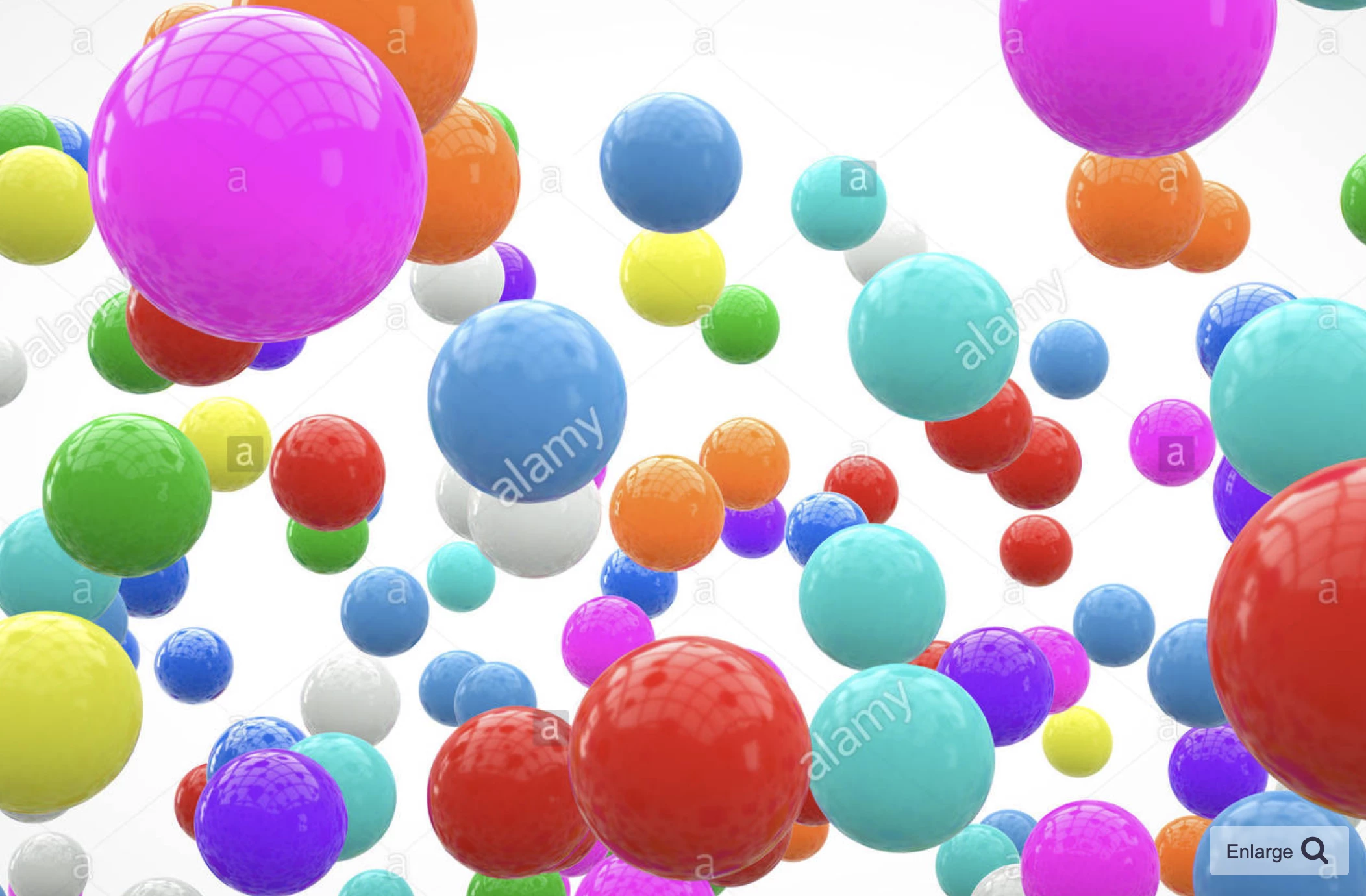


Anyone got any idea of how to do this? Again, it does not HAVE to be a custom brush, but i thought that might be the best approach? If so, how?

Thanks!


This topic has been closed for replies.

4 replies

Ton Frederiks
Community Expert
Community Expert
November 19, 2020

The script in the tutorial is a good way to randomize colorgradients fills.

To create variations of a saved gradient swatch you could use the Edit > Edit Colors > Recolor Artwork (or use the Recolor Artwork button).

Create a grid with circles and randomize their gradient fills.

Make sure that the result is umgrouped and use Object > Transform > Transform each to scale and offset them with the Random  option checke.

You can use Cmd D 0r Ctrl D to repeat the transform.

Monika Gause
Community Expert
Community Expert
November 19, 2020

Would a plugin be an option? With the plugin Stipplism you can do it like this:


Gradients are possible as well (as can be seen in the screenshot)

Participating Frequently
November 19, 2020

Hello Monika

That's a pretty cool plugin library! It might do the trick i need.
I got this result


Can't seem to figure out how to achieve different colors though?
How did you manage to get that to work?

Monika Gause
Community Expert
Community Expert
November 19, 2020

You have to create them and set them up as "Symbol variants"

Participating Frequently
November 19, 2020

*Update v2

Potentially onto something. If i can somehow make sure the brush shapes are not rasterized due to the gradient, i would be able to create my color swatches and use this script to colorize the spheres randomly!

Maybe i can use 2 brush layers:
One with the flat colors (randomized)
And another with a black white gradient on top set with an overlay blend mode.

The issue with this is the fact that the gradients will be applied on top, and not inbetween the spheres, and i would assume that where the spheres overlap, it will simply create 1 gradient for those shapes.

Anyway getting closer, but would love a clever head to step in 🙂
https://www.youtube.com/watch?v=CBrBPI49Ew4&ab_channel=IlliTutorials

Participating Frequently
November 19, 2020

*Update. I've managed to create a scatter brush based upon one of the spheres.
 - Due to the fact that i have a gradient on the sphere, i had to rasterize it in order to create the scatter brush.
 - Inside the scatterbrush setting i'm able to change color hue - but it does not seem to apply + i don't think the result will be what i am looking for.

Is it possible to change the scatterbrush color with fixed colors?
Or is there a way to apply additional shapes to the scatter brush without having to add multiple draw lines?
I'd like the colored balls to look random, and layers.

Currently looks like this: