Participant
July 20, 2021
Question

Help with fitting text to shape

  • July 20, 2021
  • 1 reply
  • 6012 views

Hello Adobe Community,

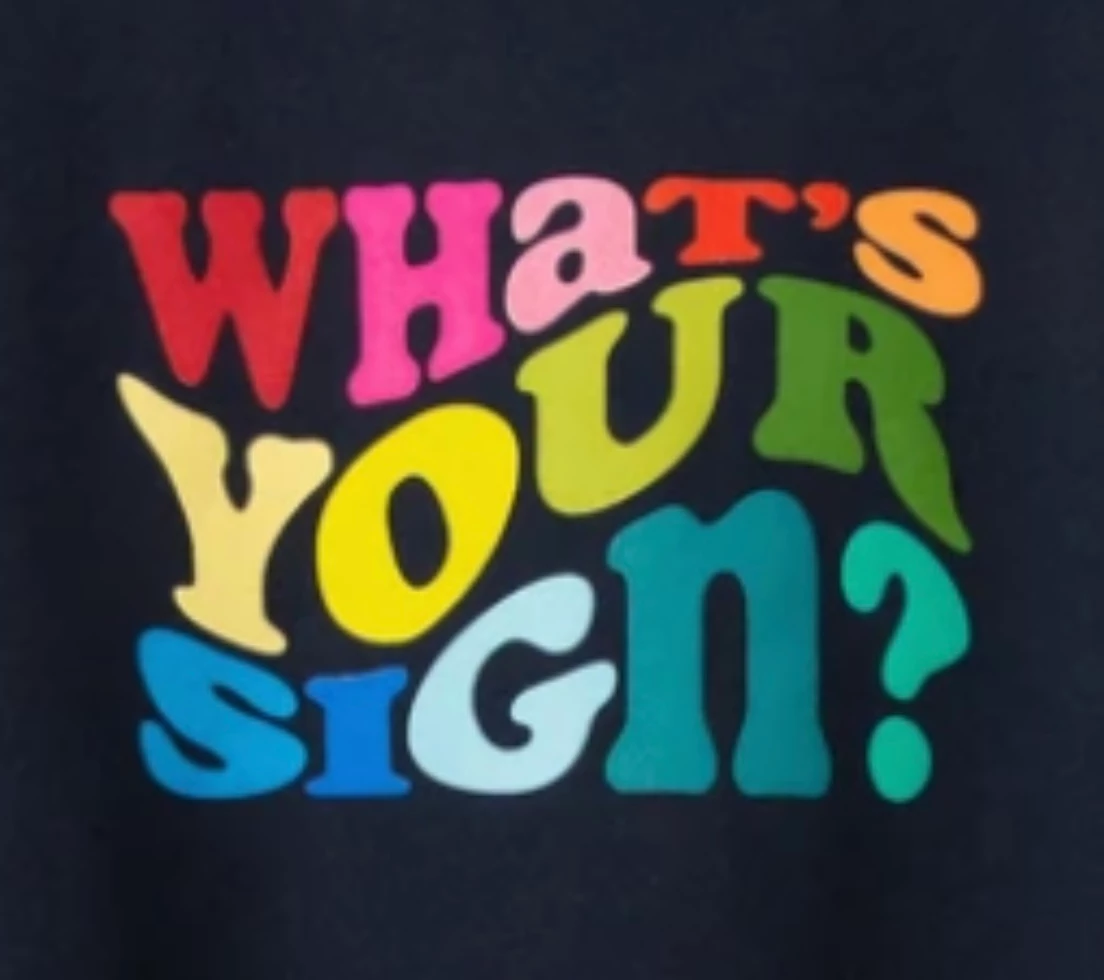
I am trying to recreate this style of design and having some trouble. I've been creating custom shapes that come and fit together to create a square/rectangle and then using envelope distort --> make with top object to fit the text into the shape, but the font isn't coming out perfectly shaped. Does anyone have any ideas how to correctly create this?


What I'm trying to create:
My attempt:

This topic has been closed for replies.

1 reply

tromboniator
Community Expert
Community Expert
July 21, 2021

Arrange the type as you wish.


Select the type. Go to Object menu > Envelope Distort > Make with Mesh. Set both Rows and Columns to 1.


In the Toolbar select the Mesh Tool (or press U) and click where you want points to manipulate the distortion of the type, making as few points as you can, but as many as you really need, if that makes sense.


With the Direct Selection Tool shift-click any points that you want to move together (same amount in the same direction), then drag as needed, pressing the shift key to constrain movement to vertical or horizontal.


If you have not already assigned colors to the type, go to Object > Envelope Distort > Edit Contents, and use the Group Selection Tool (white arrow with + sign) to select a word, if you still have live type, or the Type Tool to select individual letters. You may find it easier to select items in Outline mode (View menu > Outline or ) and return to Preview mode (cmd/ctrl Y) to select a color.


This is, in my opinion, more complicated to describe than to do. If my explanation falls short, please ask me to clarify.


Peter