Breanne_S
Participant
March 13, 2020
Answered

Help with pattern tiling.

  • March 13, 2020
  • 2 replies
  • 1006 views

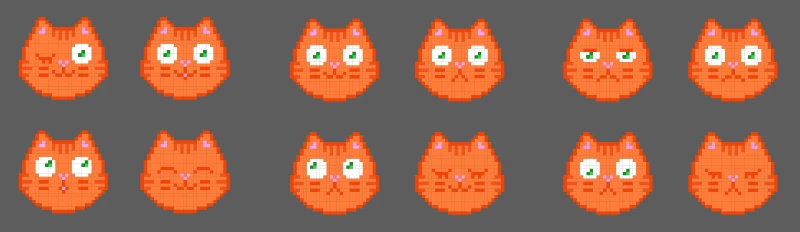
Hello! I'm using Illustrator cs6. I want to make 3 patterns that are identical in size and even spacing around the edges. I have a group of four objects per pattern and each of them are tiling differently. Is this normal? The third one tiled closer to how I want it to but the other two are not. Here are the 3 pairs.
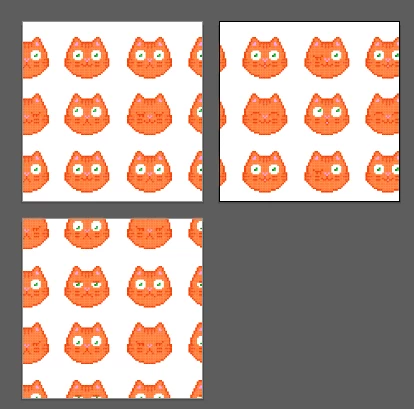
I placed each pattern on a 1080 x 1080px canvas. This is how they are tiling. The bottom one is close to how I want the other two to look like.
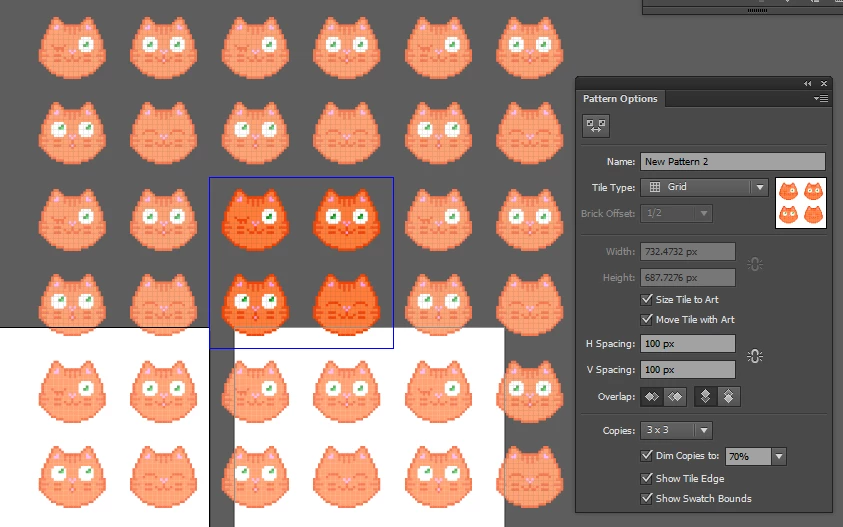
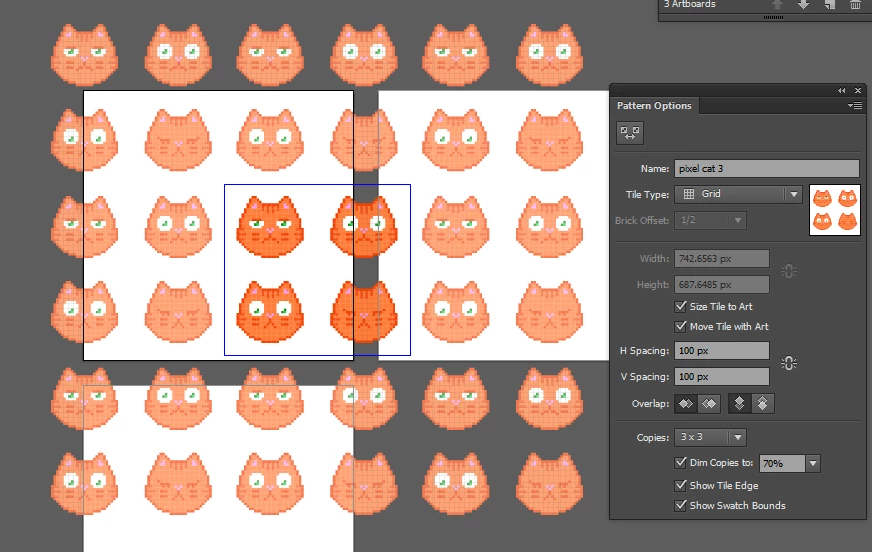
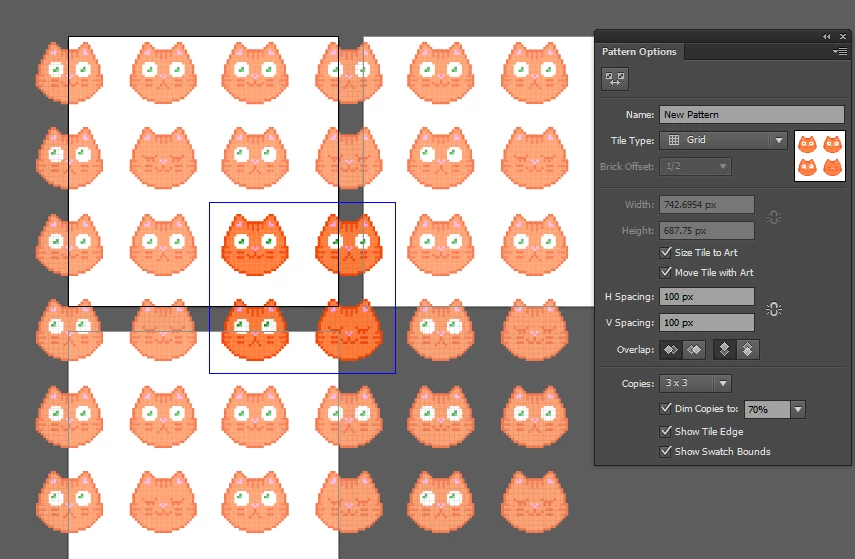
Below are the pattern settings for each. The settings should be identical for each. 


This topic has been closed for replies.
Correct answer Monika Gause

Looks like your problem is how the pattern is placed inside the object. This depends on the initial placement of the object.

You can later move the pattern inside the object (or scale or rotate it).

Select the object, double click the select tool and then only check to "transform pattern" and uncheck "transform object". Enter the parmeters.

2 replies

meganchi
Legend
March 13, 2020

I am curious as to why the width & height px in the dialog box differs on each of the 3 patterns? 

Breanne_S
Breanne_SAuthor
Participant
March 13, 2020

That is a good question! I swear I made sure each of the cats are spaced identically the same.

Monika Gause
Community Expert
Monika GauseCommunity ExpertCorrect answer
Community Expert
March 13, 2020

Looks like your problem is how the pattern is placed inside the object. This depends on the initial placement of the object.

You can later move the pattern inside the object (or scale or rotate it).

Select the object, double click the select tool and then only check to "transform pattern" and uncheck "transform object". Enter the parmeters.

Breanne_S
Breanne_SAuthor
Participant
March 13, 2020

Well I did try that and it's closer to what I want. I had to repeat selection tool a few times to bump it over to the edges.