ikeinatl
Participant
November 29, 2018
Answered

How can I make text have a fluid gradient stroke rather than an individual stroke around each letter?

  • November 29, 2018
  • 3 replies
  • 2668 views

Hello!

I have spent so many hours wracking my brain around this. I'm trying to make a solid gradient around two words, but it keeps adding a gradient around each individual letter of the two words. I tried joining the objects to maybe make a stroke around the whole thing but it won't let me join them.

This is what I'm trying to make it look like (Done in Photoshop): https://postimg.cc/D8KrND5T

This is what it looks like : https://postimg.cc/LnBtFT0Z

I really want to figure out how to do it in Illustrator, so that the lines are smoother. It looks really choppy and awkward in Photoshop still. Any help is greatly appreciated!

Thank you and sorry if this was long!
This topic has been closed for replies.
Correct answer chanaart

You can edit the gradient..by moving the gradient stops. But not with the gradient tool...

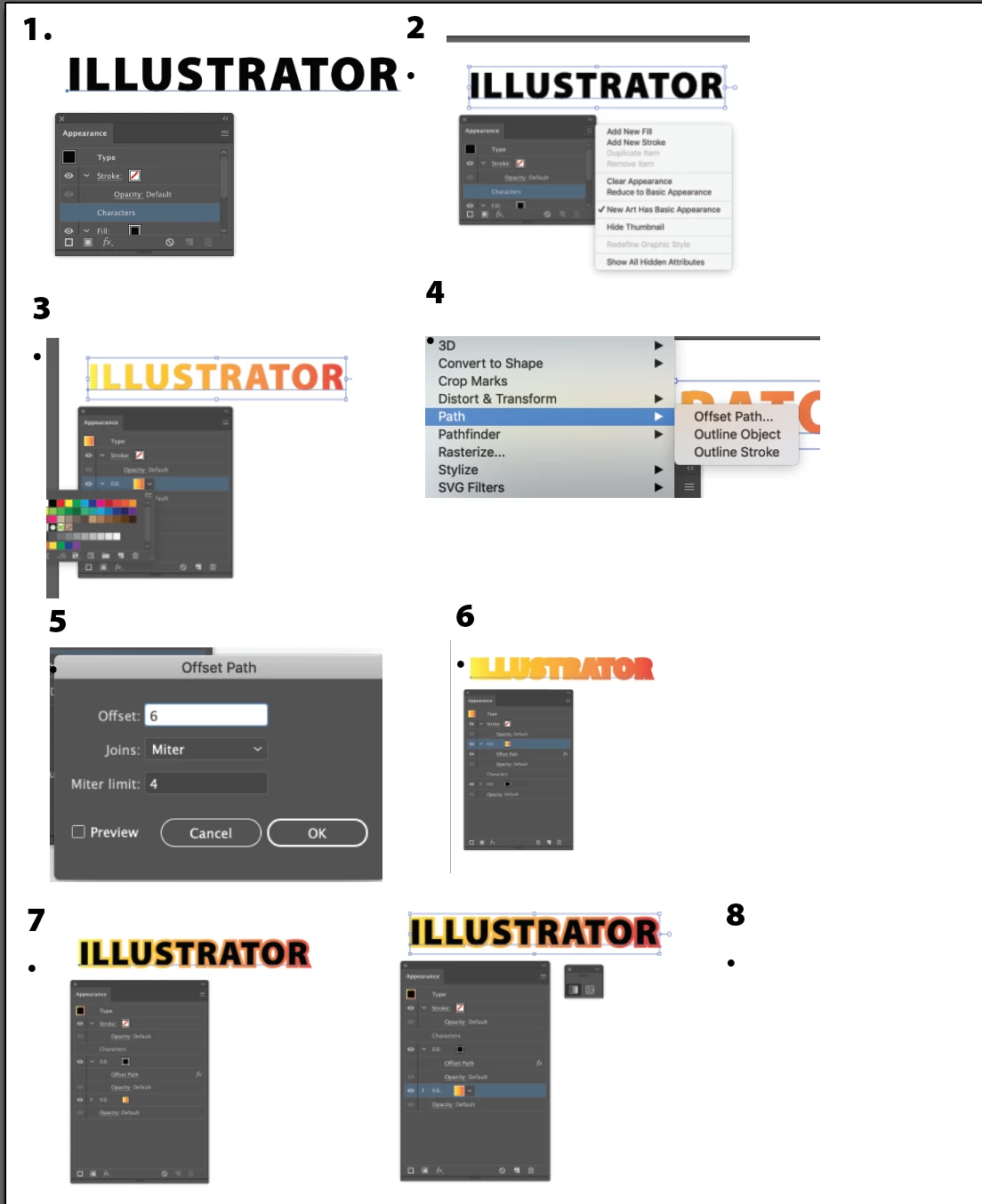
HERE IS A GOOD WAY TO WORK AROUN WITH THE APPEARANCE PANEL:

SELET THE TEXT: ADD A NEW FILL

CHANGE THE FILL COLOR TO A GRADIENT OF YOUR CHOICE.

GO TO EFFECT: PATH OFFEST PATH

CHOOSE HOW MUCH YOU WANT TO OFFSET

MOVE THE NEW FILL BELOW THE ORIGINAL FILL

YOU HAVE 2 FILLS ONE ON TOP OF THE OTHER.

NOW YOU CAN USE THE GRADIENT TOOL SINCE IT IS A FILL!

HERE ARE SCREENSHOTS:

3 replies

meganchi
Legend
November 29, 2018

If you don't have editable text and the letters are outlined, then select the letters and make them a compound path first before assigning a gradient color.

chanaart
Community Expert
Community Expert
November 29, 2018

You still cannot add the fluid gradient he is looking for. You are limited to the 3 symbols on the gradient panel...

If I understand him correct he want to use the gradient tool and decide on the direction..they way you do it on a fill...You cannot do it on a Stroke

chanaart
Community Expert
chanaartCommunity ExpertCorrect answer
Community Expert
November 29, 2018

You can edit the gradient..by moving the gradient stops. But not with the gradient tool...

HERE IS A GOOD WAY TO WORK AROUN WITH THE APPEARANCE PANEL:

SELET THE TEXT: ADD A NEW FILL

CHANGE THE FILL COLOR TO A GRADIENT OF YOUR CHOICE.

GO TO EFFECT: PATH OFFEST PATH

CHOOSE HOW MUCH YOU WANT TO OFFSET

MOVE THE NEW FILL BELOW THE ORIGINAL FILL

YOU HAVE 2 FILLS ONE ON TOP OF THE OTHER.

NOW YOU CAN USE THE GRADIENT TOOL SINCE IT IS A FILL!

HERE ARE SCREENSHOTS:

chanaart
Community Expert
Community Expert
November 29, 2018

It is a great question! Could be a suggestion to the Illustrator

For now you can only create a gradient to a stoked type by either creating outline or Appearance panel and leave the type live.

I will post the request on the uservoice forum

Adobe Illustrator Feedback

ikeinatl
ikeinatlAuthor
Participant
November 29, 2018

That would be so awesome if you could bring it up on the voice forum. I really appreciate your help!!! I guess I'll be sticking to Photoshop for this project.

chanaart
Community Expert
Community Expert
November 29, 2018

You can also create it as a fill like I showed you on the answer....

meganchi
Legend
November 29, 2018

I'm not able to see your linked image. Try selecting your text and using the appearance panel to add a gradient stroke to the words.

chanaart
Community Expert
Community Expert
November 29, 2018

He is asking to make it Fluid and once you use it with the appearance panel for now you have only 3 choice....

Photoshop has the ability to modify the Gradient on a stroke as a free form is the Style panel ...not illustrator.

Here are screen shots...to see the difference. Best is to use the Appearance panel and try to get the most applicable design...