
Participant
December 16, 2017
Answered

How can I select two corners with white arrow key to to modify them?

  • December 16, 2017
  • 3 replies
  • 1044 views

Hi,

I am trying to select just two corners of my rectangle in order to round the edges into one very round shape.  I know how to modify the corners individually when the black arrow tool is selected and using the dialog box.  My goal is to be able to marquee the corners with the white arrow tool and then pull them into a round shape.

Right now I cannot marquee the two points at all in order to specifically target them with the white arrow tool.  What can I do to achieve this goal of targeting just two corners of a rectangle at the same time?

This is what I'm trying to achieve...

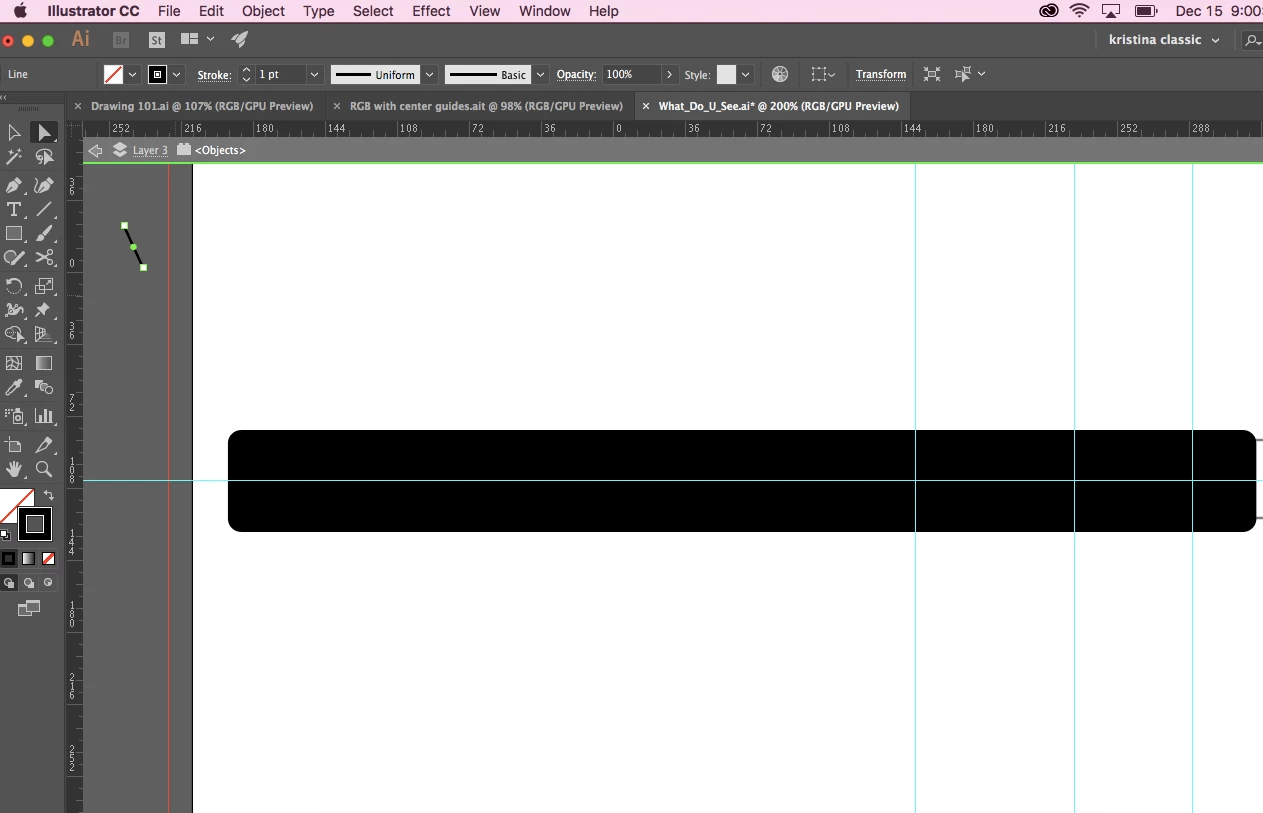
As you can see I can't select the two left side corner points with the white arrow tool.
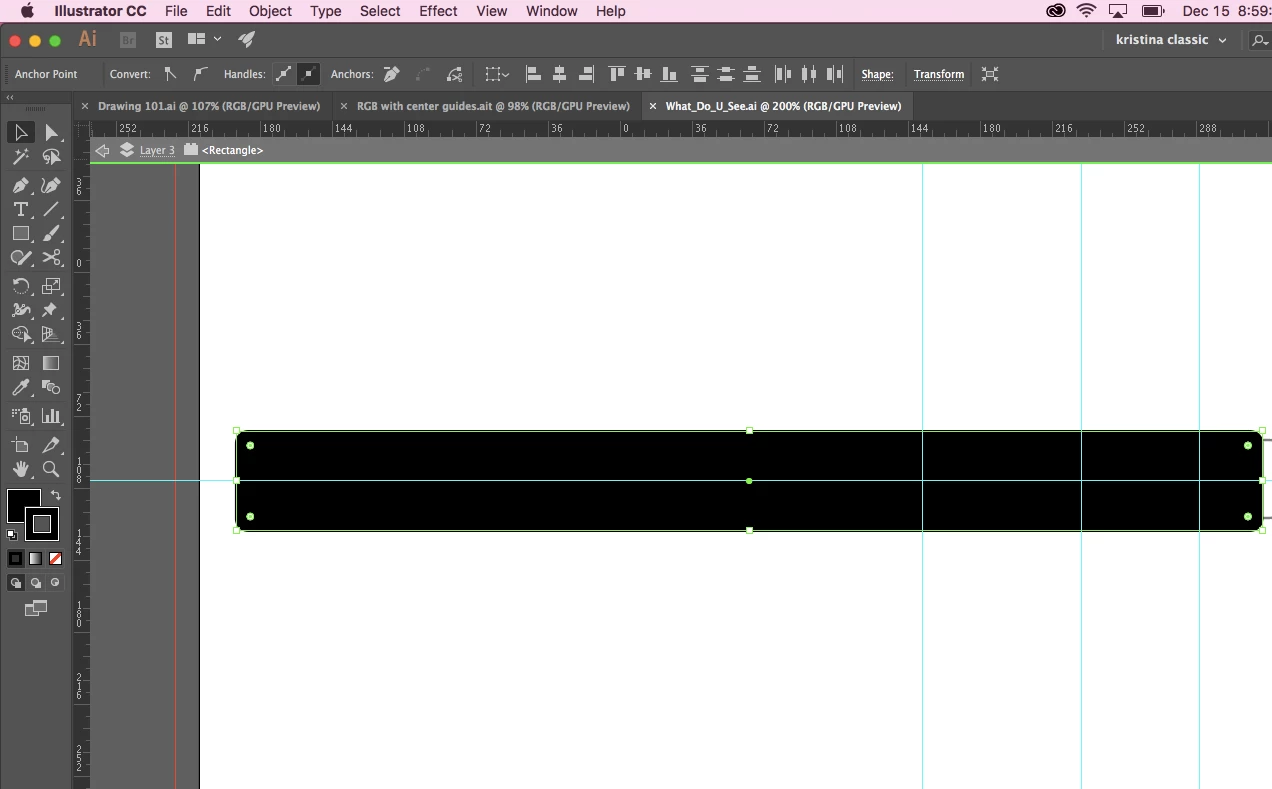
But I can with the black arrow for ALL FOUR POINTS.
Thank you for taking the time to read my question.

Kristina

This topic has been closed for replies.
Correct answer Kurt Gold

The green horizontal line at the top of the window indicates that you are in isolation mode. Probably you double-clicked the line segment and that activated isolation mode (see preferences to disable the double-click-behaviour). In isolation mode only the object(s) that are isolated can be selected and modified. In your case it is just the line, but not the rectangle. Your second screenshot is another thing: Here the black rectangle seems to be isolated.

However, if you inadvertently enter isolation mode, just hit the Esc key to quit isolation mode. Then you should be able to select or direct select what you want.

3 replies

Kurt Gold
Community Expert
Kurt GoldCommunity ExpertCorrect answer
Community Expert
December 16, 2017

The green horizontal line at the top of the window indicates that you are in isolation mode. Probably you double-clicked the line segment and that activated isolation mode (see preferences to disable the double-click-behaviour). In isolation mode only the object(s) that are isolated can be selected and modified. In your case it is just the line, but not the rectangle. Your second screenshot is another thing: Here the black rectangle seems to be isolated.

However, if you inadvertently enter isolation mode, just hit the Esc key to quit isolation mode. Then you should be able to select or direct select what you want.

Participant
December 16, 2017

This was very helpful.  Thank you!

Monika Gause
Community Expert
Community Expert
December 16, 2017

What are you trying to select those anchors?

And then what is Illustrator doing? You have a line segment selected on that first image. So is not quite clear what's happening.

Colin Flashman
Community Expert
Community Expert
December 16, 2017

Just to be sure, looking at the screenshots, it shows that Adobe Illustrator is being used, but this question was posted on the InDesign forum.

That said, if a solution for ID is sought, no worries. The short answer is it will take several operations. I've made a brief GIF to show what's going on. In the animation, the up arrow represents the shift key, and the zig-zag line represents the alt/option key.

If the answer wasn't in my post, perhaps it might be on my blog at colecandoo!
Participant
December 16, 2017

You are right that I am using Illustrator so your gif was very helpful for Indesign but not Illustrator.  Thank you for the time you took to create that.