Participant
December 28, 2016
Answered

How can I set rounded corners as the default drawing mode?

  • December 28, 2016
  • 3 replies
  • 1061 views

I'm working on a complicated drawing where I want all new paths to draw as rounded corners rather then mitered. Is there a way to set rounded corners as the default corner mode?

    This topic has been closed for replies.
    Correct answer John Mensinger

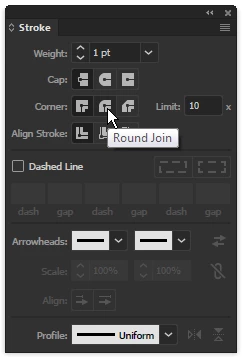
    Assuming you mean round joins rather than "corners," (which in Illustrator, are something else; especially when referenced as 'rounded corners'), with nothing selected, click the Round Join button in the Stroke panel.
    3 replies

    HMXAdrockAuthor
    Participant
    December 28, 2016

    Thank you for the answer.

    My problem was I had other paths that were drawn previously with mitered corners and after selecting those objects, the join mode would switch to match the setting of the selected path. So any new drawing would use mitered joins.

    I had wrongly concluded that all new objects would be drawn with the mitered join mode unless an alternate mode was selected before drawing. The round join method will remain the default unless another mode is selected in the panel, or an object utilizing an alternate mode is selected.

    Monika Gause
    Community Expert
    Community Expert
    December 28, 2016

    Make an object that has those settings and then alt drag into the graphics style panel over the default style.

    John Mensinger
    Community Expert
    John MensingerCommunity ExpertCorrect answer
    Community Expert
    December 28, 2016

    Assuming you mean round joins rather than "corners," (which in Illustrator, are something else; especially when referenced as 'rounded corners'), with nothing selected, click the Round Join button in the Stroke panel.