ralfw29449847
Participant
March 5, 2018
Answered

how create a complex mask in Illustrator

  • March 5, 2018
  • 1 reply
  • 492 views

Hi,

I`m using Illustrator CC, I have a complex watercolor graphic with some layers and in the middle there is a white circle above a dark circle.

I want to punch out the white circle.

In Photoshop i did it easily.

But how can I get the same result in Illustrator.

I took screenshots to show you the original graphic and my Photoshop result.

Original:

desired result:
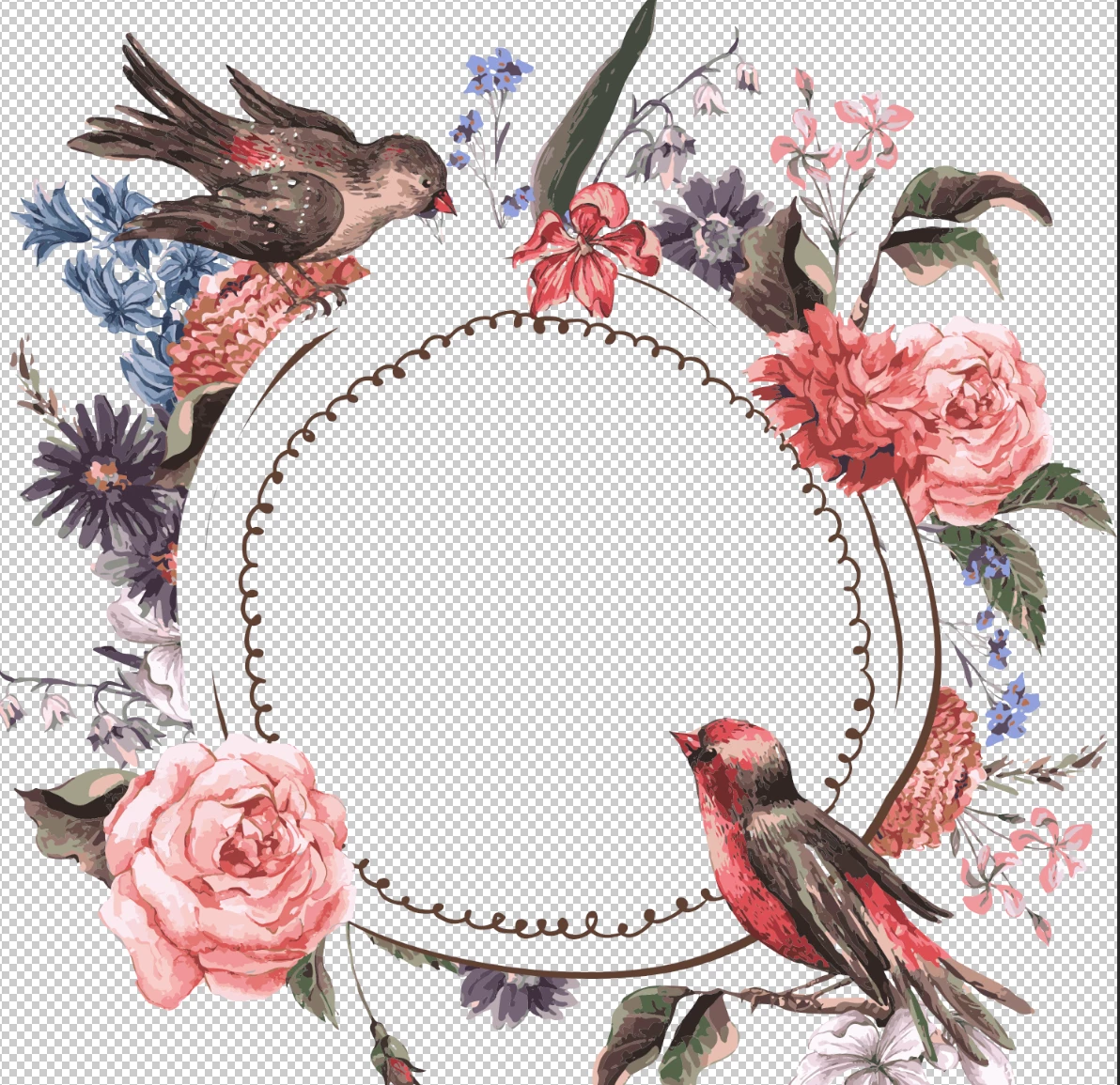
I`m happy about any tips, instruction or tutorial links...

Thanks for your help!

    This topic has been closed for replies.
    Correct answer Monika Gause

    If it's a vector graphic, then you can do the following:

    Select the white circle with the direct selection tool.

    Set its fill (only the fill) to an opacity of 0%

    You need the apearance panel to do that

    Group everything.

    Set the group to "Knockout group"

    Via the transparency panel.

    1 reply

    Monika Gause
    Community Expert
    Community Expert
    March 5, 2018

    Why would you want to do that in Illustrator?

    What do you need the mask for?

    ralfw29449847
    Participant
    March 5, 2018

    Hi Monika,

    thanks for your answer.

    I want to do that in Illustrator because it`s a vector graphic and I want so the received the quality...

    I want to punch out the white circle. When I just blinding out the white circles it looks like this:

    But it should look like in the second screenshot above.

    Monika Gause
    Community Expert
    Monika GauseCommunity ExpertCorrect answer
    Community Expert
    March 5, 2018

    If it's a vector graphic, then you can do the following:

    Select the white circle with the direct selection tool.

    Set its fill (only the fill) to an opacity of 0%

    You need the apearance panel to do that

    Group everything.

    Set the group to "Knockout group"

    Via the transparency panel.