Known Participant
January 17, 2019
Answered

How cut/remove everything inside an object?

  • January 17, 2019
  • 3 replies
  • 8705 views

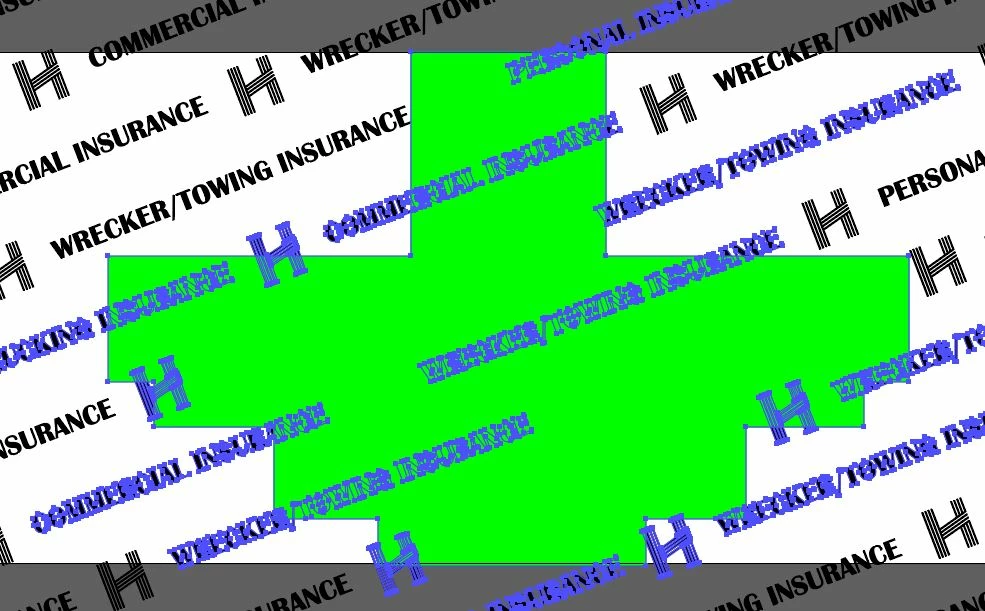
I have a bunch of text that I have outlined and I want to remove all of it where the logo will go so I drew a shape around logo.  I've tried various pathfinder tools and I can't figure it out.  I want to remove/cut everything that is inside the green shape.  Thanks

    This topic has been closed for replies.
    Correct answer barbara_a7746676

    A couple of other ways you could approach it.

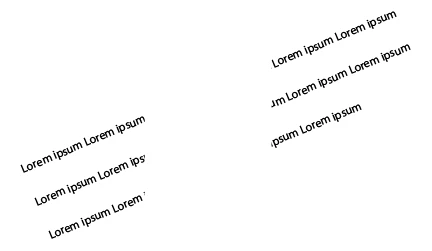
    This first method uses Pathfinder, and will permanently delete the text that is inside the green shape.

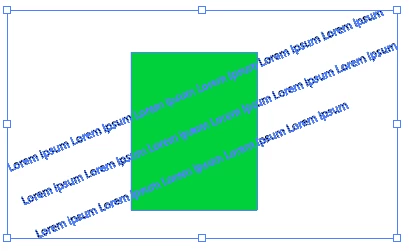
    After creating the text and converting it to outlines under the Type menu, and putting the green shape on top of the outlined text, the way you have it --

    Select the outlined text and the green shape.
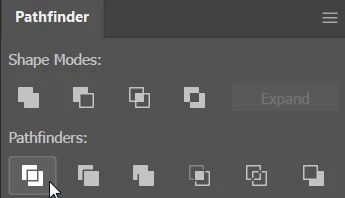
    In Pathfinder, click Divide.
    With the Direct Selection tool,
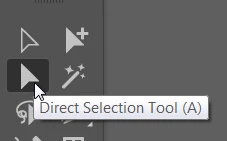
    Click inside the green shape. That will select all the pieces of the green shape.
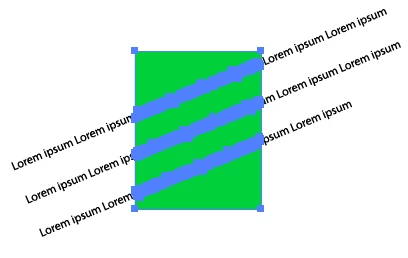
    Hit Delete. You will be left with green outlined text where the green shape used to be.
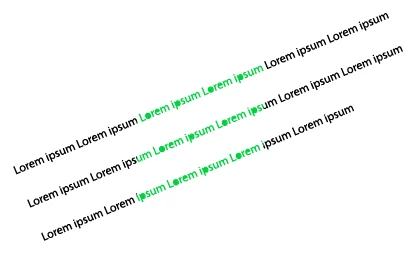
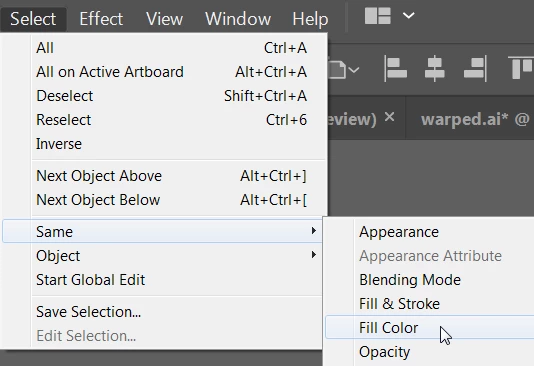
    Select any of the green text and choose Select > Same > Fill Color.
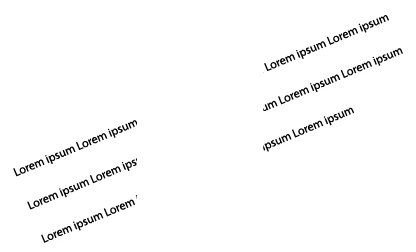
    Hit Delete.
    --------------------------

    The second method you could try would be to use an opacity mask. This is not permanent because you can adjust or remove the opacity mask at any time.

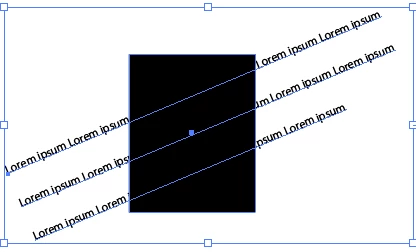
    Start with the text and this time put a black shape on top of the text. The black shape must be on top. It doesn't matter if the text is outline text or regular editable text.

    Select the text and the black shape.
    In the Transparency panel, click Make Mask.
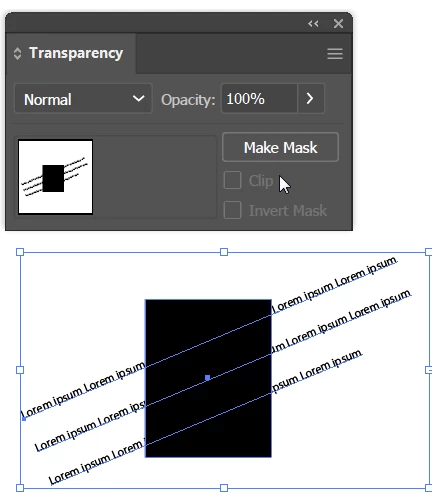
    At first it seems the text is hidden.
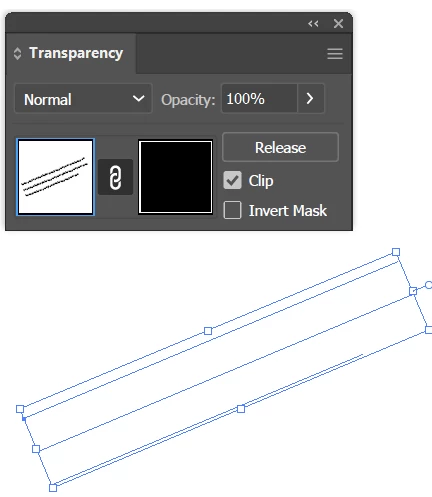
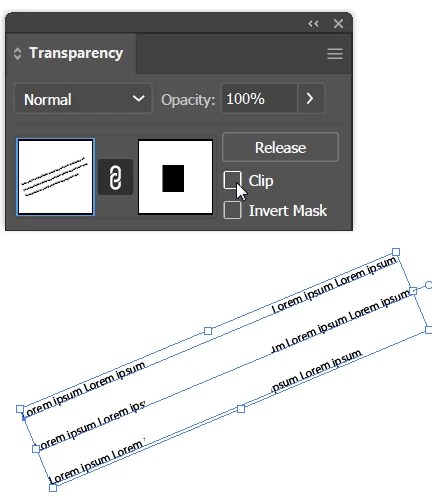
    In the Transparency panel, remove the check mark from Clip.
    3 replies

    rcraighead
    Legend
    January 17, 2019

    With this method if the background pattern changes you start over. Seems working with a real pattern would be much simpler.

    barbara_a7746676
    Community Expert
    barbara_a7746676Community ExpertCorrect answer
    Community Expert
    January 17, 2019

    A couple of other ways you could approach it.

    This first method uses Pathfinder, and will permanently delete the text that is inside the green shape.

    After creating the text and converting it to outlines under the Type menu, and putting the green shape on top of the outlined text, the way you have it --

    Select the outlined text and the green shape.

    In Pathfinder, click Divide.

    With the Direct Selection tool,

    Click inside the green shape. That will select all the pieces of the green shape.

    Hit Delete. You will be left with green outlined text where the green shape used to be.

    Select any of the green text and choose Select > Same > Fill Color.

    Hit Delete.

    --------------------------

    The second method you could try would be to use an opacity mask. This is not permanent because you can adjust or remove the opacity mask at any time.

    Start with the text and this time put a black shape on top of the text. The black shape must be on top. It doesn't matter if the text is outline text or regular editable text.

    Select the text and the black shape.

    In the Transparency panel, click Make Mask.

    At first it seems the text is hidden.

    In the Transparency panel, remove the check mark from Clip.
    Known Participant
    January 17, 2019

    Thank you for spending the time for such a detailed answer, was able to do it using your first method.  I had tried that at first but then saw it still left the green there but using the select by fill worked great.  Thanks

    barbara_a7746676
    Community Expert
    Community Expert
    January 17, 2019

    You're welcome!

    rcraighead
    Legend
    January 17, 2019

    Make your text background into a pattern and use the green shape to create a compound path to make a hole in your background.

    The pattern should be created horizontally and the pattern rotated within the rectangle.