


sheisverycheeky
Participating Frequently
Apr 1, 2017 11:29 AM UTC
Answered

How do I change the color of a rasterized image using swatches in Illustrator?

I've done this before, years ago, and know its possible but I've forgotten how I did it.

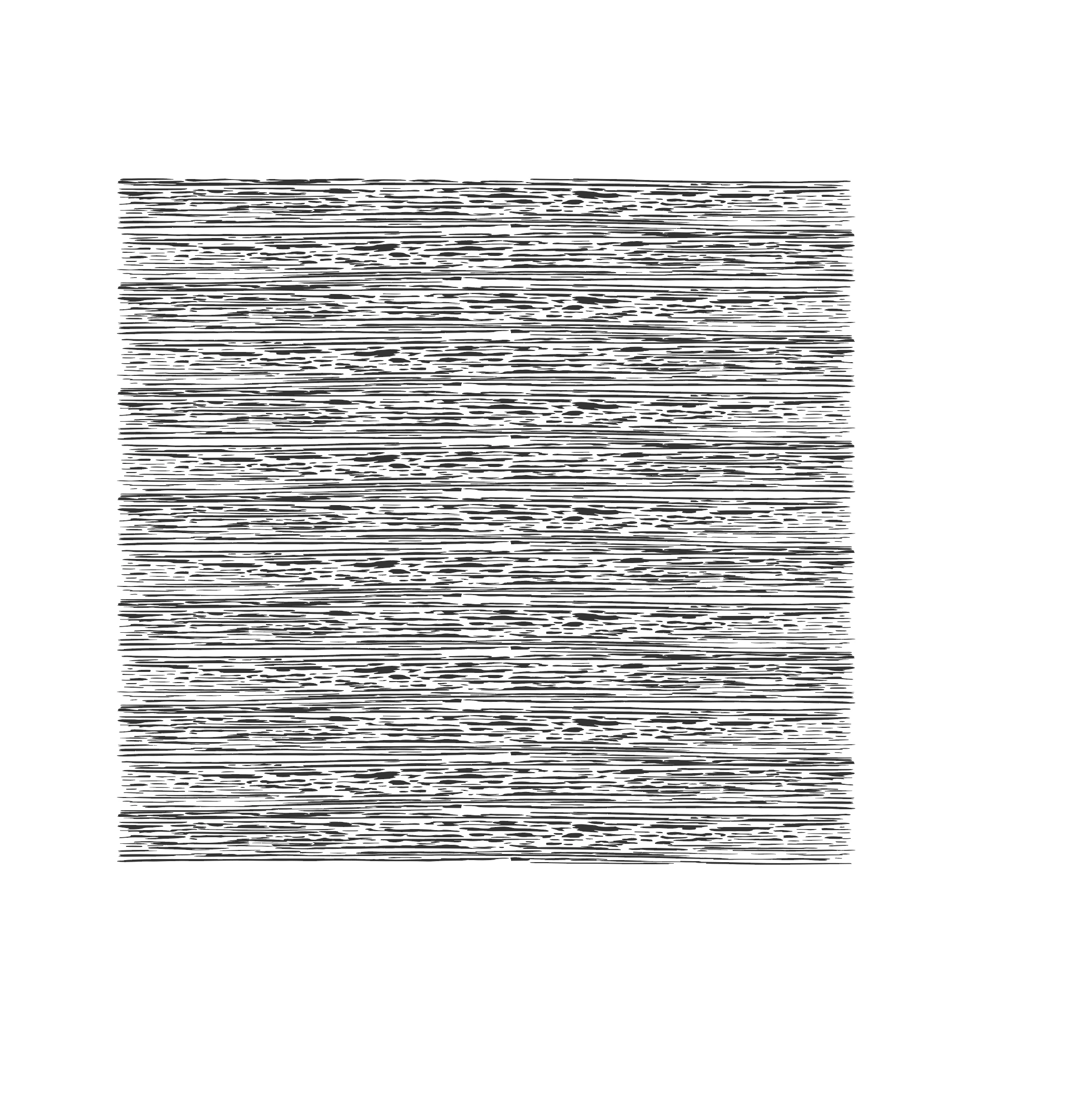
Pls see image.  This texture image is vector.  I'd like to rasterize it in illustrator, and recolor it in illustrator using swatches. Also, I need to maintain transparency of the background.  I do not have photoshop.  I do know how to edit colors-adjust colors but I'd like to be able to quickly change the color using swatches. Its driving me  nuts!
    Ton Frederiks
    Ton FrederiksCorrect answer
    Community Expert
    Sep 12, 2024 5:03 PM UTC

    Object > Rasterize > Grayscale > Background White

    Apply a color

    20 replies

    Participant
    Sep 12, 2024 4:41 PM UTC

    Hi! I'm sorry no one could answer your question. I was not able to figure out how to do it with swatches unfortunately, but this solution could work for someone else:

    1. Rasterize artwork
    2. Edit > Edit colors > Adjust color balance...

    So definitely no swatches but I was able to change the hue. This is in version 28.7.1!

    Translate
    Participant
    Sep 12, 2024 4:44 PM UTC

    actually this didn't work for me perfectly but it won't let me delete my reply LOL. good luck!

    Translate
    Ton Frederiks
    Community Expert
    Ton FrederiksCommunity ExpertCorrect answer
    Community Expert
    Sep 12, 2024 5:03 PM UTC

    Object > Rasterize > Grayscale > Background White

    Apply a color

    Translate
    Participant
    Nov 10, 2018 3:50 PM UTC

    Too bad they cant just answer your question

    Translate
    JETalmage
    Inspiring
    Apr 4, 2017 12:14 PM UTC

    Object>Rasterize>Grayscale or Bitmap. (If using Grayscale, do not turn on the Transparency checkbox.)

    Apply the desired swatch to the fill.

    JET

    Translate
    Ton Frederiks
    Community Expert
    Community Expert
    Apr 4, 2017 12:45 PM UTC

    Yes Bitmap mode can keep transparency.

    Translate
    sheisverycheeky
    Participating Frequently
    Apr 4, 2017 11:36 AM UTC

    I appreciate the responses and there are lots of work arounds, but Im looking to rasterize it in illustrator, and recolor it in illustrator using swatches while maintaining the transparency.

    Translate
    Monika Gause
    Community Expert
    Community Expert
    Apr 4, 2017 11:43 AM UTC

    sheisverycheeky  schrieb

    Im looking to rasterize it in illustrator, and recolor it in illustrator using swatches while maintaining the transparency.

    Please read the introductory parts of the documentation where it explains the difference between raster and vector editing.

    Translate
    sheisverycheeky
    Participating Frequently
    Apr 4, 2017 12:52 PM UTC

    i understand the difference

    Translate
    Dan Rodney
    Community Expert
    Community Expert
    Apr 2, 2017 1:48 PM UTC

    Why do you want to rasterize it first, and then change the color? If it's vector, can't you change the color and then rasterize it (if you really do need to rasterize it for some reason).

    Translate
    Adobe Certified Expert & Instructor at Noble Desktop | Web Developer, Designer, InDesign Scriptor
    sheisverycheeky
    Participating Frequently
    Apr 4, 2017 10:51 AM UTC

    I need to rasterize it first, then change the color because I'm tweaking colors and will need to change the colors dozens of times. I need to rasterize the file as its huge. Do you know how to rasterize it in illustrator, and recolor it in illustrator using swatches while maintaining the transparency?

    Translate
    Ton Frederiks
    Community Expert
    Community Expert
    Apr 4, 2017 11:22 AM UTC

    Your example looks if it can be done with a pattern.

    Then your file would not be huge.

    You can recolor the objects filled with the pattern using Recolor Artwork that will create a new color variation of your pattern.

    No need to rasterize.

    Translate