

Chris  P.  Bacon
Inspiring
October 14, 2022
Question

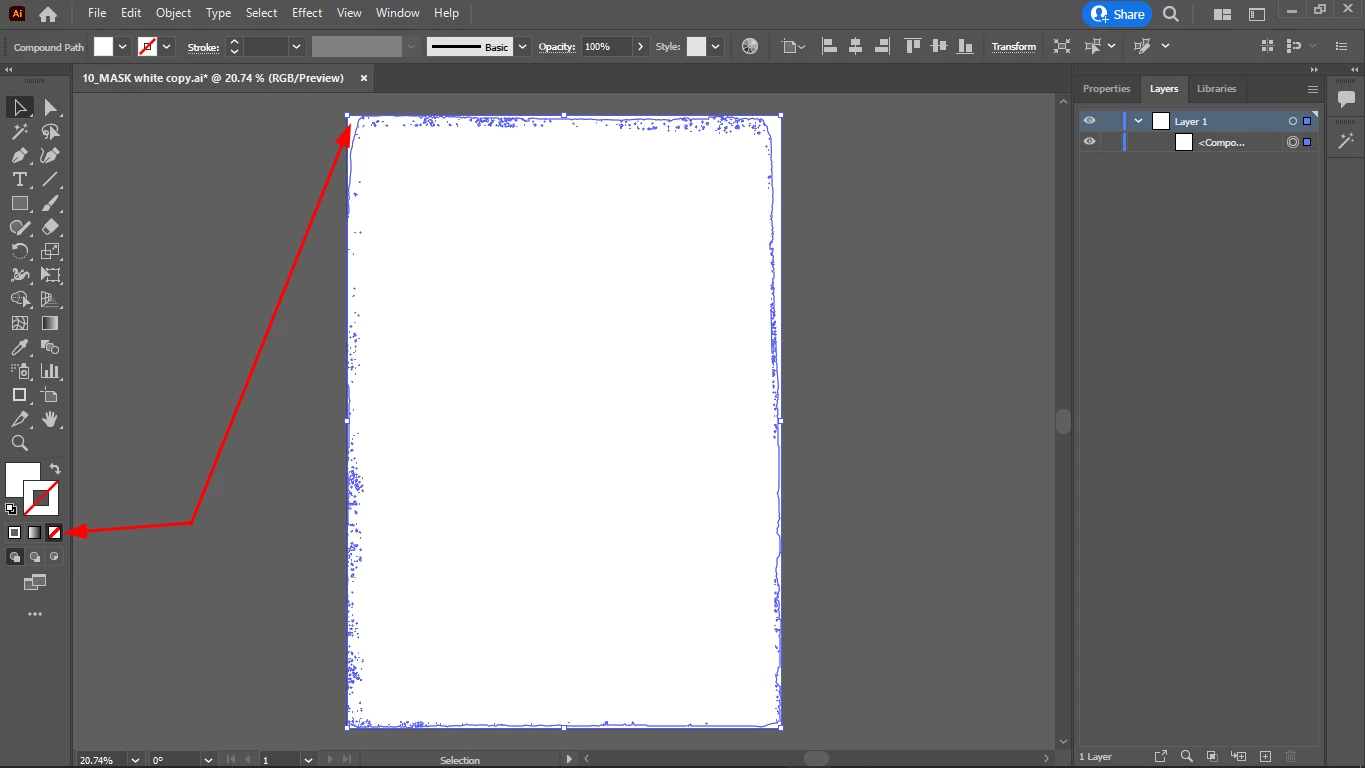
How do I change the color of the selected white rectangle to transparent?
  • October 14, 2022
  • 1 reply
  • 642 views

So far as I know, that rectangle is the AI document, is that right?

I have a white SVG rectangle with brushed edges on it.

When I see this in Adobe Bridge file manager, I can only see a white rectangle, and that's not good because I must see that it has a transparent background.

Because when I place this into InDesign, for example, the background IS transparent.

And as you can see for the rectangle is set "no color", so I don't know why does it show as white in Illustrator and in Adobe Bridge, but not in InDesign? 

This topic has been closed for replies.

1 reply

Ton Frederiks
Community Expert
Community Expert
October 14, 2022

Did you check View > Show Transparency Grid?

Chris  P.  Bacon
Inspiring
October 16, 2022

Yes I did.

I bought these shapes with brushed edges as EPS, those icons with transparency that you see in Bridge on the screenshot, they are EPS.

What I did is that I opened the file in Illustrator, and I changed their fill color to white.

And I saved it as Illustrator files, and Illustrator appended the "converted" string to their file name.

Even though the new AI files are still transparent, I am unable to see the transparency in Adobe Bridge, not in the icons nor in the preview, as you can see it on the screenshot.

Any help would be much welcome.

Ton Frederiks
Community Expert
Community Expert
October 16, 2022

Did you check the Preferences in Bridge for Thumbnails?