


Participant
August 21, 2025
Answered

How do I change the "Create Trim Marks" tool to automatically make the line 1/4" and not 1/2"

  • August 21, 2025
  • 2 replies
  • 257 views

How do I change the "Create Trim Marks" tool to automatically make the line 1/4" and not 1/2"?

I'm looking for a way to keep it automated and not have to go in and manually change them for each file.

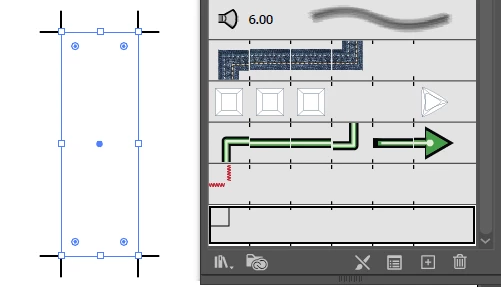
Correct answer CarlosCanto

make your own!! with a Pattern Brush corner tile


It's a workaround so don't expect using this method to be easier than using the native Crop Marks

2 replies

CarlosCanto
Community Expert
CarlosCantoCommunity ExpertCorrect answer
Community Expert
August 23, 2025

make your own!! with a Pattern Brush corner tile


It's a workaround so don't expect using this method to be easier than using the native Crop Marks

creative explorer
Community Expert
Community Expert
August 22, 2025

@Kurdtlhorg Unfortunately, you cannot permanently change the default line length for the "Create Trim Marks" tool in Adobe Illustrator. The default length of inch (12.7 mm) is a fixed setting within the software. BUT, you can edit them with a work-around! 

If it is a one-off, you can do it, but if you plan on doing this all the time, you may want to create an action for it. For the one-off, select the object you want to add trim marks to and go to Object > Create Trim Marks.

Now that they are editable, you can use the Direct Selection Tool (A) to grab the individual endpoints of the lines and drag them to shorten or lengthen them.


m
Kurt Gold
Community Expert
Community Expert
August 22, 2025

Hi Creative Explorer,


how would you set up the action you suggested to get custom sized trim marks?