robbev17366444
Participating Frequently
January 19, 2018
Answered

How do i combine 2 paths with a sharing endpoint?

  • January 19, 2018
  • 3 replies
  • 1209 views

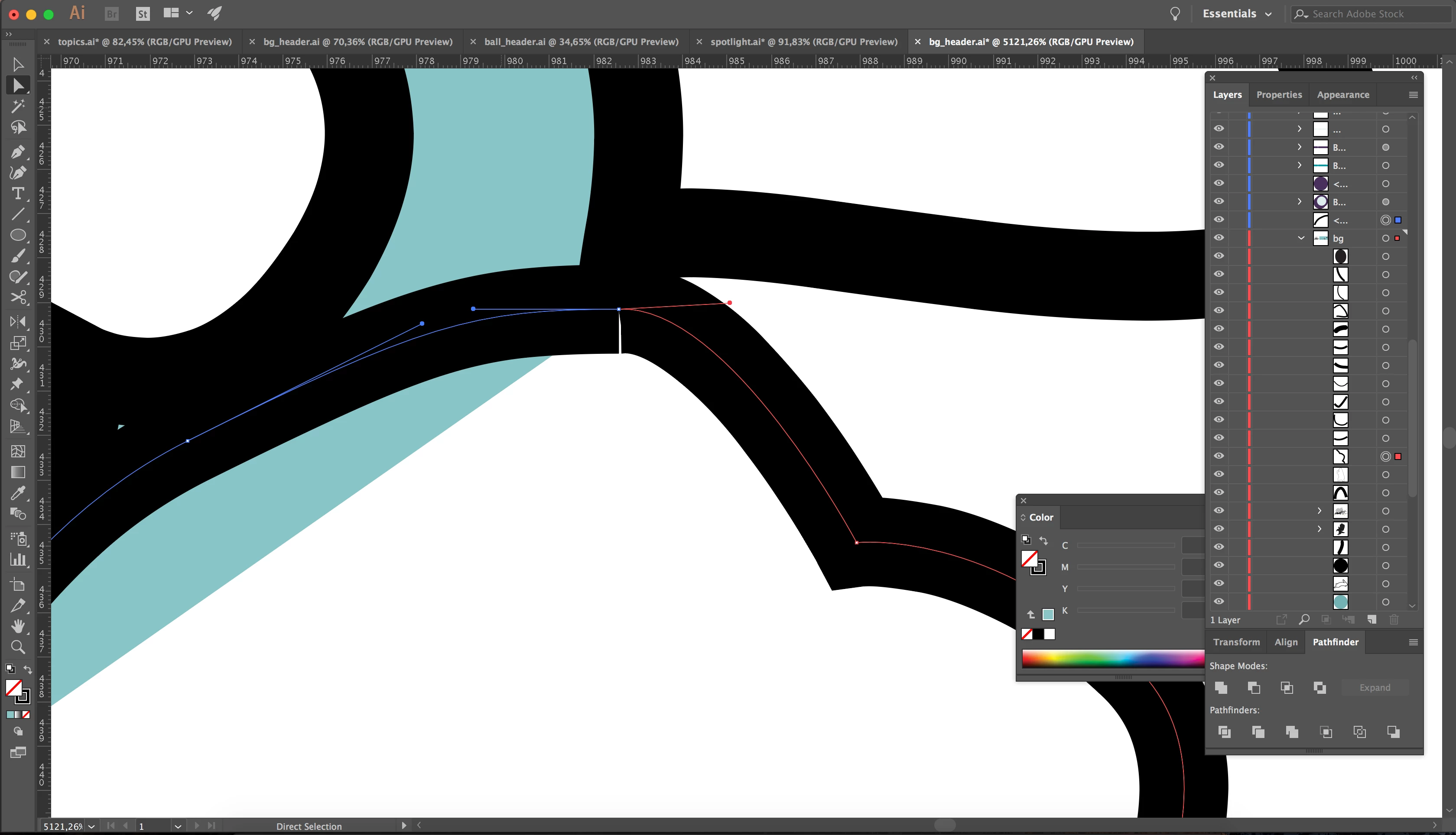
How do I combine these 2 paths so i can give them a fill?

They have the same endpoints.
This topic has been closed for replies.
Correct answer Bill Silbert

The simplest way is to select the two endpoints using the direct selection tool and first averaging them and then using a key command to join them. See screen shot:
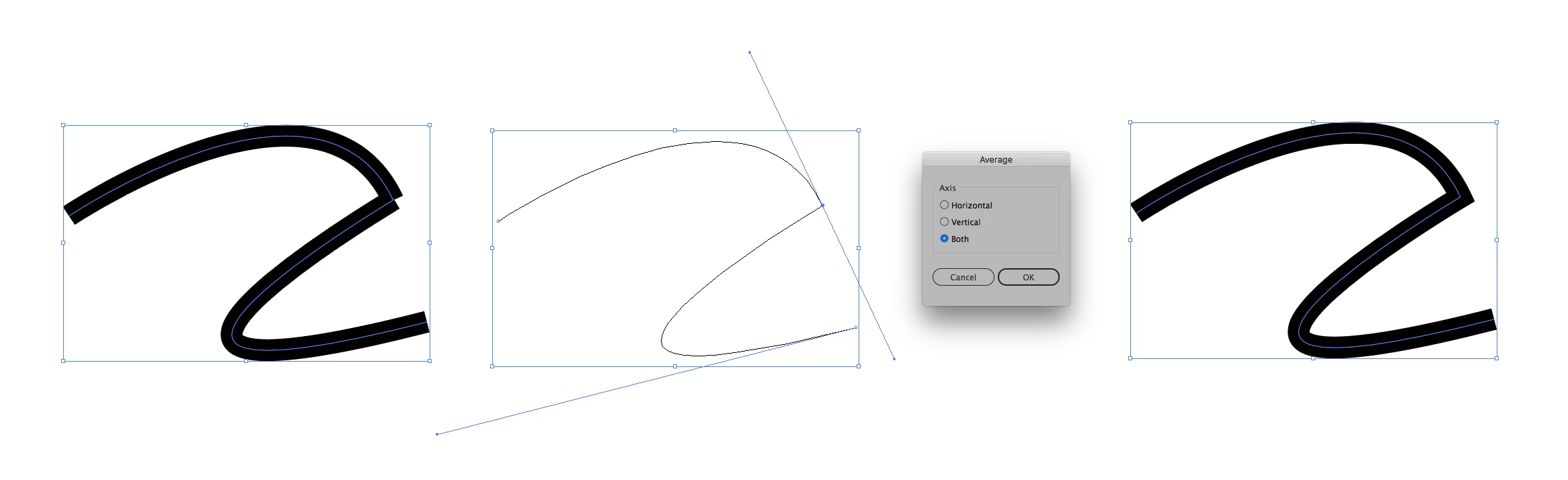
The first picture shows the two paths before joining. I then went into the artwork mode (which makes selecting the endpoints easier) using the key command Command (Mac)/Control (PC)-Y. Then I used the direct selection tool (white arrow) to pull a selection ring (officially known as a Marquis) around the two endpoints to select them. I then used the average command (Command-Option (Mac)/Control-Alt (PC)-J) to bring up the dialog shown and chose the option to average the points both horizontally and vertically. Then I joined the two points with the command Command (Mac)/Control (PC)-J.

3 replies

JETalmage
Inspiring
January 19, 2018

You don't have to tediously select the endpoints to join the paths. If they are "fully selected" the Join command will join them at their nearest endpoints. So either select the two paths with the black pointer, or AltClick them with the white pointer (thereby selecting all the AnchorPoints) when selecting them.

If they have endpoints which are truly coincident as your description states, the two points will become one. If they only appear to be coincident, there will actually be a segment added between them.

JET

Bill Silbert
Community Expert
Bill SilbertCommunity ExpertCorrect answer
Community Expert
January 19, 2018

The simplest way is to select the two endpoints using the direct selection tool and first averaging them and then using a key command to join them. See screen shot:

The first picture shows the two paths before joining. I then went into the artwork mode (which makes selecting the endpoints easier) using the key command Command (Mac)/Control (PC)-Y. Then I used the direct selection tool (white arrow) to pull a selection ring (officially known as a Marquis) around the two endpoints to select them. I then used the average command (Command-Option (Mac)/Control-Alt (PC)-J) to bring up the dialog shown and chose the option to average the points both horizontally and vertically. Then I joined the two points with the command Command (Mac)/Control (PC)-J.

Ton Frederiks
Community Expert
Community Expert
January 19, 2018

Select both points and choose Object > Path > Join?

robbev17366444
Participating Frequently
January 19, 2018

There are no 2 points.

It says in the description that they have the same endpoint

Bill Silbert
Community Expert
Community Expert
January 19, 2018

Since the screen shot shows that their selection is in different colors which means that they are on different layers then despite looking like they are in the same place they are indeed two different endpoints.
