
Participant
July 17, 2018
Answered

How do I combine my work into one object in Illustrator?

  • July 17, 2018
  • 2 replies
  • 1469 views

     On one layer I have a black line drawing, underneath that I have another layer where I've painted to fill in the drawing with color. I want to combine those two layers so that I can manipulate them as one object.

     I tried to merge them and that didn't work. I think part of the problem is that on the painted layer, I've created many different paths. I'd like to combine everything into one.

     I'm very new to illustrator. More used to working in photoshop. Hopefully this makes sense.
This topic has been closed for replies.
Correct answer michelew83603738

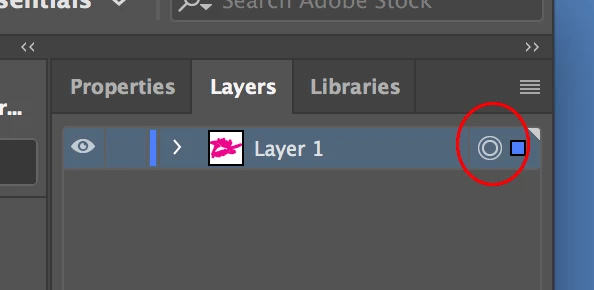
Just select them all - you can either use the selection tool and hold the shift key to select them all or click away and sort of marque them all until selected. You can also select from the layer panel itself, clicking at the right and holding shift if on more than one layer.

2 replies

michelew83603738
Community Expert
Community Expert
July 17, 2018

Hi, what is it that you are trying to do? When you use a brush, you end up with a lot of separate paths, rather than a shape with a fill. But depending on how you want to manipulate these shapes together, you might simply be able to group (Ctlr/Cmd +G) them and they will move together and certain functions would affect the group as a whole. So let us know what you want to do.

Monika Gause
Community Expert
Community Expert
July 17, 2018

marykater21365055  schrieb

     On one layer I have a black line drawing, underneath that I have another layer where I've painted to fill in the drawing with color. I want to combine those two layers so that I can manipulate them as one object.

Can you perhaps describe in detail what you mean by "manipulate"?

Most probably you can just group your objects and you're good.

If you want to keep different colors, you must also keep different paths for them.

Elements that have the same color might of course be united into one path. How to do that, depends on the nature of your objects.

Participant
July 17, 2018

I'm very new to this and I'm not sure how to try to group them if they are directly on top of each other.

By manipulate, I mean to be able to move them around at the same time, resize them, and rotate them.

michelew83603738
Community Expert
michelew83603738Community ExpertCorrect answer
Community Expert
July 18, 2018

Just select them all - you can either use the selection tool and hold the shift key to select them all or click away and sort of marque them all until selected. You can also select from the layer panel itself, clicking at the right and holding shift if on more than one layer.