That would be a starting over from scratch method, in a quick and dirty fashion. If the original poster wants to make an exact duplicate of the existing object it will still have to be broken apart to take note of the line thickness as well as the roundness of the corners. My first two suggestions (out of 3) don't take more than a few seconds to do.
thank you all so much for answering! what i am actually trying to do is to connect all the dots of this pants pattern that i want to send to clo3d. while i didnt know how to do it, i just traced each piece with pen tool, it worked, but i wanted to find a quick way to do this.
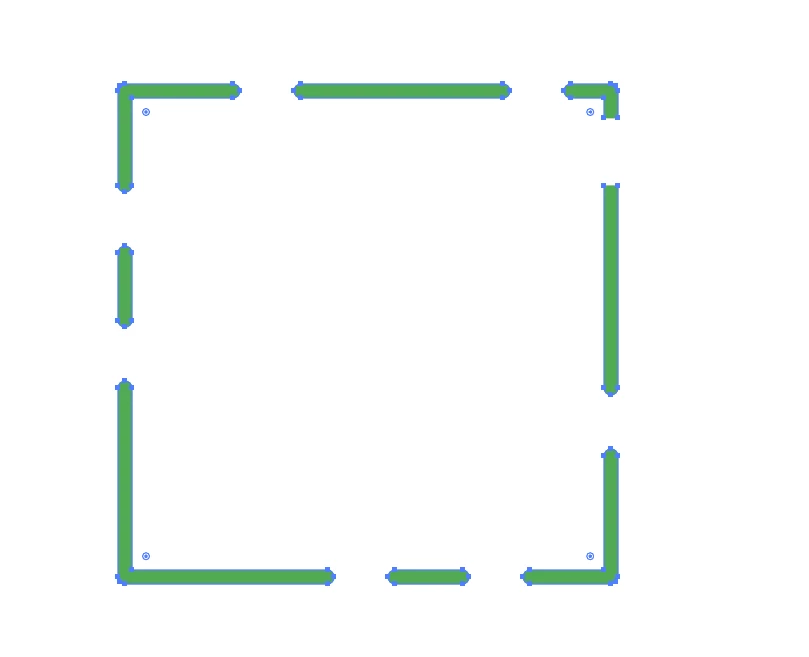
You can use the Direct Selection tool to drag the anchor points on the ends of those dashes to overlap the white gaps. Use the shift key to constrain horizontal and vertical movement when dragging. Then use the Unite function in the Pathfinder palette to weld over the overlapping paths.
Another method: break apart that compound path (Object>Compound Path>Release) and/or Ungroup it. Sometimes both has to be done. Hold down the Shift and Alt/Option keys to drag new copies of the straight dashes to fill the gaps. Then use the Unite command to weld the objects.
Another approach (probably more time consuming): use the Direct Selection tool to select all the anchor points next to the gaps and then use the Cut command (scissors icon) to break open the paths. Ungroup the results. Delete the half circle path segments of those paths. Span the open line gaps by selecting the anchor points at each gap with the Direct Selection tool and using the Join command (Ctrl/Command+J).



 AdChoices