
brookep71165178
Participating Frequently
January 27, 2018
Question

How do I copy and paste a glowing star and use it on a white background

  • January 27, 2018
  • 4 replies
  • 4793 views

Hello!

I have a .ai format vector stock image of some glowing stars that I want to use for another project. I need one of the stars. I have tried copying and pasting the star as it is in the .ai document onto another document and it keeps displaying a black background.
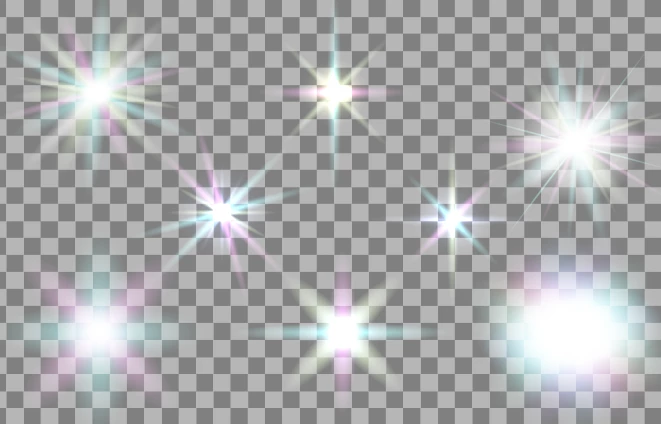
I try selecting the star and copying it into another document for use, and it does this

How do I take the black away and have the glowing star remain on my other document??

Thank you!

B

This topic has been closed for replies.

4 replies

Marka_j
Participant
February 6, 2019

I have exactly the same problem.

I followed this tutorial:

⭐⭐⭐Transparent stars very quick - Awesome Adobe Illustrator tutorial - YouTube

but I wish I had black stars on a white background and it does not work.

I thought I would find the solution using Pathfinder, but that does not work either 

Monika Gause
Community Expert
Community Expert
February 6, 2019

Please upload your AI file to Dropbox or the like and tell us what exactly you want to achieve with it and what exactly does not work. That way we don't need to watch a video.

Marka_j
Participant
February 6, 2019

oups, yes of course

Dropbox - Stars.ai

Ray Yorkshire
Participating Frequently
January 29, 2018

Could you just place the other document into the star document instead?

Kris Hunt
Legend
January 27, 2018

Select every occurrence of a [color]-to black gradient and change it to a [color]-to-transparent [color] gradient.

rcraighead
Legend
January 28, 2018

This can be done in one step by using the "Select>Same" menu command and changing the selection to White, "0" opacity.

brookep71165178
Participating Frequently
January 29, 2018

When I do that it gives me this... how do I change them to white with accent colours instead of black?

Monika Gause
Community Expert
Community Expert
January 27, 2018

The stars (or the layer they're on) most probably have a blend mode applied in the transparency panel.

Please open the source document, select one of the stars and open the appearance panel. Show us a screenshot of that. Together with the layers panel.

brookep71165178
Participating Frequently
January 28, 2018

Monika Gause
Community Expert
Community Expert
January 28, 2018

You will need to inspect the objects inside those groups. But in this case the blend mode must be applied to the single objects and thus also be copied and pasted.

The source document is an RGB document - is your new document also RGB? In CMYK you will get in trouble with those stars.

Also: there needs to be an object underneath those stars or the effect won't work.