May 24, 2017
Answered

How do I create outline/bleed on irregular shape

  • May 24, 2017
  • 2 replies
  • 6367 views

Hello everyone.

Fairly new to illustrator and need help.

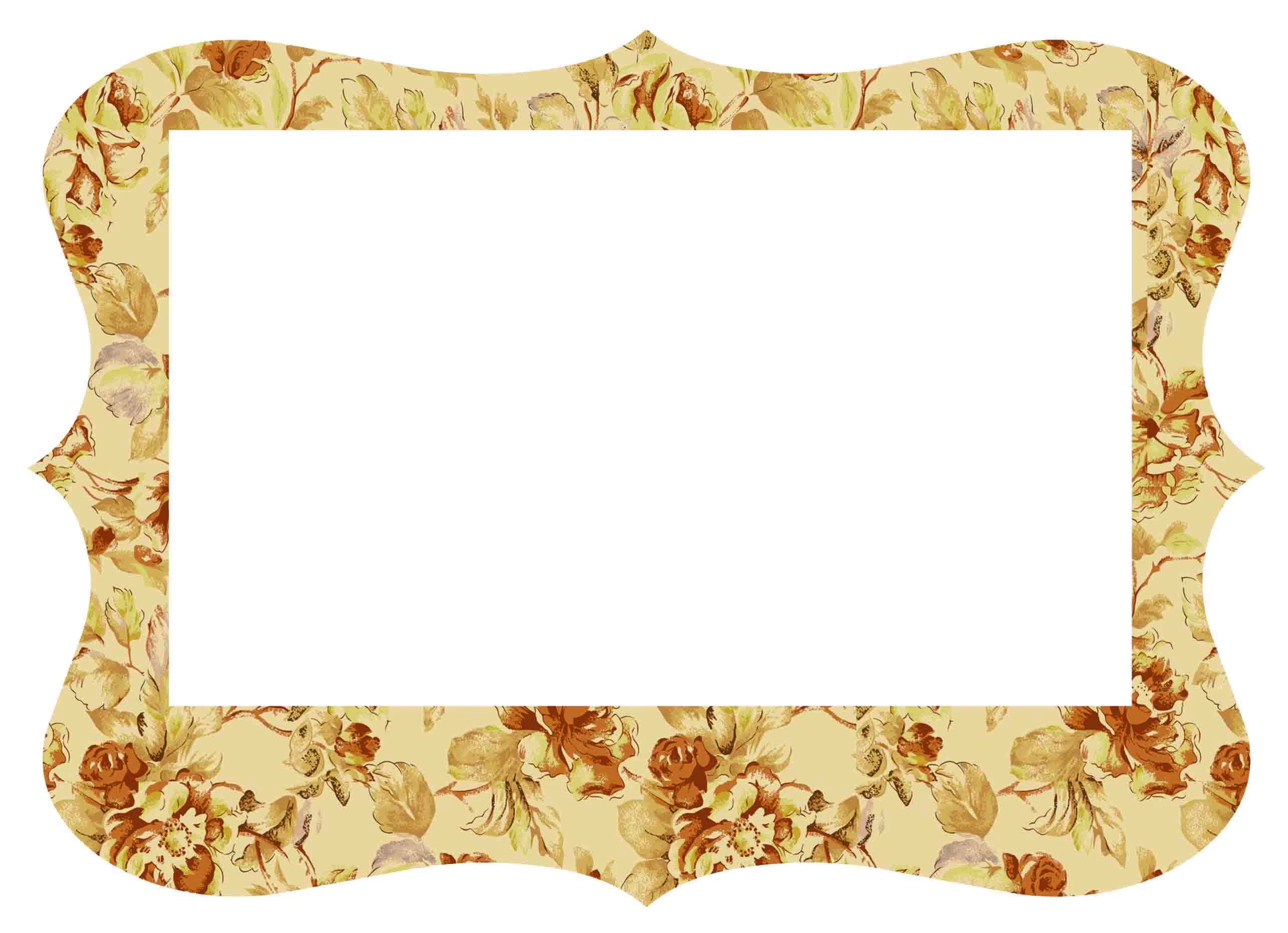
I have a picture which I am trying to create a bleed to so I can send it to be printed and cut.

As you can see in the picture it is not a rectangle shape. I need the outer shape to be cut as well as the inner rectangle.

I have tried to google answers and most comes up with path, path offset, or path stroke. But my options in path are greyed out, so I cant choose these.

the picture is saved as cmyk, tiff at the moment.

If it can be done in photoshop too, then that will be great

Please can someone help me.
This topic has been closed for replies.
Correct answer JJLAPIN

1. Use what you have now as a FPO to make your Die.

2. Make a Path of the Outer and Inner shape. This will be on a Layer called Cut. Make it 100% cyan and make it a Spot Color.

   1pt Stroke.

3. In Photoshop fill a Rectangle Fully with the image you have. No white. Make it to Bleed at least a 1/4 inch past the die.

4. Place Image on another layer below your Die.

5.Your Done.

2 replies

JJLAPINCorrect answer
Participating Frequently
May 24, 2017

1. Use what you have now as a FPO to make your Die.

2. Make a Path of the Outer and Inner shape. This will be on a Layer called Cut. Make it 100% cyan and make it a Spot Color.

   1pt Stroke.

3. In Photoshop fill a Rectangle Fully with the image you have. No white. Make it to Bleed at least a 1/4 inch past the die.

4. Place Image on another layer below your Die.

5.Your Done.

May 24, 2017

Sorrycomplete noob question, but what FPO

Participating Frequently
May 24, 2017

For Position Only.

After cutting your Path you can turn off that layer or delete it.

TheFroyd
Participant
May 24, 2017

Good morning!

How was this created? Is it a raster image or vector?

Offset path only works on paths so you need to create the outline of the shape of your frame, use Offset Path, the delete the original path and you will now have the new path for your bleed.

May 24, 2017

I created this in photoshop.  I inserted a shape, cut out the middle with a rectangle marquee, and the put a pattern overlay ontop.

So im not sure if its vector or raster. Sorry still new to everything

TheFroyd
Participant
May 24, 2017

Ok so it looks like it's a raster image.

Few questions:

  1. Where are you sending this to get printed and cut? I don't actually think you'll need bleed for this.
  2. Are you familiar how bleed works? You'll need the graphic of the pattern to extend past the "bleed" marks.

You could just shrink the inner box to give the project more width. Then tell the printers you want an 1/8" bleed.