Participant
February 5, 2019
Answered

How do I create transparency after tracing an image and expanding

  • February 5, 2019
  • 2 replies
  • 560 views

Hello,

I have a problem I hope you can help me with.

I am creating a vector of Insects based on scanned books. I started by cleaning them up and making them transparent in Photoshop and saving them as a PNG file.

I also wanted to turn the PNG into a Vector using image trace, then expand to later save as an EPS file.

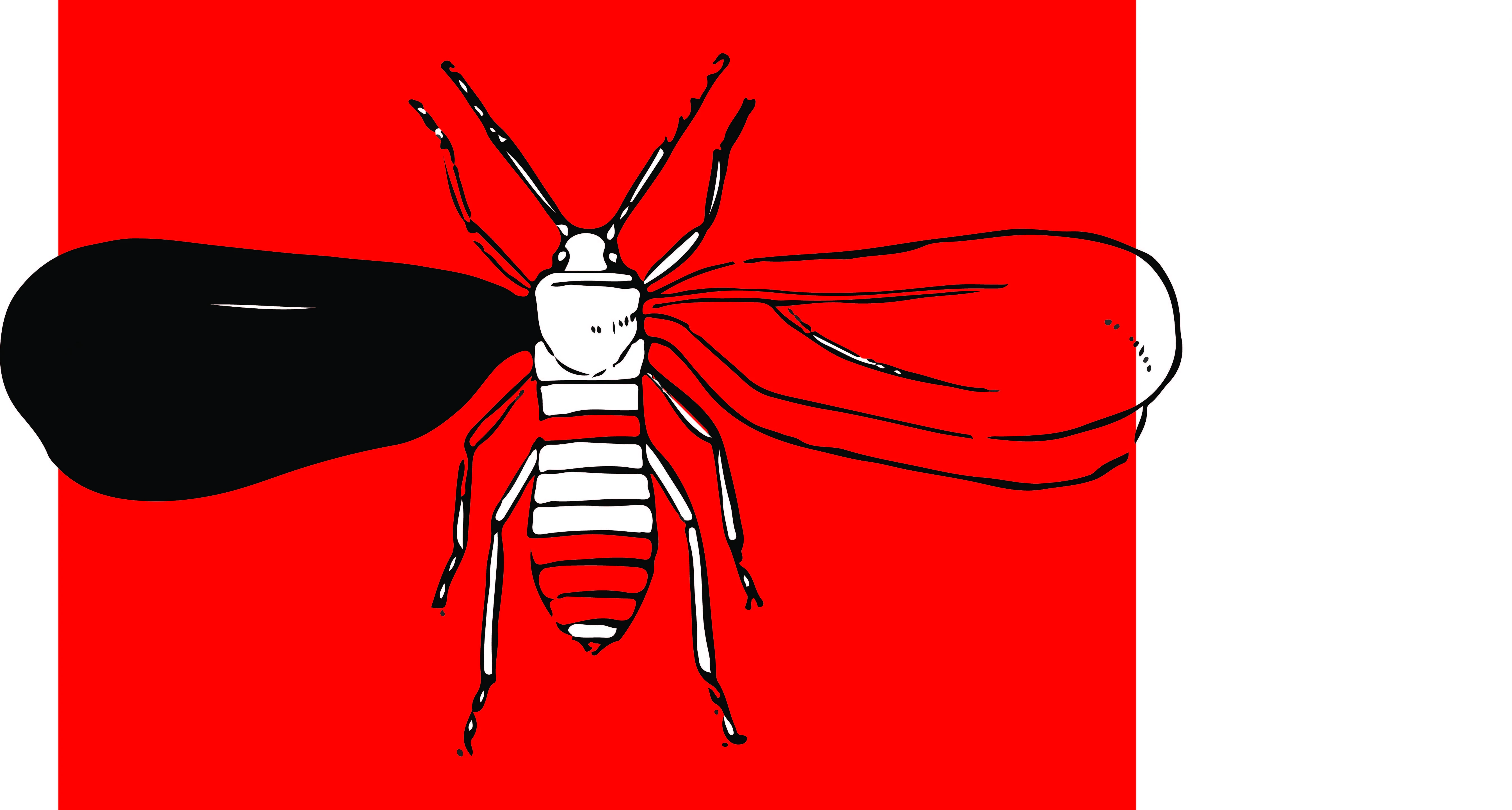
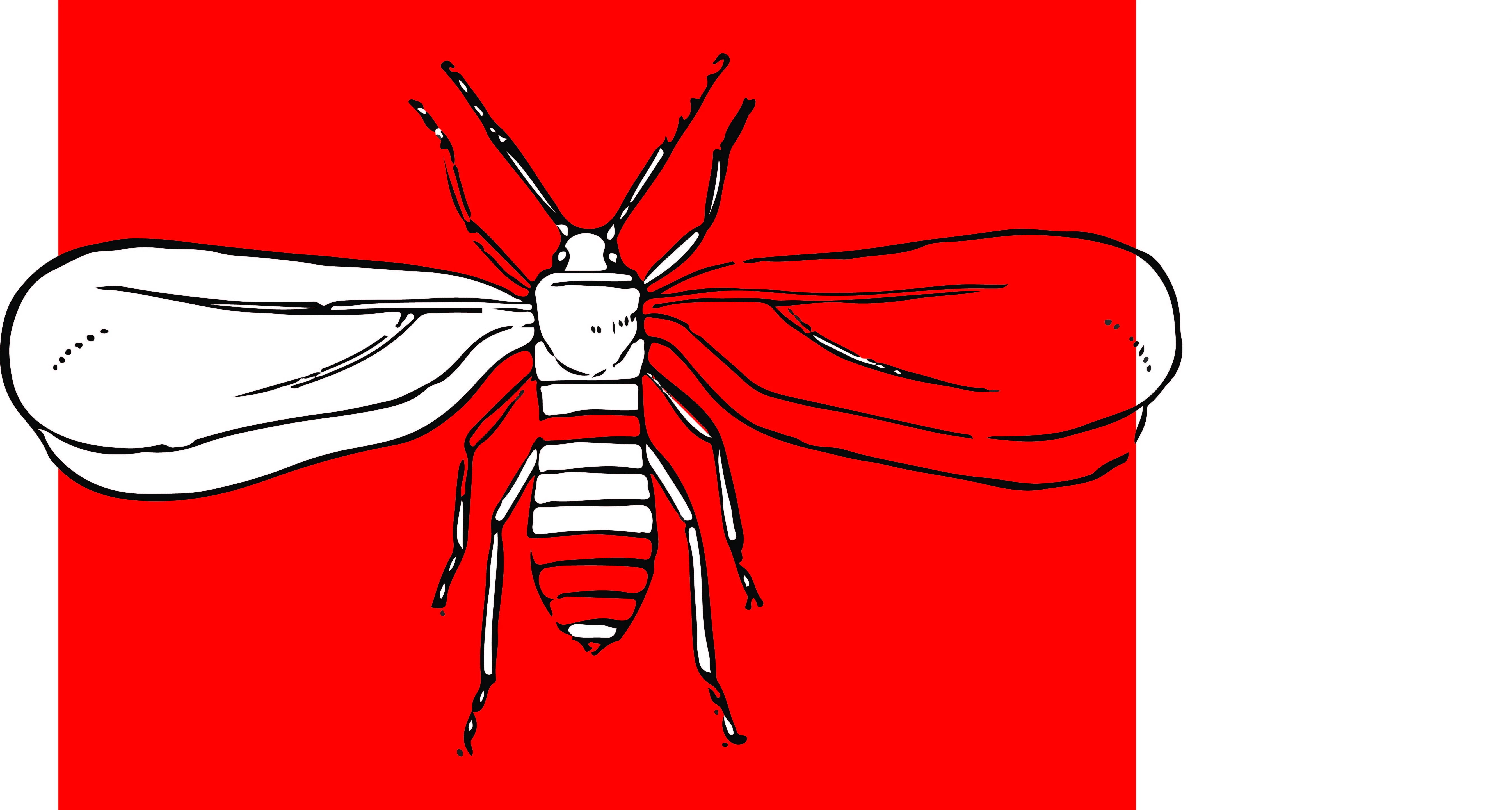
After tracing and expanding the PNG file I get the result as you can see below. I understand why it has happened but what I would like to know is how to remove the white area to make it transparent without leaving a black space as you can see in the second image when I delete the white vector shape, making it completely transparent and only leaving the black outline.

I hope that makes sense and any feedback would be much appreciated.

Kind regards,

James
This topic has been closed for replies.
Correct answer John Mensinger

Two things:

When you run the trace, make sure "Ignore White" is selected.

If it was selected, and you still got the result shown above, then after expanding, you could try this:

  1. Select a white-filled element
  2. Choose Select > Same > Fill Color
  3. Choose Object > Path Compound Path > Make
  4. Select a black-filled element
  5. Repeat steps 2 and 3
  6. Select All
  7. Click the Pathfinder's Minus Front button

2 replies

John Mensinger
Community Expert
John MensingerCommunity ExpertCorrect answer
Community Expert
February 5, 2019

Two things:

When you run the trace, make sure "Ignore White" is selected.

If it was selected, and you still got the result shown above, then after expanding, you could try this:

  1. Select a white-filled element
  2. Choose Select > Same > Fill Color
  3. Choose Object > Path Compound Path > Make
  4. Select a black-filled element
  5. Repeat steps 2 and 3
  6. Select All
  7. Click the Pathfinder's Minus Front button
jamesdeneAuthor
Participant
February 5, 2019

Hi,

Yes, ignoring white did the job. Simple, but I missed it. Thank you very much for your help.

Kind regards,

James

Monika Gause
Community Expert
Community Expert
February 5, 2019

Which settings did you use when tracing this?

Did you use the overlapping setting or the knockout setting?

jamesdeneAuthor
Participant
February 5, 2019

Hi,

Thank you for responding. I just needed to click the ignore the white selection to fix the issue. Cheers