Participant
April 2, 2018
Answered

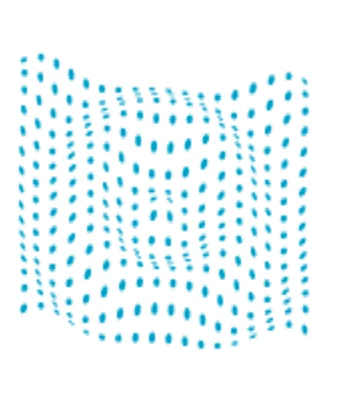
How do I do this effect in illustrator?

  • April 2, 2018
  • 2 replies
  • 831 views

Anyone know how to do this so uniformly? I have tried the pucker and bloat tool, but it doesn't feel as sophisticated.
This topic has been closed for replies.
Correct answer saeedalkarmi

Hi,

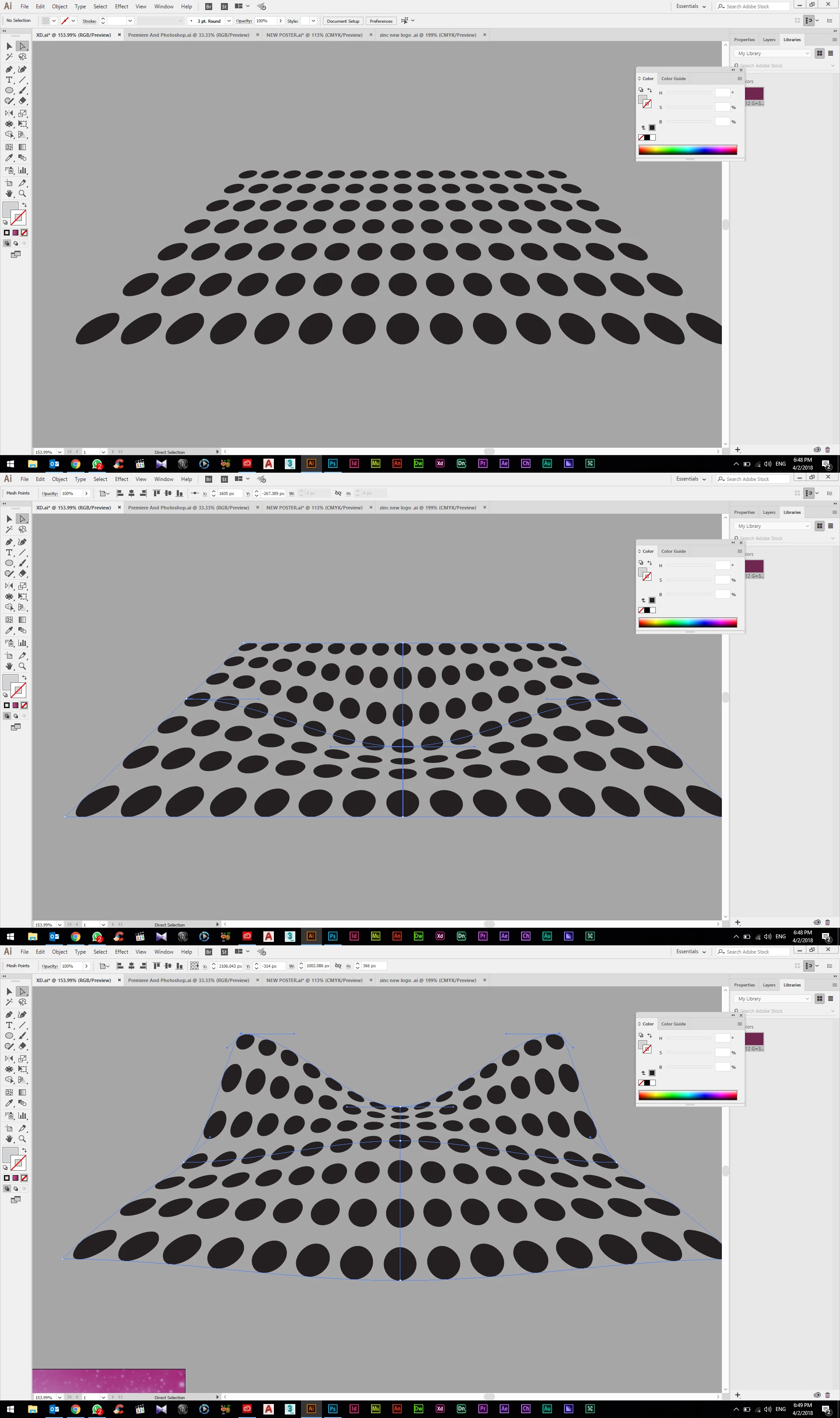
You can use that command to get the result you post,

See the image attachment please

Press Object > Envelope distort > Make with mesh. then you can reshape the paths and anchors to make the ripple effect

Hope you finds well
Regards

2 replies

Monika Gause
Community Expert
Community Expert
April 2, 2018

Make a symbol,

map it on a 3D object with the option "Hide Geometry".

saeedalkarmi
saeedalkarmiCorrect answer
Participating Frequently
April 2, 2018

Hi,

You can use that command to get the result you post,

See the image attachment please

Press Object > Envelope distort > Make with mesh. then you can reshape the paths and anchors to make the ripple effect

Hope you finds well

Regards

macpawel
Participating Frequently
April 2, 2018

Be sure you are using a group of dots (example) and use Envelope Distort > Make with Mesh

Here use 4 or 5 dividers (horizontal, vertical) and using White Arrow (A) start to transform jour points.

If you use more points it's more difficult to adjast their position. Too less it's difficult to do what you want

pawel

zmirlin12444000
Participant
April 3, 2018

When I offset path to a negative number, It does not work. No thinner version of the text appears. However, using a positive number works, it just means my Neon Text is fatter than I'd like.
