jonasa12363983
Participant
January 29, 2020
Question

How do I duplicate anchor point transformations?

  • January 29, 2020
  • 4 replies
  • 3760 views

Hi!


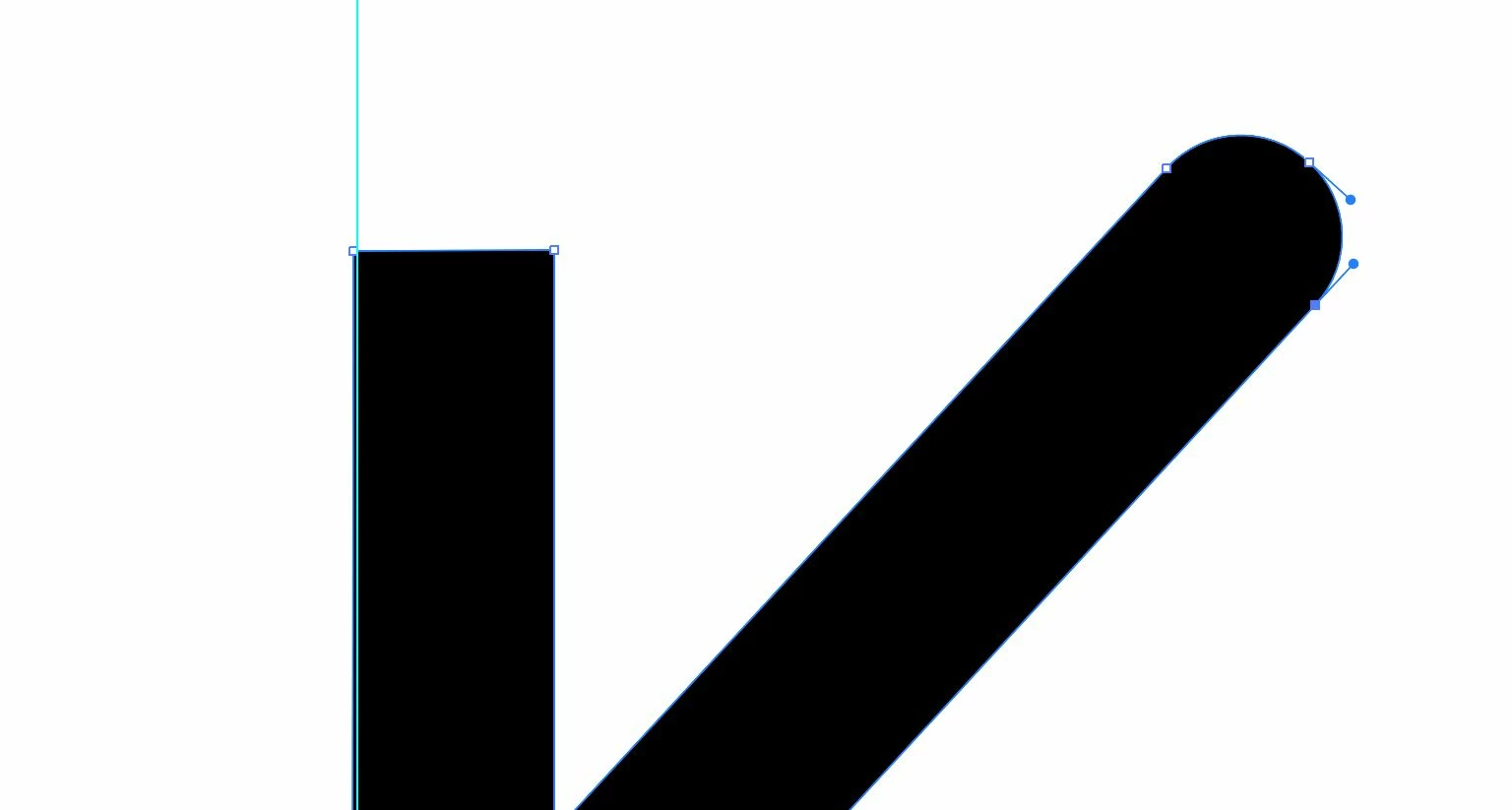
This SHOULD by all means be a super simple thing. I have tried to find a way to do this but maybe I am missing something. When you have made transformations to an anchor point you want to make the same transformation for a dozen of other anchor points. How do I copy/paste those transformations?


It would be completely riddiculous if this feature didnt exist, so I am just going to assume it does and I like to know how to find it.


I need to copy the anchor points to the right and insert them on the end of the other shape so that they are identical. I cant go back and use the first shape to replicate the second because they are all part of a much larger shape.
 

This topic has been closed for replies.

4 replies

Jacob Bugge
Community Expert
Community Expert
January 29, 2020

For my part you are welcome, jonasa.


Are you sure you went through the whole set Ctrl/Cmd+C+F+X+F?


As far as I can see, using the Live corners would change the paths shapes/lengths significantly, the (former) corners no longer being part of the paths (boundaries).

Myra Ferguson
Community Expert
Community Expert
January 29, 2020

If you're looking to make all of your corners rounded by the same amount, use the Direct Selection Tool (A) to select all of the ones you want adjusted. You'll see little circles pop up inside each corner. Those are the Live Corner Widgets. Select one and drag it in. All the selected corners will be adjusted by the same amount.

jonasa12363983
Participant
January 29, 2020

Live corners are sometimes there and sometimes not. Seems to be a random Illustrator industry standard 🙂

Monika Gause
Community Expert
Community Expert
January 29, 2020

If they aren't showing, check if there are actually 2 anchor points on top of each other.

Jacob Bugge
Community Expert
Community Expert
January 29, 2020

Jonas,


Presuming you have the same width (otherwise you will have to do a bit of further adaptation and scaling), you may, Smart Guides being your friends:


1) With the Direct Selection Tool click an empty spot to deselect, then ShiftClick the two customized end segments and Ctrl/Cmd+C+F+X+F, then Ctrl/Cmd+J;


This will give you an open end path at the very top of the stacking order consisting of the rounded end (shape);


2) Move the new path to a suitable place where you can see it and work on copies, for the vertical end as follows;

3) With the Selection Tool Alt/OptionClickDrag (to move a copy and leave the original behind for next time) it by the lower right Anchor Point to snap to the rightmost corner Anchor Point of the vertical end;

4) Switch to the Rotation Tool and click the snapped Anchor Point (to make it the centre of rotation, then ClickDrag the other end Anchor Point to snap to the leftmost corner Anchor Point of the vertical end;

5) Select both paths and Pathfinder>Unite (you can postpone this and perform it for all the additions in one go).


If there is a mismatch in width you can scale (uniformly) to get a fit.


jonasa12363983
Participant
January 29, 2020

Thanks. The black parts in the image are actually not the shape. The white is the shape, a large compound path..


I ended up replicating the "curved" end by duplicating the whole compound path removing everything but the curve shape from the duplicate Positioning it above the other "ends" that needed the curve shape uniting both compound paths and then fine tuning some anchor points.


Riddiculous amount of work for such an operation that should be simple. But it worked 🙂

Eric Dumas
Community Expert
Community Expert
January 29, 2020

Hi,

Can you confirm the version of the software and the operating system you are using?

As far as I know this not possible the way you describe it.

The alternative to cut a piece of the duplicated shape and pasting that somewhere else would be quick but a bit 'dirty'.

You can suggest improvements through this wishform https://www.adobe.com/products/wishform.html