
Participant
May 9, 2019
Question

How do I evenly distribute a grid of dots within an amorphous shape?
  • May 9, 2019
  • 4 replies
  • 4869 views


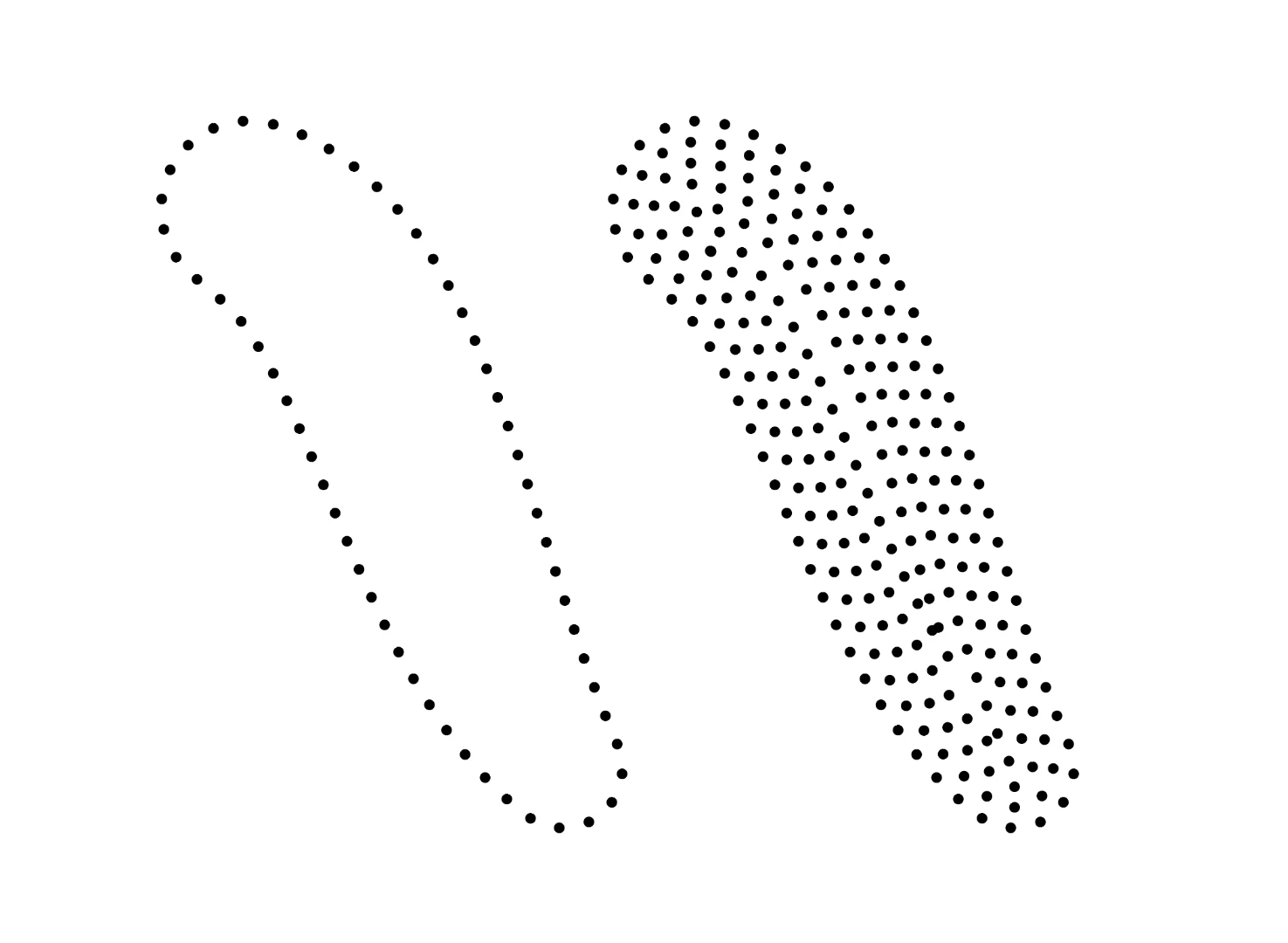
I have this amorphous blob shape outlined by evenly spaced dots. I am looking for a way to fill the shape with dots so that they are evenly spaced, and possibly on a grid. The filled shape on the right is along the lines of what I'm shooting for, but with the dots spaced more perfectly. I'm okay with the dots changing scale if they need to accommodate each other in the areas where the blob gets thinner — so long as the dots on the outside remain perfectly on the path. Any ideas?

4 replies

Jacob Bugge
Community Expert
Community Expert
May 18, 2019

Austin,

You may try use a script that fills a path with shapes, using oversize shapes which can be replaces by smaller dots, and applying it to a smaller offset path, with the original set of dots on the original path; but the random inner distribution may fail to fit the outer row of dots and give a coherent appearance, maybe a bit like a wall with hewn rocks filled with rubble.

You may try this:

1) Create a dot as a fill/nostroke circle and make it a New Scatter Brush with a Spacing in % equalling to the desired ratio of distance to dot size (as in your outer path), if you have used a Dashed line it is the ratio of Gap to Stroke Weight;

2) Apply the Scatter Brush to the outer path;

3) Object>Path>Offset Path with a negative offset equalling the distance between dots enough times to reach the middle in a reasonable way (not too many times);

If you wish to have the dots on one or more paths displaced for better initial match (without lines across the paths), you may:

4) Click the relevant path(s) with the Scissors Tool where you wish a dot;

Now you have paths with brushes;

5) Select everything and Object>Expand Appearance;

6) For each of the resulting Groups (top to bottom in the Layers palette):

6A) (Unlock and) Select the Group and Lock all other Groups, then Ctrl/Cmd+Shift+G twice to Ungroup into single dots and the underlying path, then Ctrl/Cmd+G to Group;

6B) Direct Select the underlying path and give it a (thin) Stroke;

Now you have a set of Grouped dots on paths, each mostly evenly distributed along the path but some with dots too close;

7) For those paths with dots too close (Unlock and) Select the Group and Lock all other Groups, then Ctrl/Cmd+Shift+Group to Ungroup, then Click both dots (in each set) too close and Align both vertically and vertically so they coincide (you may delete one of them) and maybe snap to/move along the path, then Ctrl/Cmd+Group to Group;

Now you have a first adjustment following the paths;

8) Unlock everything and adjust further by moving Groups (paths with dots) with the Selection Tool and add/move individual dots (away from their paths) with the Direct Selection Tool to get the best visual distribution of dots;

9) Move a copy of the whole thing and Direct Select one of the paths, then use Select>Same>Fill & Stroke to select all paths and press Delete to really see;

10) You may delete 9) and adjust further as in 8) and/or 7) and create 9) again until you are satisfied.

Here is a simple sample of the original offsetting, a (crude) hasty adjustment over a few steps 7)/8), and the resulting 9):

Mike_Gondek10189183
Community Expert
Community Expert
May 9, 2019

This script is old, but is still worked in CC2018 so hope it still does. Just set your min and max to the same value.

How to distribute shapes within another shape in Illustrator - Illustrator Tips - Vectorboom

Participant
May 18, 2019

I found another one similar to this called Collider Scribe, the problem is that the dots aren't distributed evenly. I am trying to achieve something more along the lines of this:

Kind of like the grid distribution on the left, but with the dots on the border of the shape remaining equally spaced (right shape) — it would also be better if the grid didn't feel so "3D," I just applied the gradient mesh tool to the shape on the left because it did a good job of distributing the dots with some rhyme and reason.

Monika Gause
Community Expert
Community Expert
May 19, 2019

Use the plugin Mesh Tormentor to convert it to a "Brush Mesh Grid"

Then delete all the groups that have invisible content.

Select the remaining group and then Select > Object > Handles

Cut

You're left with an array of anchor points

Create a scatter brush with a dot in the size you want.

Apply to the anchor points.

Grant H
Community Expert
Community Expert
May 9, 2019

you can negatively offset the path stroked with a dot pattern brush a few times... Then because there will be a few weird shapes expand ungroup etc and change to shapes (effects)> ellipses ... this didnt take too long:

Participant
May 18, 2019

“ Then because there will be a few weird shapes expand ungroup”

^ thanks for the insight grant, although, these weird shapes are what I am trying to avoid. That negative path offset is what I was already doing, and hoping to get a perfect distribution somehow. See how your shape has that void moving up it’s vertical center, and the dots are not all perfectly spaced?

Monika Gause
Community Expert
Community Expert
May 9, 2019
Participant
May 18, 2019

Not, for rhinestones, just for graphic purposes.