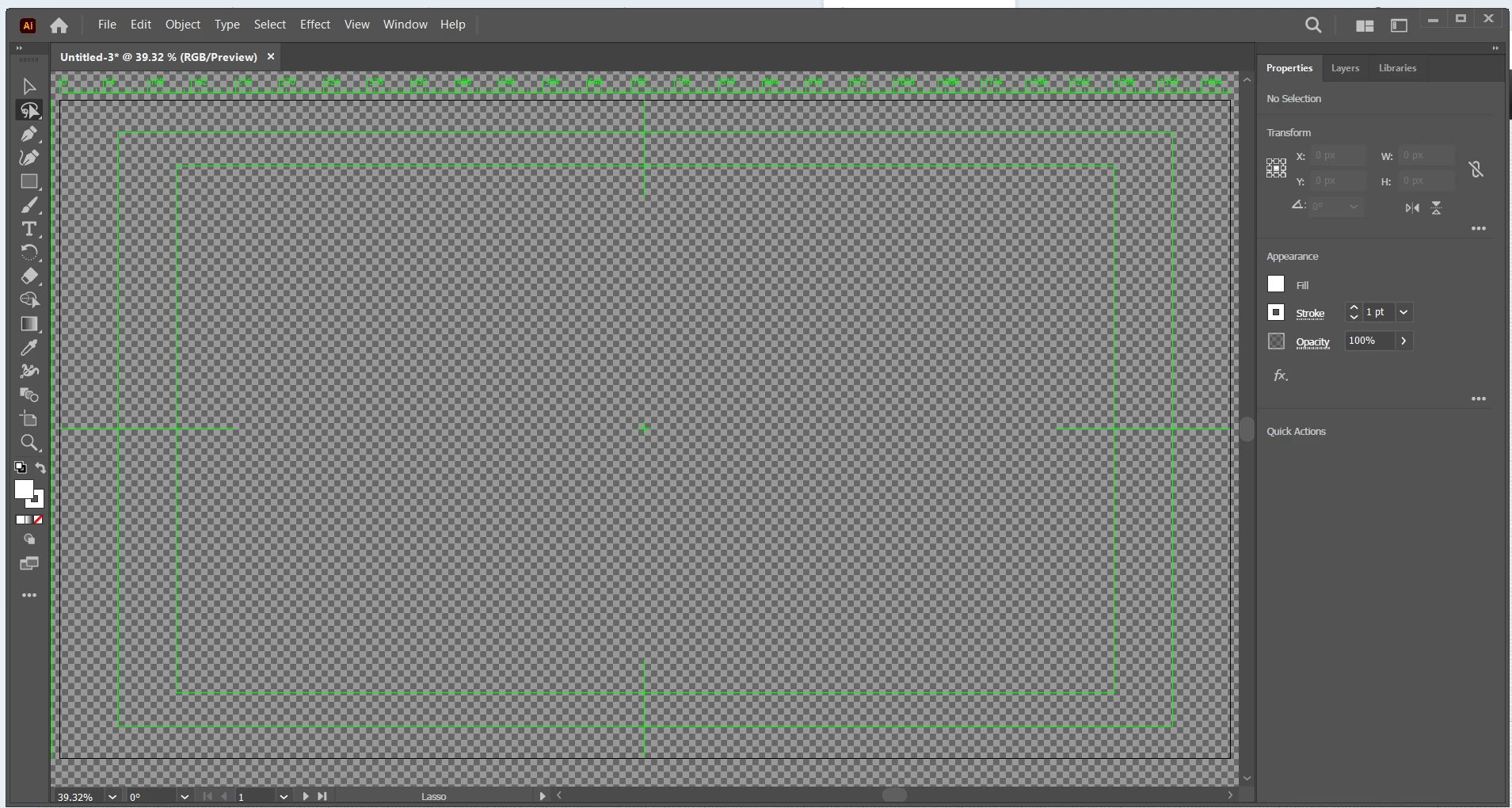
As others have said, your screenshot is for Illustrator and you accidentally posted to the Photoshop forum. You are looking at the Preset for Film and Video and seeing the video-safe area. You need to start a new document and select a preset from Mobile, Web, Print, or Art and Illustration and modify each as needed. Skip the presets for Film and Video.
You have opened an Adobe Illustrator Web template that has guidelines for safe areas and a transparent background. Try Print or Art and Illustration for the more traditional white background you are possibly looking for.
I have a similar suspicion about the problem (@Daniel278071203fq6 , are you trying to get rid of the green lines and checkerboard background?), and if that is the problem, thejanebradbury is probably right about the cause.
I think the Illustrator new document preset that was chosen was Film & Video, not Web. The Web new document preset opens with a solid white background and no guides. The Film & Video preset opens with the transparency checkerboard, and most tellingly the green lines because those are specifically for video only: They include the video rulers and the video markers for title-safe and action-safe margins.
So Daniel278071203fq6m, if the green lines and checkerboard are the problem, here’s what you can do:
If you don’t need to save that document and can start over, close the document and next time you create a new one, pay attention to which new document preset you are clicking. Click a new document preset type that matches your document’s delivery medium, such as Print, Web, or Film & Video.
If you did start a document and want to continue with it, you can:
Remove the green video rules: Choose View > Rulers > Hide Video Rulers.
Remove the green video safe area markers: Double-click the Artboard tool to open Artboard Options, then deselect Show Center Mark, Show Cross Hairs, and Show Video Safe Areas.
(I had to solve this puzzle for myself recently, and yes, it was annoying that changing all of those setttings involved locating three different places in Illustrator. There doesn’t even seem to be a command for Artboard Options. Although the Artboard Options button does show up in the Properties panel if you select the Artboard tool, if you don’t select that tool you might never figure out where to turn off those safe areas.)
And yes, this thread should be in the Adobe Illustrator community, not Photoshop.
Unexpected behavior may indicate damaged preferences. Restoring preferences to their default settings is a good idea when trying to troubleshoot unexpected behaviors in Photoshop. check out the video
Uninstall Photoshop BUT make sure to choose the option “Yes, remove app preference”.
Once that process finishes, start the installation process and look into the “Advanced Options”. Uncheck “Import previous settings and preferences” and choose to “Remove old versions”.
I hope this helps
neil barstow, colourmanagement net :: adobe forum volunteer
google me "neil barstow colourmanagement" for lots of free articles on colour management
No the terminology in the menu bar is not Photoshop. The screenshot says "Object, Effect" etc. But Photoshop uses these terms (in addition there is a PS logo thing in the upper left corner you cropped this so look for that on your screen):

 AdChoices