
Participant
October 28, 2015
Question

How do I get rid of this invisible box?

  • October 28, 2015
  • 1 reply
  • 2692 views

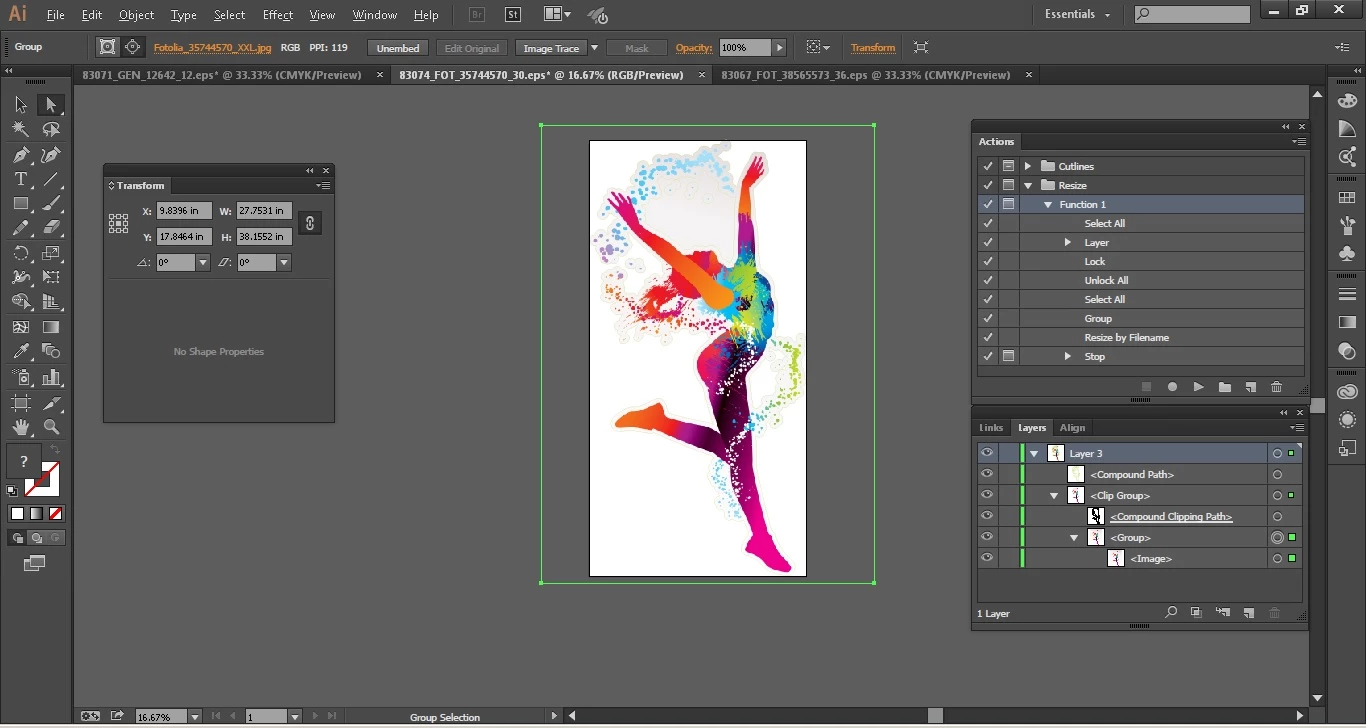
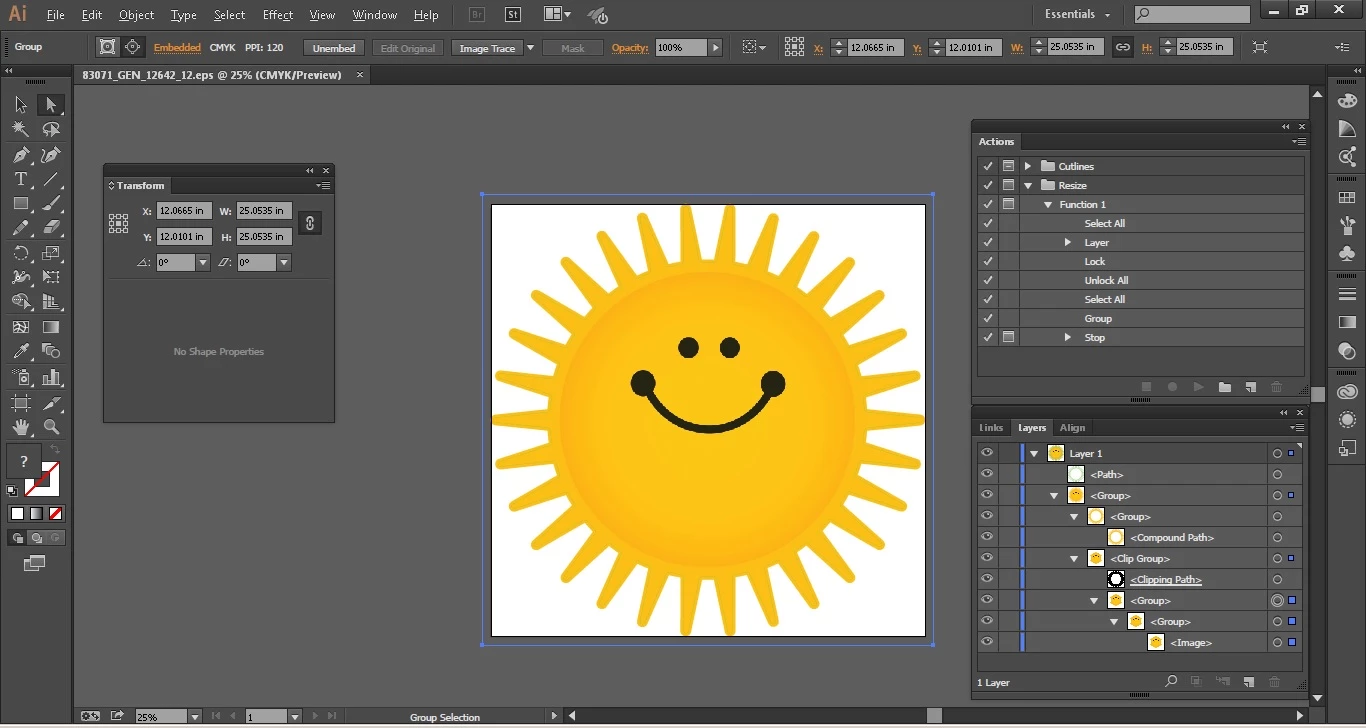
When I use the "direct selection tool" (not the regular selection tool) to select the image, this box randomly shows up around it... It is making the script I wrote freak out. Basically, what I need to do is resize the image to a specific dimension by inches (constrained as well), but this random box around it is not helping....

For some images, I can ungroup and group again, then run my script and it will work, but overall I need something that will work for every file. I need to be able to write this in a script, so please let me know how to do this manually... without creating a whole new file. I left the "layers" box open, so you can see how the image is (terribly) organized. The problem is EVERY image is going to be different...so I need to figure out a way to just nuke that box. I've tried deleting certain objects, I just don't understand what it is.
This topic has been closed for replies.

1 reply

Disposition_Dev
Legend
October 28, 2015

that "invisible box" is the bounds of the image inside of your clipping mask.

Illustrator is somewhat moronic insofar as it ignores the presence of a clipping mask when calculating it's visible bounds. (ie, in the image of the dancer, the visible bounds are quite clearly smaller than the bounding box you see when you direct select. Illustrator's visible bounds (goes the same for 'left' and 'top' properties) always include the entire artwork contained in the clipping mask.

In other words, the invisible box you're seeing isn't an invisible box. It's the edges of the actual images you have placed in the document. I have not found any way around this. You'll have to get the bounds of the clipping path, calculate a scale percentage based on it's current width and the desired width, then scale the entire group by that scale percentage using group.resize(scale,scale,true,true,true,true);

Participant
October 28, 2015

unfortunately, i can't use .resize because in need to concert to inches so my code is a bit complicating.... this clipping mask is killing me

Disposition_Dev
Legend
October 28, 2015

you can use resize to get the desired result. you just have to do the math ahead of time.

var objWidth = (clipping mask).width; // let's say the width of this particular object's clipping mask is 600pt.

var desiredWidth = 720; //this is 10 inches in points. you can convert the units into inches if you want, but i think it's more trouble than it's worth. just set your desired width to (integer of inches)*72;

if(objWidth<desiredWidth){//always divide the smaller dimension by the larger to get the correct scaling percentage.

     var scale = (desiredWidth/objWidth)*100; // this is (720/600)*100=120%. so if you scale your artwork by 120% proportionately, you'll end up with your desired width.

}

else{

     var scale = (objWidth/desiredWidth)*100;

}

obj.resize(scale,scale,true,true,true,true,scale)

ESTK rounds decimals to 10 digits (so that's a margin of 1/1,000,000,000th of a point). so you should still have plenty of accuracy even if your numbers aren't integers. (which is likely).

let me know if you have any questions on this. =)