Inspiring
October 14, 2024
Answered

How do I have the text fill automatically on a type on path?

  • October 14, 2024
  • 2 replies
  • 639 views

I used to do this all the time at one of my old jobs, but for the life of me I cannot figure out how I used to do it and I cannot find the answer anywhere. 


So I made a line and added text to the line. What I am trying to do is have a placeholder so when I paste replacement text it will stretch/condense to fill in or fit in the space between the brackets. For example, wether you paste "Ohio" or "Massachusetts" into the text line, it will automatically fill it or fit it within the brackets.


How do I get it to do that? 

 

This topic has been closed for replies.
Correct answer Michael30621428f7dz

I finally figured it out.

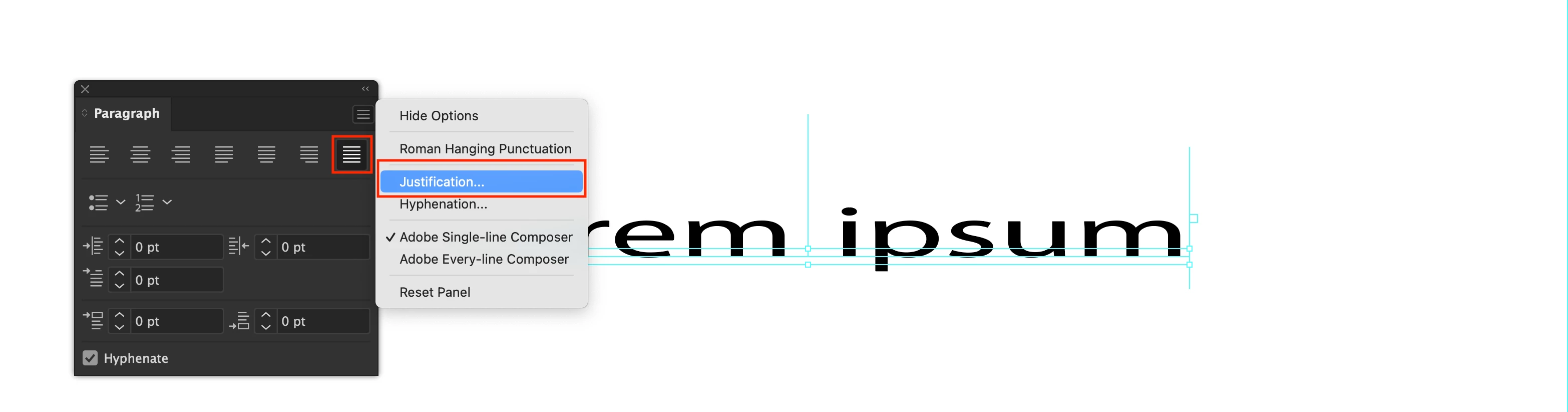
In the Paragraph Window, set the text to justify

Then in the Paragraph Window, click on the menu button and choose "Justification..."

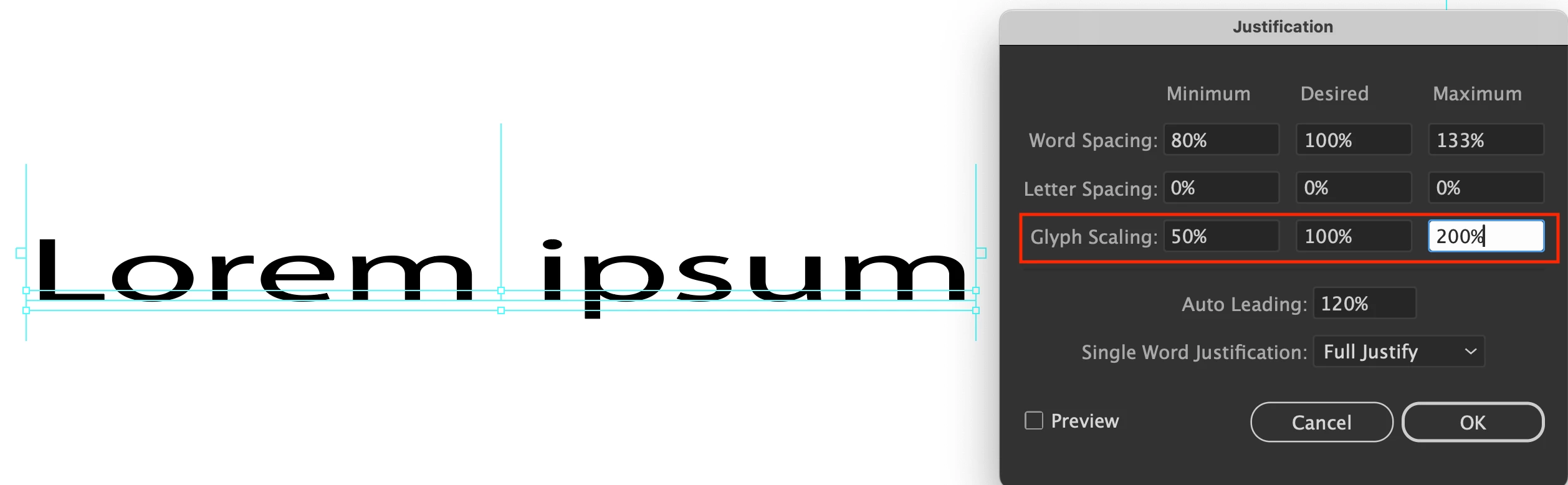
In the Justification window, set the Glyph Scaling to the desired Minimum and Maximum settings and click OK.


2 replies

Michael30621428f7dzAuthorCorrect answer
Inspiring
October 14, 2024

I finally figured it out.

In the Paragraph Window, set the text to justify

Then in the Paragraph Window, click on the menu button and choose "Justification..."

In the Justification window, set the Glyph Scaling to the desired Minimum and Maximum settings and click OK.


Monika Gause
Community Expert
Community Expert
October 14, 2024

That's clever. You can skip the step with the justification setting when you select the "Justify all" options (to the far right of the Paragraph panel). It enforces justification.

Inspiring
October 14, 2024

That only adjusts the space between words or letters, that doesn't stretch/condense the letters which was what I wanted. 

Monika Gause
Community Expert
Community Expert
October 14, 2024

It can work in area text, but I have not seen it with Path text.