Participating Frequently
July 19, 2022
Answered

How do I make individual points on a star shape longer?

  • July 19, 2022
  • 4 replies
  • 2627 views

I'm trying to make something similar to this but I'm having trouble figuring out how to move the indivual points. Please help!


 

This topic has been closed for replies.
Correct answer barbara_a7746676

Follow Larry's suggestion to move individual anchor points with the Direct Selection tool (white arrow).

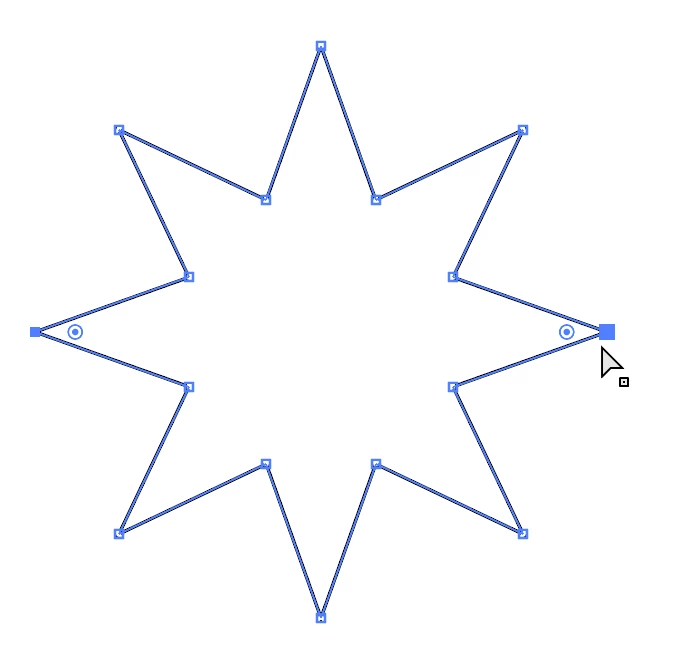
The star is symmetrical, so you may want to move two anchor points at the same time. You can do that by selecting the two anchor points. 

Both anchor points selected on left and right side:
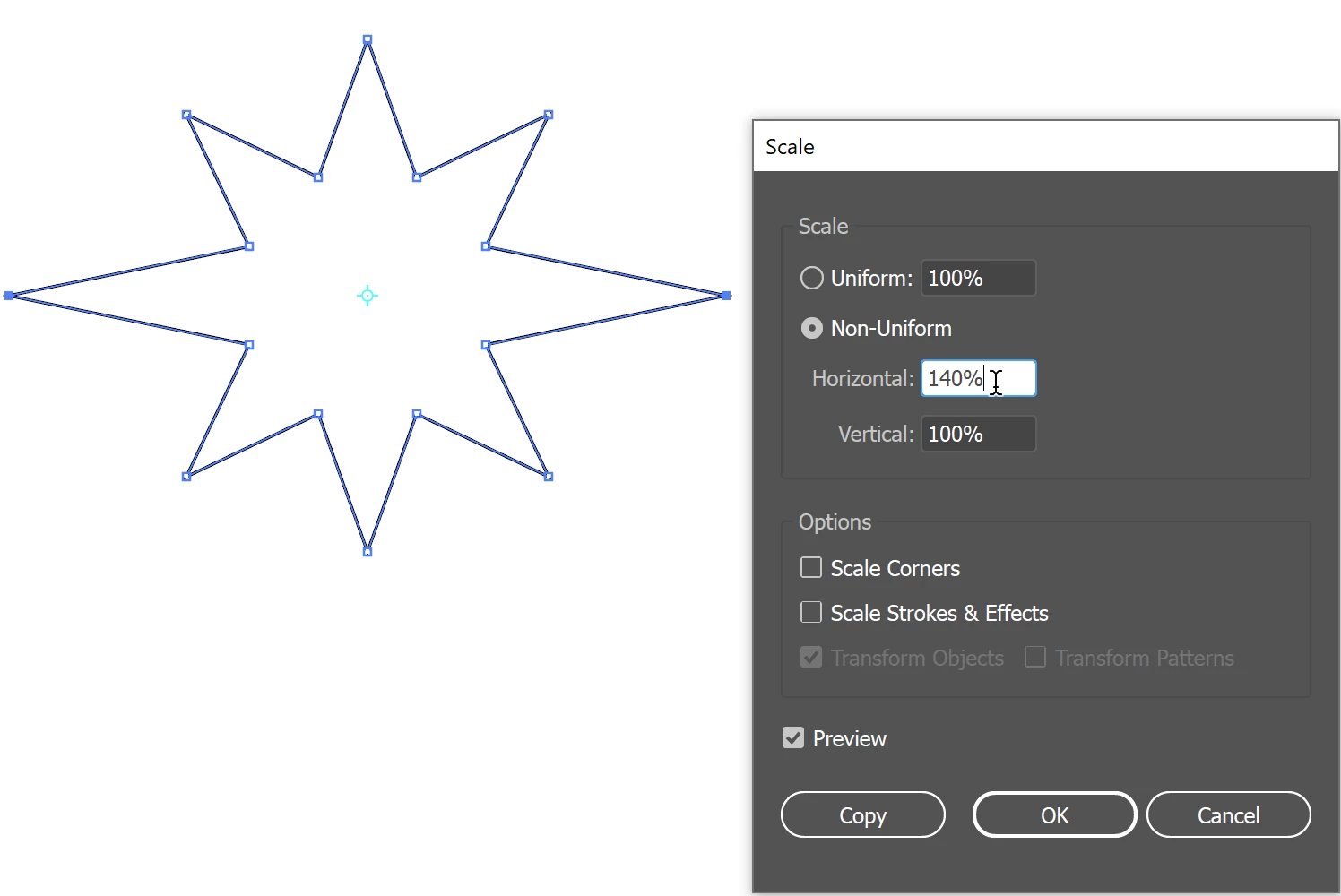
Double-click the Scale tool in the Tools panel and adjust the scale.
 

4 replies

Scott Falkner
Community Expert
Community Expert
July 19, 2022

Use the Attributes panel to show the centre point of hte star. THis does not add a point to the shape, it just makes hte centre of the shape visible and tools can snap to that point.

Use the Direct Select tool (white arrow) to select the points you want to move. In my case I have an 8-point star and I want to move the four cardinal points (that is, North, East, South, and West).

Use the Scale tool and drag out from any point that is about a 45° angle from the centre of the star (in the example below I clicked somewhere in the red circle) then drag away from the centre point (the arrow shows the direction of my drag). Release when the star looks how you like. The further from the centre you start your drag the more precise the result. I but the red dot close to the centre of the star to make a tidy graphic. I would probably start my drag closer to the arrowhead. Practice to see how the points scale and you'll get the hang of it.


You can also Option or Alt click on the centre of the star to enter a precise amount of scaling.

Monika Gause
Community Expert
Community Expert
July 19, 2022

The method will only work for specific stars (where the number of points can be divided by 4), not for all of them.

https://www.youtube.com/watch?v=JpOTxABIzwk


You could try if the special star helps:

https://www.youtube.com/watch?v=U9_kesAzMoA

barbara_a7746676
Community Expert
barbara_a7746676Community ExpertCorrect answer
Community Expert
July 19, 2022

Follow Larry's suggestion to move individual anchor points with the Direct Selection tool (white arrow).

The star is symmetrical, so you may want to move two anchor points at the same time. You can do that by selecting the two anchor points. 

Both anchor points selected on left and right side:

Double-click the Scale tool in the Tools panel and adjust the scale.


Participating Frequently
July 19, 2022

Thank you so much for the help! I'm having trouble finding the tool panel - it's not under window for me. Would you know how to find it by chance?


barbara_a7746676
Community Expert
Community Expert
July 19, 2022

The tools panel is on right side. 

Under the Window menu it is called 'Toolbars'

Larry G. Schneider
Community Expert
Community Expert
July 19, 2022

You would move the single anchor points by using the Direct Select tool (Open Arrow). Drag around the anchor, then click and hold while you drag in the direction needed to enlarge as you desire. 

Participating Frequently
July 19, 2022

Thank you so much!