Inspiring
February 14, 2023
Answered

How do I make repetitive structures on Illustrator?

  • February 14, 2023
  • 2 replies
  • 2462 views


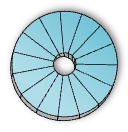
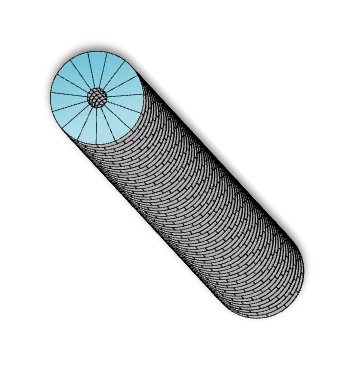
I need to start from image 1, form disks as shown in the second image, and assemble those disks into a rod as shown in image 2. Can someone help me with this? Thanks

  

This topic has been closed for replies.
Correct answer VLP-MR

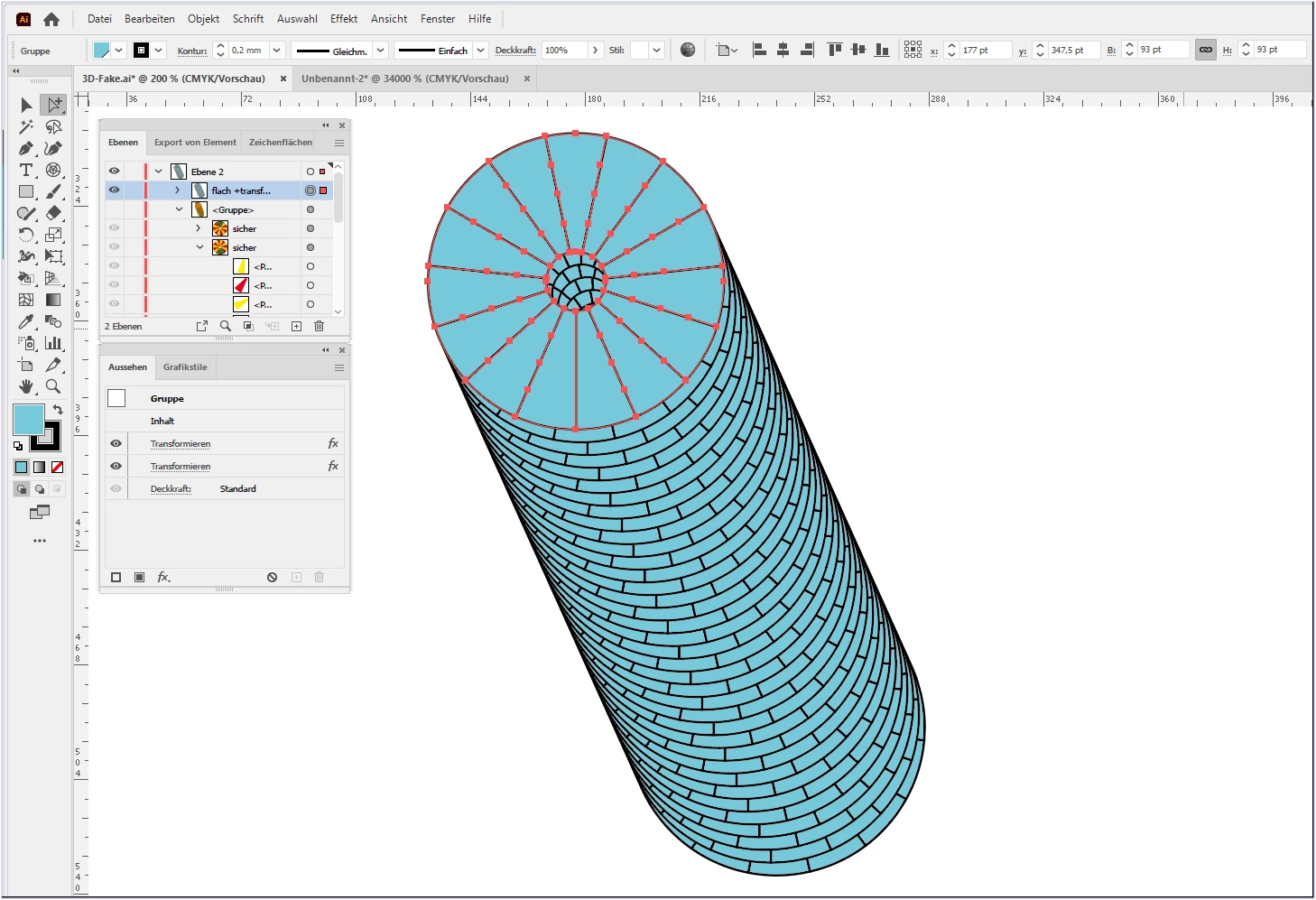
Here is the "simple" transform effect of a "flat shape" for comparison (note the misaligned "vertical" lines).


I'm pretty sure @Kurt Gold and @Monika Gause have some good tips ready.

😉


The "simple" transformation worked. Thank you so much! 

2 replies

Kurt Gold
Community Expert
Community Expert
February 14, 2023

What have you tried so far? What went wrong?


Or don't you know how to start at all?


VLP-MRAuthor
Inspiring
February 14, 2023

I am new to Illustrator, but I tried a few things: 

1. I made an annulus, divided it into sections using lines, and tried to extrude it. However, I ended up with a smooth surface in the cylinder curvature. 

2. I also tried making a sector, extruding that, and then repeating it to form a disk. However, that ended up with a repetitive sector design with a lot of gap between each sector instead of a disk. 

I am unsure what functions to use to make them as I am unaware of the features or even what to search to look for the right tutorial videos.

Preran
Legend
February 15, 2023

Not an expert here, but giving it a shot.


Use the "Transform" panel to create multiple copies of an object. 

  1. Select the object that you want to clone.
  2. Open the "Transform" panel by going to Window > Transform.
  3. Enter the number of copies that you want to create in the "Copies" field.
  4. Select the desired transformation method from the drop-down menu (such as "Move" or "Rotate").
  5. Click the "Copy" button to create the copies.


I also recommend readhing this article for more info: https://illustratorhow.com/step-and-repeat/#:~:text=Some%20people%20prefer%20to%20create,(shortcut%20for%20Transform%20Again).


Thanks,

Preran

Kurt Gold
Community Expert
Community Expert
February 14, 2023

Are the screenshots above based on something you already created somehow?


If so, how did you do it?


VLP-MRAuthor
Inspiring
February 14, 2023

No, I did not make these. These are references created by someone else. I want to start from scratch to make some modifications to these designs.