

Chris  P.  Bacon
Inspiring
December 23, 2022
Answered

How do I re-position a JPG texture swatch once I used it as a fill?

  • December 23, 2022
  • 2 replies
  • 687 views

I see that I am supposed to hold the "~" key down while dragging the texture, but it doesn't work on my keyboard.

How do I select only the texture fill so I could move it around from within the Properties tab?

And how do I zoom it?

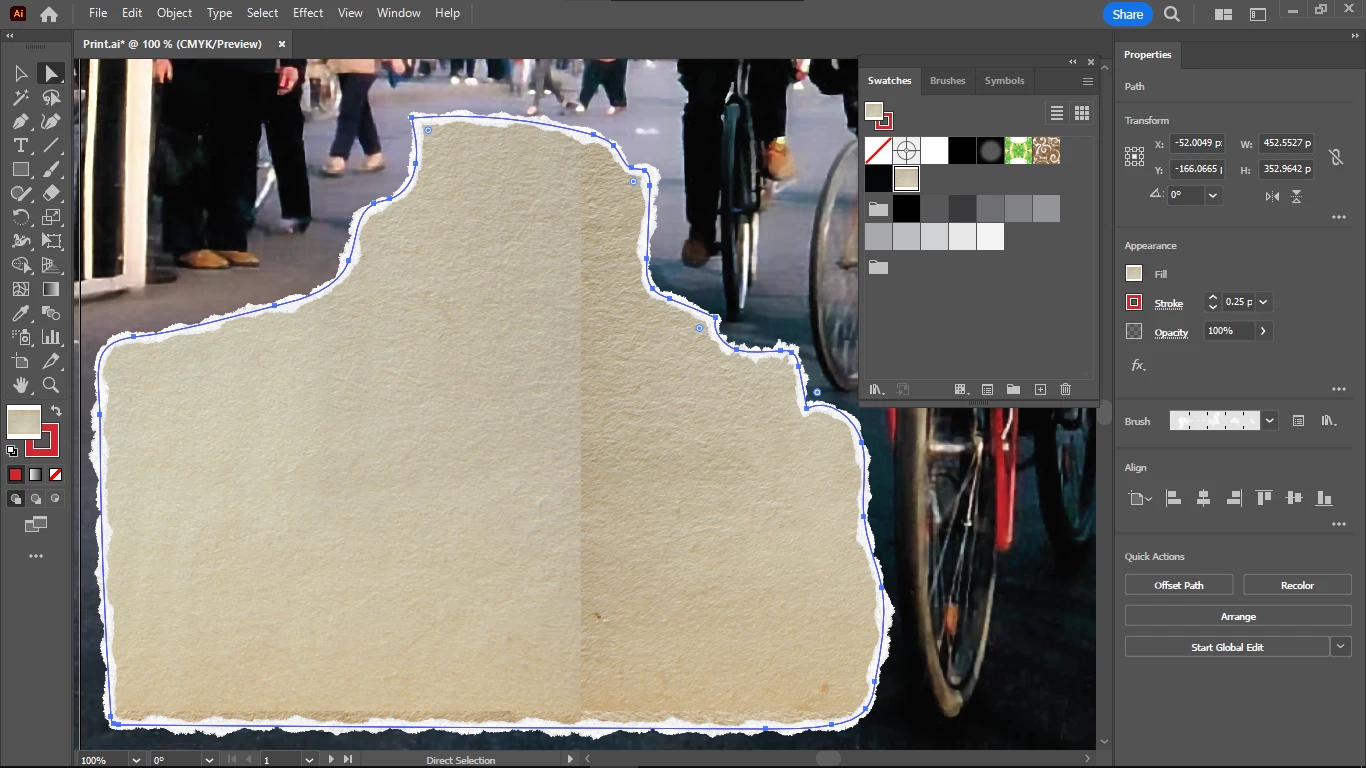
This paper texture is zoomed in too much after I applied the texture swatch:
This topic has been closed for replies.
Correct answer Larry G. Schneider

If you use the scale tool, at the bottom of the dialog box is a checkbox to limit the scaling to the pattern fill only or to scale both stroke and fill.

2 replies

Ares Hovhannesyan
Community Expert
Community Expert
December 23, 2022

You can also use this move panel. Double Click on Move Tool

Chris  P.  Bacon
Inspiring
December 24, 2022

It works, do you know how I zoom the image swatch fill?

Larry G. Schneider
Community Expert
Larry G. SchneiderCommunity ExpertCorrect answer
Community Expert
December 24, 2022

If you use the scale tool, at the bottom of the dialog box is a checkbox to limit the scaling to the pattern fill only or to scale both stroke and fill.

Myra Ferguson
Community Expert
Community Expert
December 23, 2022

Thank you for adding the screenshot. I can see that you have the Direct Selection Tool selected. To use the ~ key to scale the texture in the shape, switch to the Scale Tool.

Chris  P.  Bacon
Inspiring
December 24, 2022

How do you scale only the JPG swatch fill with the scale tool?

Myra Ferguson
Community Expert
Community Expert
December 25, 2022
  1. Select the object with the fill you want to scale or move
  2. Select the Scale Tool
  3. Press the ~ key
    • If you want to scale non-proporionally, move the mouse as you press ~
    • If you want to move the fill, hold ~ and Ctrl (Windows) or Command (macOS)