

Codo_UOC
Participant
November 1, 2018
Answered

How to center my objects within the artboard without losing their relative positions?

  • November 1, 2018
  • 3 replies
  • 15155 views

Hey, friends,

say you have your design, composed by some objects, nicely disposed in their layers. They have their relative positions to one another and they look really good, but hey, the design is a bit in the upper side of the artboard. Let's center it! I select all the objects, select "Align to artboard" and click on "Center vertically". Result: all the objects pile up in the center of the artboard like they have no mother whatsoever (see picture).

In Photoshop, I'd link the layers to achieve this, but how can I solve this in Illustrator?

If you're gonna say: "Group them together before", I already tried, and it seemed to work... But when I checked the if the centering was right, it wasn't, I don't know why; I had to calculate it (with the calculator) and move all manually. Anyway, I don't really like the grouping solution, cause I don't want to treat all my objects as a group, so then I have to ungroup everything again and leave it as it was before. Help would be appreciated. Thank you sooo much.
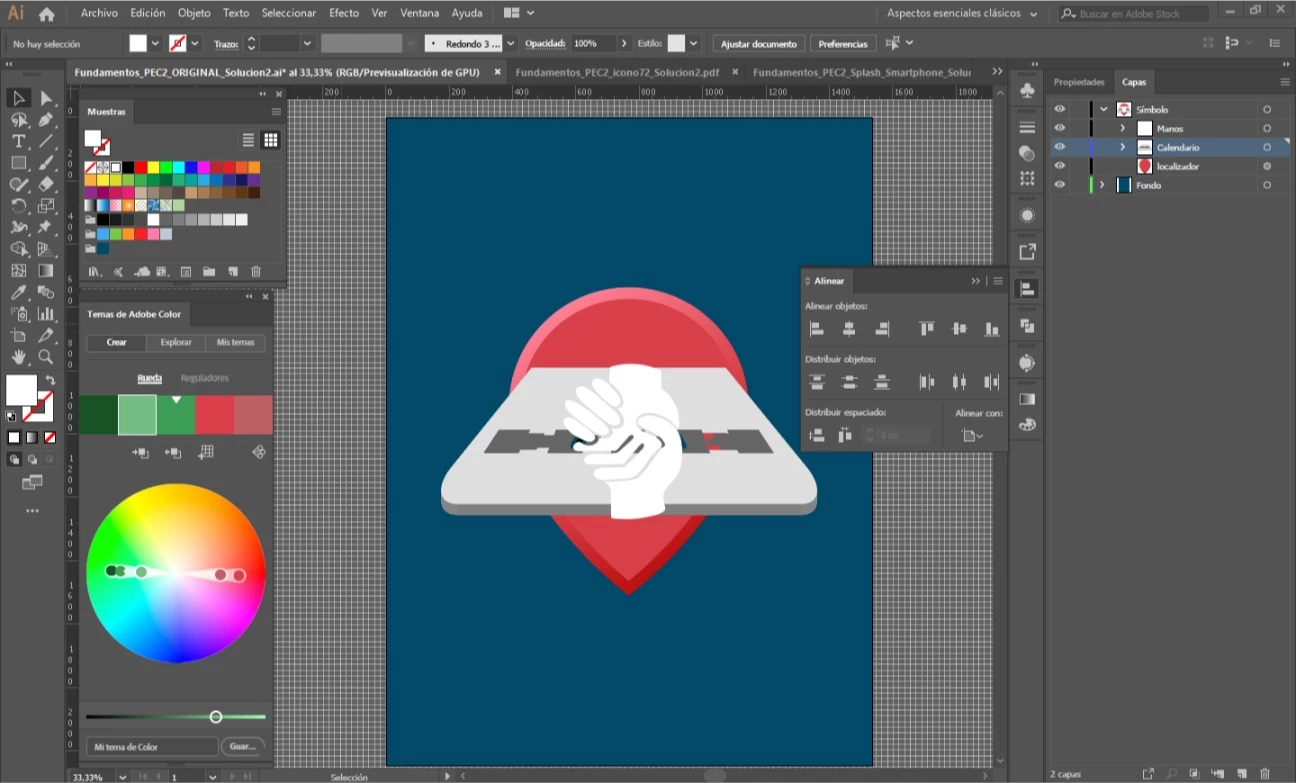

    Correct answer Myra Ferguson

    If grouping isn't working, how about converting the objects into a symbol (F8) then centering that?

    3 replies

    Myra Ferguson
    Community Expert
    Myra FergusonCommunity ExpertCorrect answer
    Community Expert
    November 4, 2018

    If grouping isn't working, how about converting the objects into a symbol (F8) then centering that?

    Codo_UOC
    Codo_UOCAuthor
    Participant
    November 7, 2018

    This was the only way I could get to center everything as I wanted! Sweeet! Thanks, Myra.

    jane-e
    Community Expert
    Community Expert
    November 4, 2018

    Here’s what I do:

    1. Select all on the artboard
    2. Cmd + X to Cut
    3. Cmd + 0 to center the artboard on the screen
    4. Cmd + V to Paste
    5. Deselect

    Notes:

    • Substitute Ctrl for Cmd if you are on Windows
    • Paste always pastes to the center of the screen. When the artboard is in the center of the screen (there are multiple ways to do this), then Paste will paste to the center of the artboard.
    Jacob Bugge
    Community Expert
    Community Expert
    November 4, 2018

    A very nice and easy way, Jane.

    jane-e
    Community Expert
    Community Expert
    November 4, 2018

    Thank you, Jacob!

    Jacob Bugge
    Community Expert
    Community Expert
    November 2, 2018

    codo uoc,

    But when I checked the if the centering was right, it wasn't, I don't know why;

    What happens if you create add rectangle a bit larger than the Group, then align to that?

    Alignment is fundamentally about centre (or edge) of Bounding Box, and it may often look and therefore be wrong, especially for shapes/collections that are irregular/far from rectangle/circle; you can see it with a triangle.

    You may use such a rectangle and align to that, then adjust the Group within it so it looks/is right, then include the rectangle in the Group after setting its stroke and fill to None, then align/centre to Artboard.

    Concerning further work, you may either use the Direct Selection Tool (many use that most of the time in any case) with ClickDragging or Alt/OptionClick, or you can Ungroup (if you need to align/centre again, you can go through the above grouping/internal alignment again).

    ryan_edwards
    Inspiring
    November 2, 2018

    you also don't have to 'group' them just select them (that is seen as a collection of things.. and center then click around.. it is no longer seen as a group of things to the app (its a good temp way of editing without having to change group/layer structures)

    you can also go into isolation mode based on selected stuff (without 'grouping' .. very cool and fast way to work)

    Codo_UOC
    Codo_UOCAuthor
    Participant
    November 4, 2018

    ryan.edwards  escribió

    you also don't have to 'group' them just select them (that is seen as a collection of things.. and center then click around..

    Hey, Ryan. Without grouping the objects, if I just select them (that was what I was doing anyway, the grouping thing was something I tried later) and then center, what I get is what you see in the picture: everything in the center, all relative positions lost.

    ryan.edwards  escribió

    you can also go into isolation mode based on selected stuff (without 'grouping' .. very cool and fast way to work)

    This didn't solve it either.