



HubertusausBerlin
Inspiring
January 18, 2025
Answered

How to change predefined, artistic brush contour to 100% opacity?

  • January 18, 2025
  • 2 replies
  • 900 views

I have a small operating problem for which I cannot find a solution.

I have assigned a brush to contours (artistic brush, ink).


Looks great - but the outline is always semi-transparent. But I want it to be 100% opaque.


I searched in the brush settings of the brush itself (no setting option that would have changed anything). Even in the usual control panels (Contour: Opacity, Appearance, etc) everything is set to 100% and ‘normal’


Even if I convert the brushstroke to paths, everything is not 100% opaque. Although the settings of the resulting shapesshould have 100% opacity (see screenshot on the right).
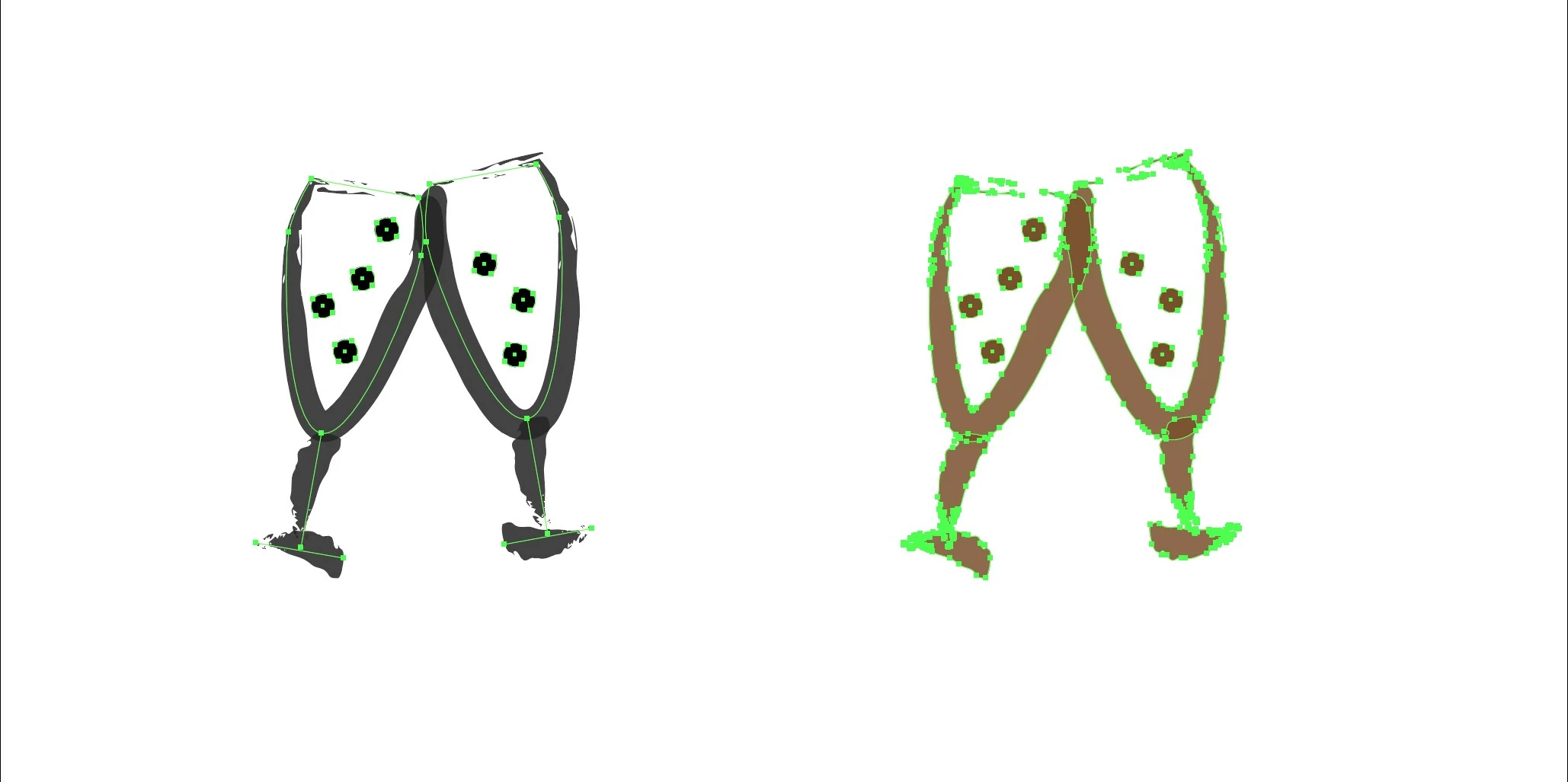
 

Is there no way to change the appearance of the predefined brush to 100% opaque?


I would be grateful for a specific tip.


LG, Hubertus

Correct answer HubertusausBerlin

Edit:


I found it - the brushstroke consists of nested layers. If you click inside you get to the base areas which were at 85%.


Many thanks for the solution!


LG + good night!

2 replies

Participant
September 1, 2025

@HubertusausBerlin Hey I'm working through this same issue... I can fix the opacity of the brush (mine was also 85%), but I cannot "drag it back" into the brush panel... How'd you do this??

Ton Frederiks
Community Expert
Community Expert
September 1, 2025

Use the ALT/OPTION Key when dragging it back on top of the old brush.

Participant
September 1, 2025

wahhh that didn't work. I tried option, command, control, function, shift lol... I tried pressing it before dragging it, I tried pressing it after picking it up to drag it... damn. I really wanted that to work. thanks anyway @Ton Frederiks!

Kurt Gold
Community Expert
Community Expert
January 18, 2025

In the Brushes panel, drag the brush entry onto the artboard, change the opacity settings there and drag the new brush definition onto the Brushes panel again.

HubertusausBerlin
Inspiring
January 18, 2025

Hello Kurt!


Many thanks for your answer. I did everything the same way and was also able to create my own brush.


However, even after dragging the brush onto the drawing area, I couldn't set the colour so that it was opaque - although the settings in the control panels indicate this (see the screenshot).


Do you have any ideas as to why this is not working?

HubertusausBerlin
HubertusausBerlinAuthorCorrect answer
Inspiring
January 18, 2025

Edit:


I found it - the brushstroke consists of nested layers. If you click inside you get to the base areas which were at 85%.


Many thanks for the solution!


LG + good night!