

Participant
April 20, 2023
Question

How to connect a path to text?

  • April 20, 2023
  • 4 replies
  • 1132 views

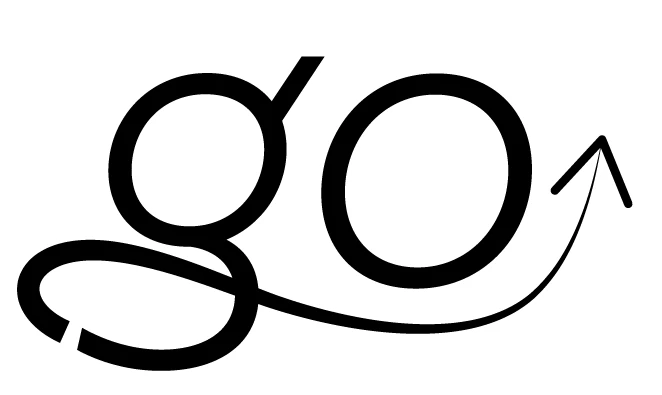
I would like to seamlessly connect a path I created using the Curvature tool to the end of this "g". Is this possible?

This topic has been closed for replies.

4 replies

Participant
April 20, 2023

Thank you all for your responses. Using your suggesstions, I was able to create this 🙂

Jacob Bugge
Community Expert
Community Expert
April 20, 2023

For my part you are welcome, berkle-berry.

Met1
Legend
April 20, 2023

Convert to outlines, delete the (near vertical) ends of each shape, select two top points, join, do same for bottom, drag direct selection tool across the four anchor points, convert anchor points to smooth - you may want to delete one of each pair and you may have to finagle them to get the exact curve you want...

Jacob Bugge
Community Expert
Community Expert
April 20, 2023

berkle-berry,


I am afraid you are in for sharp corners/reverse bend whichever way you join the parts, unless you adjust the shape (and position of the end) of the new path so that it can form a smooth continuation of the original one.


You can see the mismatch if you ClickDrag across corresponding Anchor Points on the two paths with the Direct Select and look at the direction of the Handles; the end width of the new path is also too large.


It can be done in different ways. If (still) possible, it can be worth keeping the new path as a stroke/nofill path (of varying width) to begin with.


Larry G. Schneider
Community Expert
Community Expert
April 20, 2023

Is the text converted to outlines or does it need to remain as text? Is the line/arrow outlined? Remove any connecting paths (short length closing outlines) and move the arrow path into position. Using the Direct Select tool box select the two anchor points for one side and use the keyboard shortcut Cmd(Ctrl)-Opt(Alt)-Shift-J. This will average the position of the anchors and join them. Repeat for the other two anchors.