Participant
Oct 13, 2023 3:31 AM UTC
Answered

How to control the gradient within a gradient mesh?

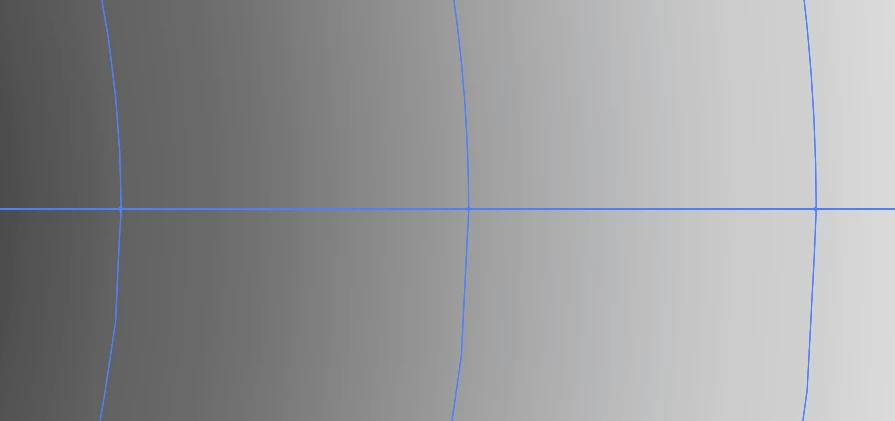
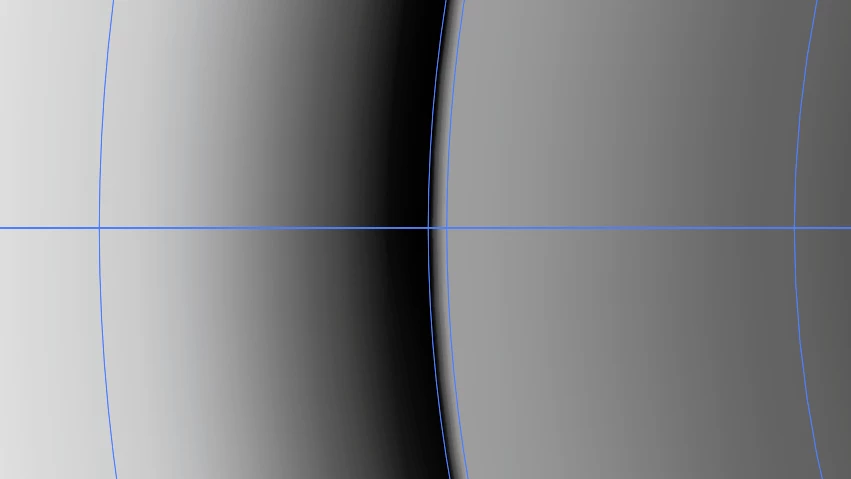
So I created this square and applied a gradient to the outline thickness, then I expanded the appearance which created this gradient mesh. I really want to create something like bottom shape where there is a crisp divide between the colors, anyone know how I could achieve that?


I tried dragging the colors in gradient editor as close as I could next to each other but it was still blurred a bit and not a crisp cut off.


Any help is much appreciated 🙂

This topic is closed to new replies. Start a new post to keep the conversation going.
Monika Gause
Monika GauseCorrect answer
Community Expert
Oct 13, 2023 8:50 AM UTC

For a crisp divide you will need an additional mesh line very close to where you need it crisp.


You can create that with the gradient mesh tool by clicking into the mesh where you want the line to be.

4 replies

Monika Gause
Community Expert
Monika GauseCommunity ExpertCorrect answer
Community Expert
Oct 13, 2023 8:50 AM UTC

For a crisp divide you will need an additional mesh line very close to where you need it crisp.


You can create that with the gradient mesh tool by clicking into the mesh where you want the line to be.

Translate
brelynh17Author
Participant
Oct 13, 2023 12:05 PM UTC

Thank you so much!!!! extremely helpful 

Translate
barbara_a7746676
Community Expert
Community Expert
Oct 13, 2023 4:08 AM UTC

I'm not sure I understand the question, but maybe you could try this . . .

Create the beginning and ending shapes. Use the Blend command to get intermediate shapes. Expand the blend and use the Live Paint Bucket tool to fill the shapes with the colors you want.

Translate
brelynh17Author
Participant
Oct 13, 2023 12:07 PM UTC

Thank you! This is another way I could achieve this but I was looking more for along the lines of mesh gradient editing 🙂

Translate