Participant
February 16, 2026
Question

How to create a mask from a photographic image with a transparent background

  • February 16, 2026
  • 4 replies
  • 56 views

Hi everyone :)

I’ve been trying to find a solution to this problem for a while, but haven’t been able to resolve it. 

I need to create a clipping mask of a photographic image (currently a png) that has a transparent background. 

For example, I need to create a clipping mask of the cat image, that is detailed enough to capture the hair etc. 
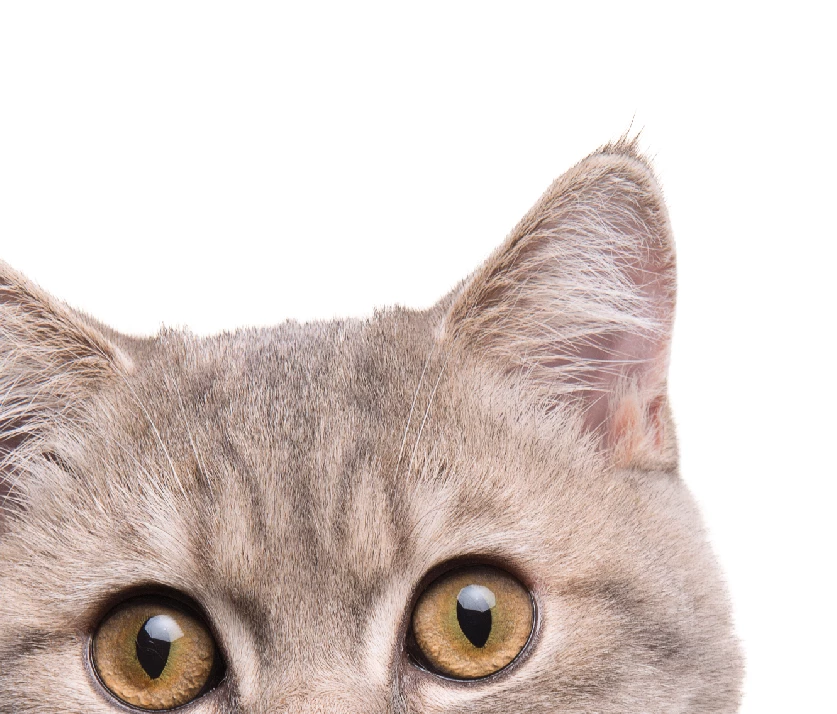
 

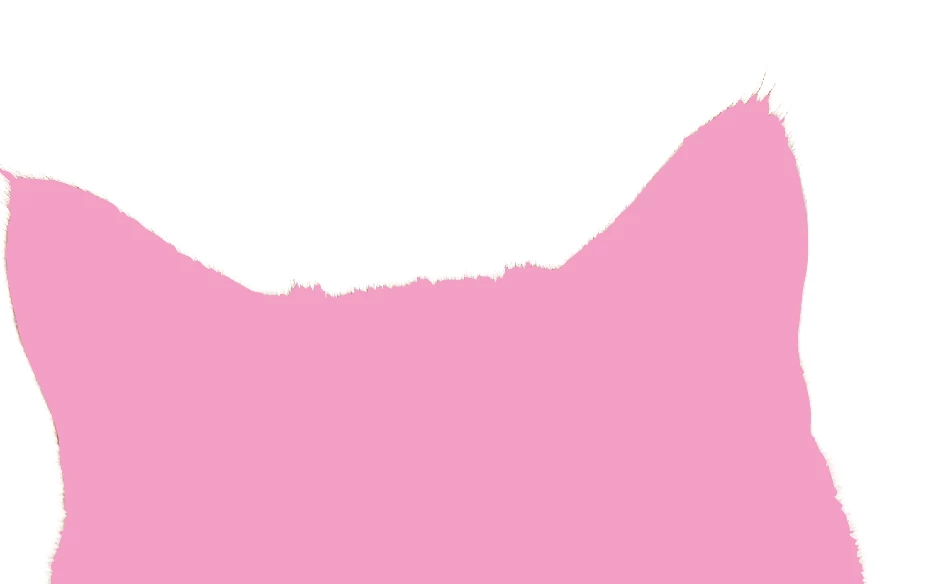
So far I have achieved something close to what I need by image tracing the png image and then creating a clipping mask from that. 


This shows what I’ve achieve so far, with the clipping mask overlayed on the png image. 
 

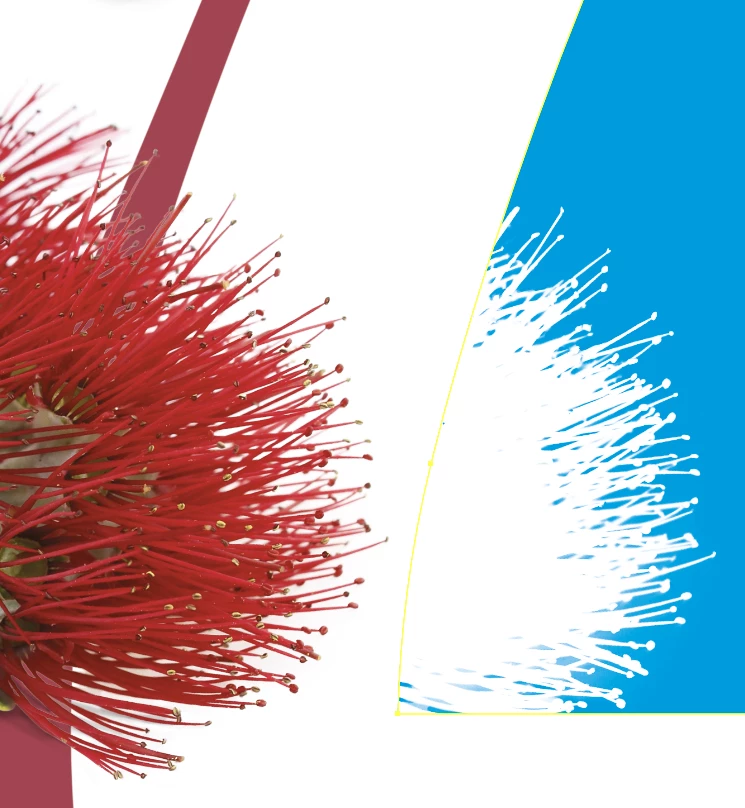
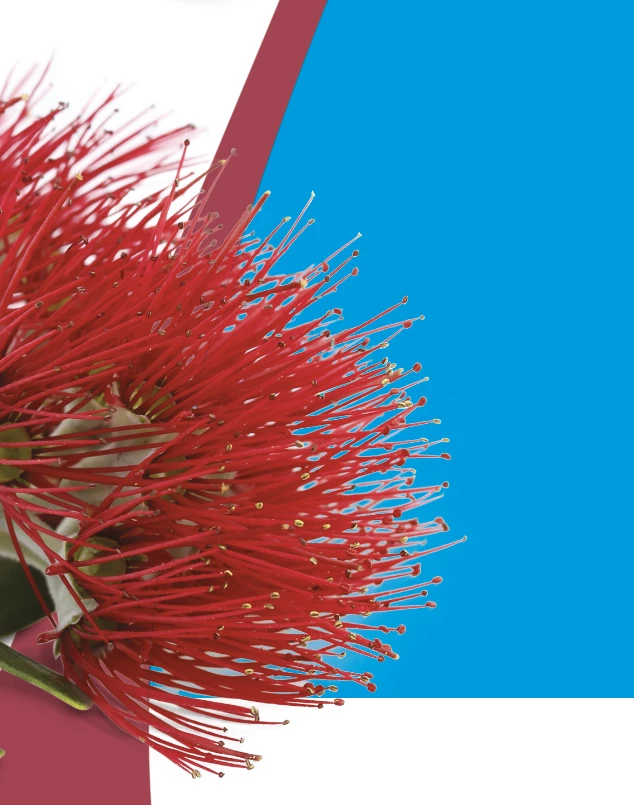
Ideally I want to achieve something that has a degree of transparency in the clipping mask. For example, I need to achieve something similar to this below:


Any help would be greatly appreciated! :)

    4 replies

    barbara_a7746676
    Community Expert
    Community Expert
    February 17, 2026

    As Monika mentioned, try Photoshop. I believe that Photoshop will give a  more accurate mask. In Photoshop, under the Selecct menu > Select and Mask, there is a button to refine hair. You might try that. However, it is near impossible to get a 100% perfect mask.

    Jacob Bugge
    Community Expert
    Community Expert
    February 17, 2026

    Nina,


    Further, if you wish to have a masking which incorporates “a degree of transparency“, I believe an Opacity Mask (transparency) is the right tool.


    https://helpx.adobe.com/illustrator/desktop/manage-colors/apply-transparency-and-blending/transparency-panel-overview.html


    Jacob Bugge
    Community Expert
    Community Expert
    February 17, 2026

    Nina,


    For a distinct detailed furry appearance I believe you will need a larger size/resolution relative to the hair thickness of the image to be used as a Clipping Mask, somewhat more than the 837 x 714 px shown. What you have achieved seems to be about the limit of the obtainable.


    Presumably the other image has a larger size/resolution relative to the desired details.


    Monika Gause
    Community Expert
    Community Expert
    February 16, 2026

    You could try and do that in Photoshop by turning a selection into a path.