



How to create and export color editable vector bitmaps (for texture stamps)
Greetings,
I am an intermediate level user of illustrator, and am trying to explore creating custom texture stamps and brushes since having become familiar with some I purchased online. I have followed a few tutorials on how use image trace to create the editable black and white vector images, so i think I’m part way there, but upon exporting to PNG or TIFF they become un-editable when placing in a new file. I’m only interested in being able to change the colour fill.I feel like I am missing an important step and was hoping for assistance. I will break things down so you have an idea of what I would like, and where I am at now:
- I would like to create color editable bitmap file such as the one here i purchased from True Grit Texture Supply Co. The color can be change be simply one step click and color fill of your option. I see at the top it says Black & White Bitmap PPI 1198. I want to create something just like that.
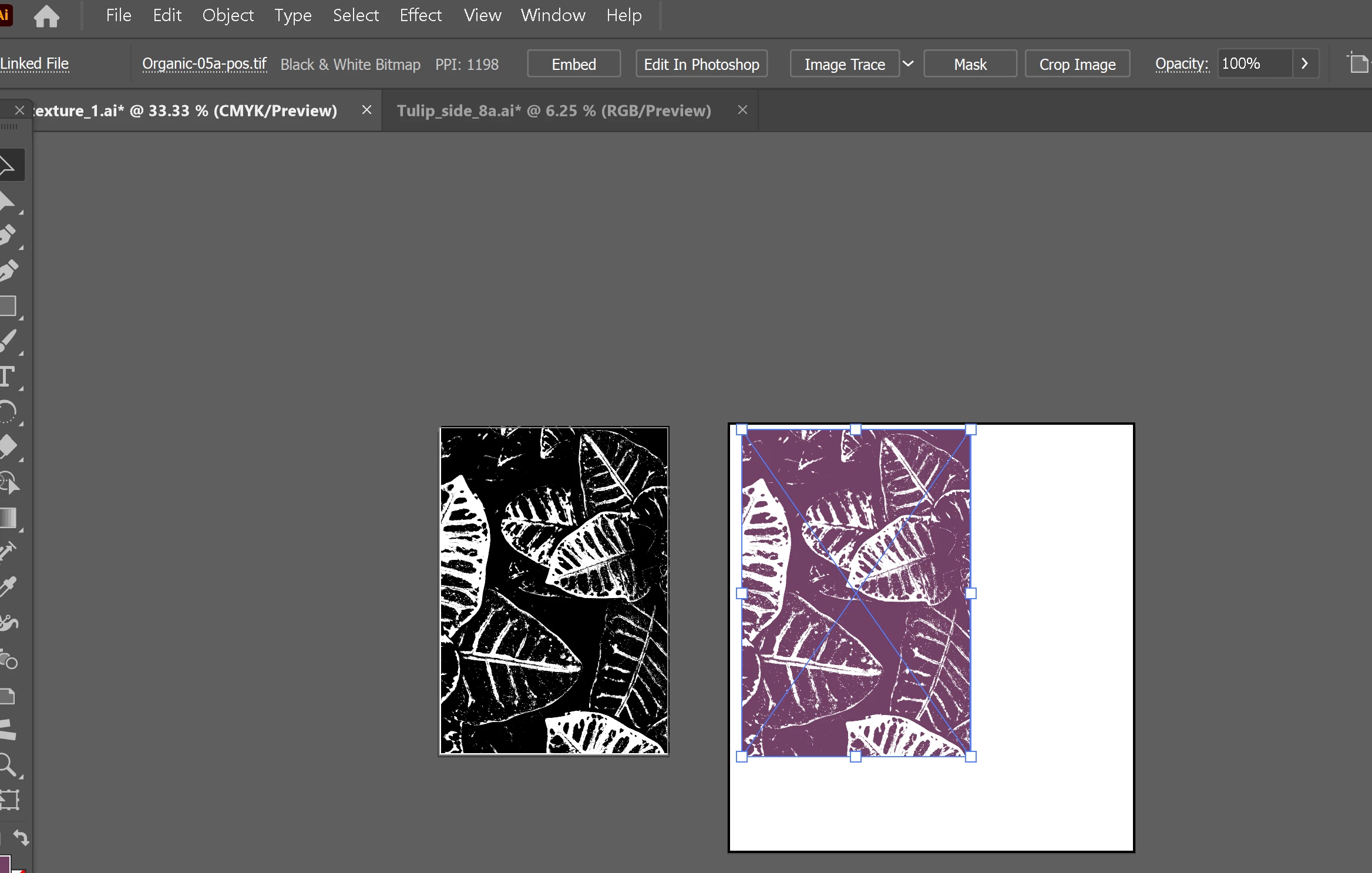
Color adjustable bitmap file purchased from True Grit Texture Supply Co.
- Here is what I have successfully achieved. I used image trace over a photo of a tulip and then used unite and create compound path after removing white so that the file is one click color editable like above. It is still an illustrator file though.
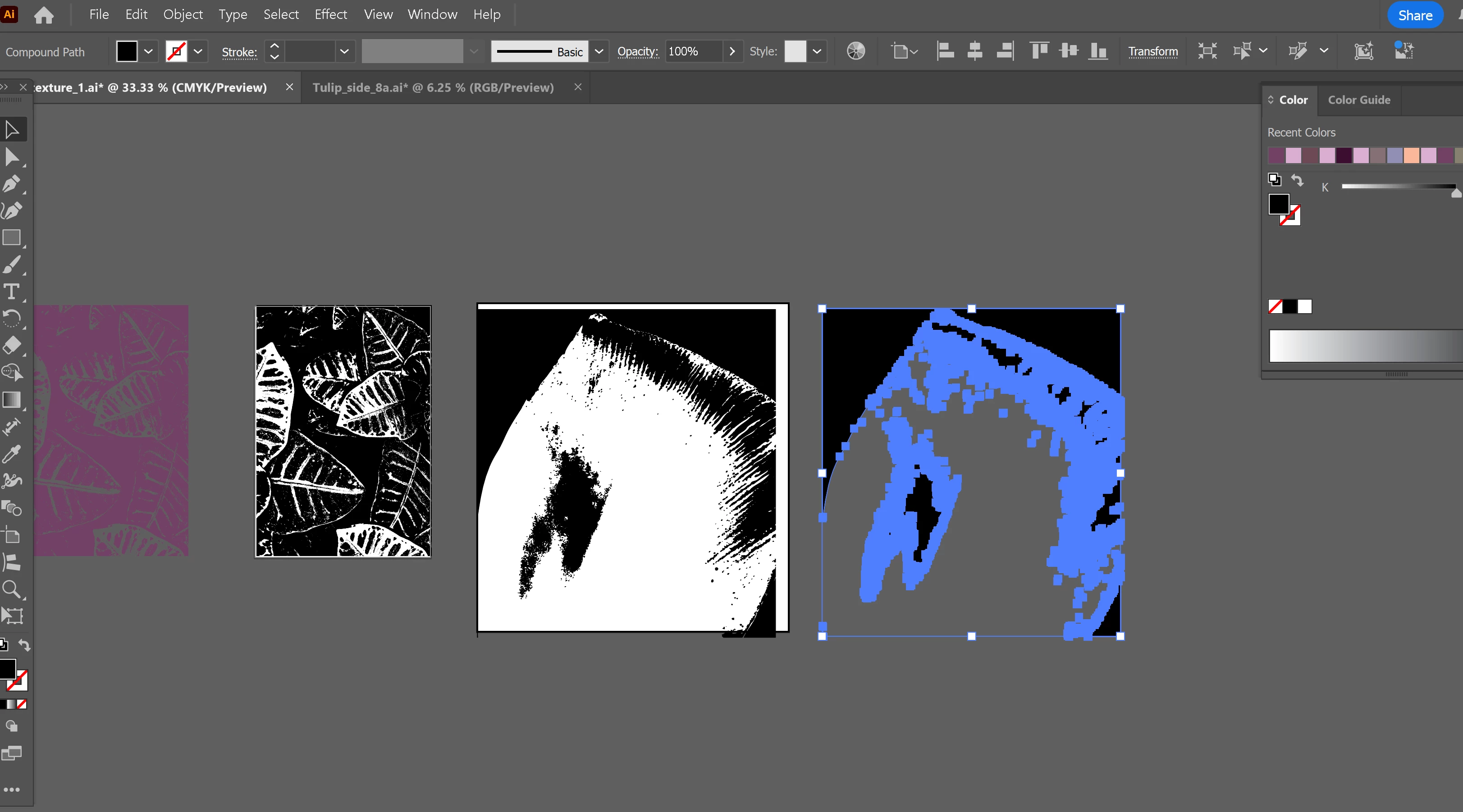
I used image trace to vectorize the photo of tulip
- I tried flattening the transparency and rasterizing the image.
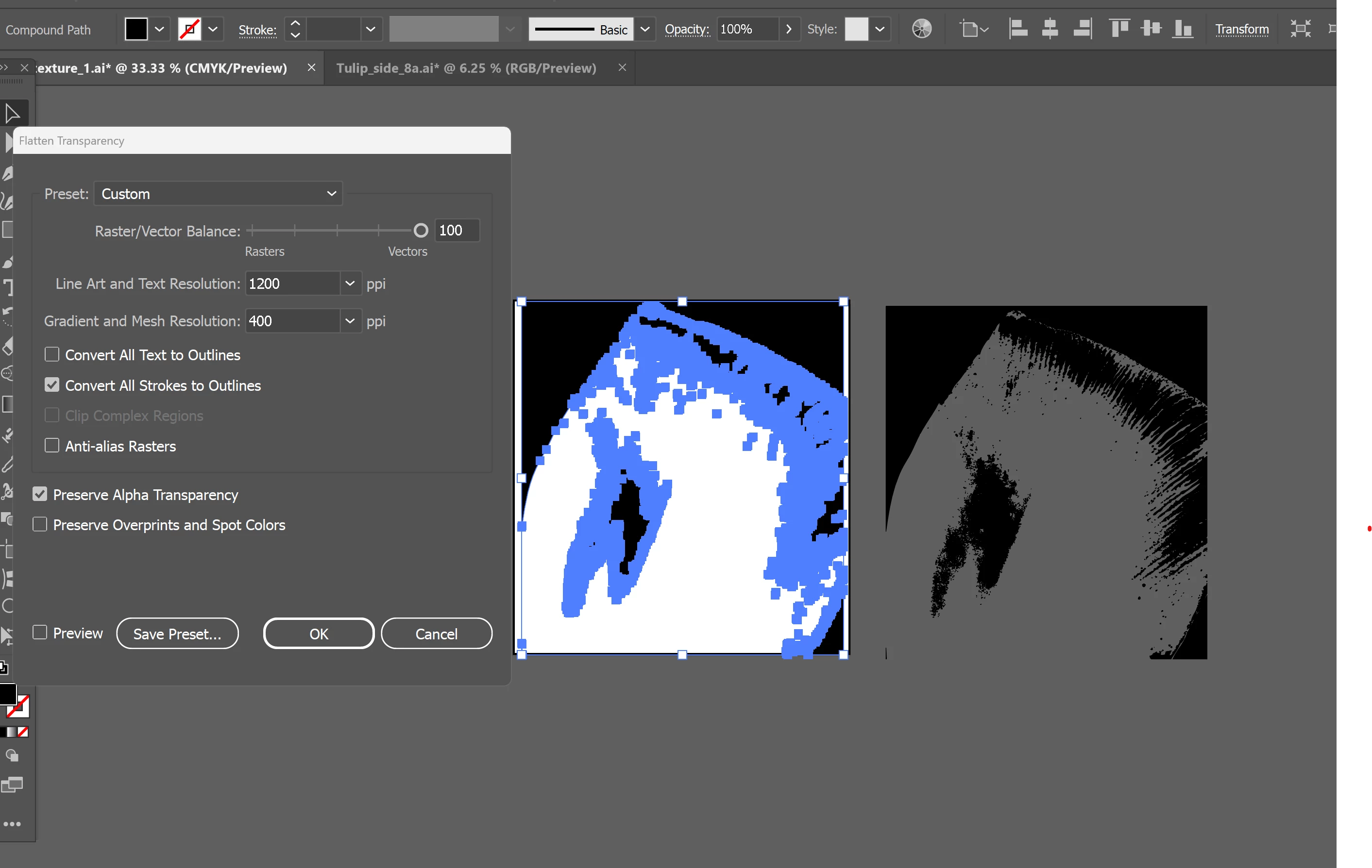
I tried flattening the transparency, as per another tutorial 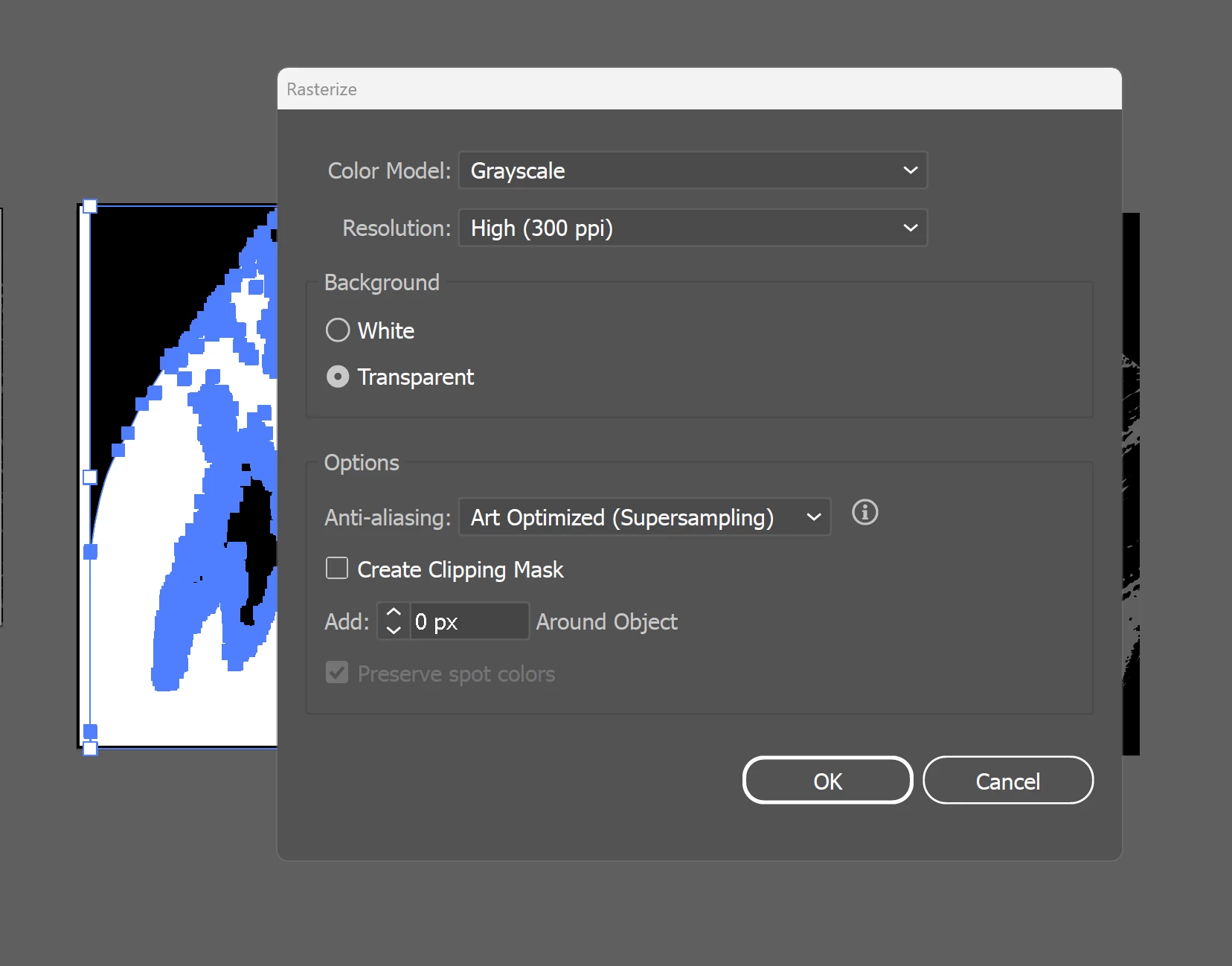
I then rasterized it following the same tutorial -
I tried exporting to various formats, especially TIFF since that is the format that my original bitmap textures i purchased were in. Its not lost on me that the original file says its “Black & white bitmap PPI 1198” vs the one i created which says its “ Transparent CMYK PPI: 310,” I just want to know how to get to the former so that i can export my textures and place them easily in new documents.
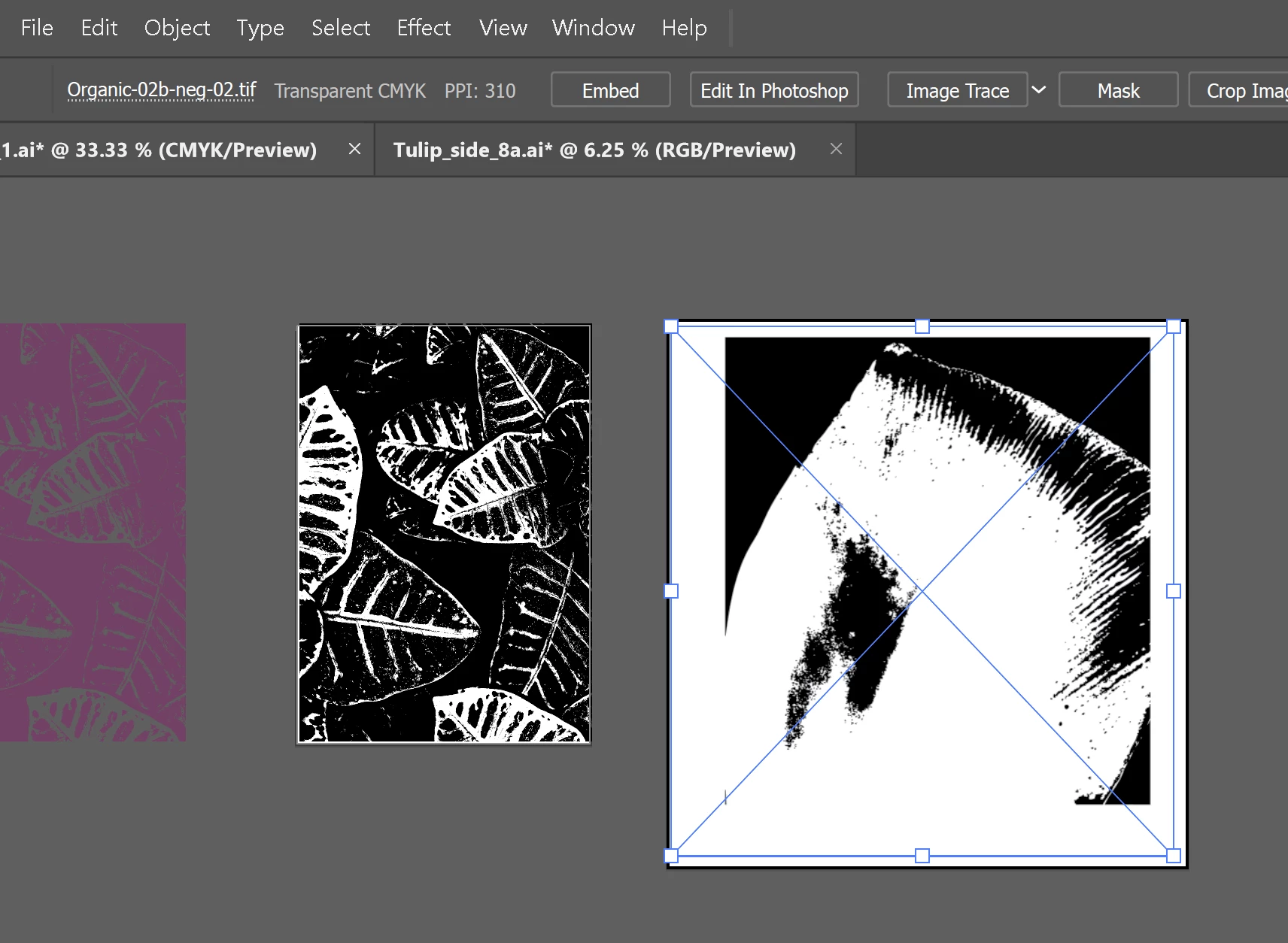
When I export the images an place them back in the file, they are not color adjustable like the original files I purchased, which is what I would like
I hope my question was clear. Please let know if I can provide anymore information, and I hope to receive some advice soon.
Kind regards,
 AdChoices