Participant
June 14, 2023
Answered

How to create shape
  • June 14, 2023
  • 3 replies
  • 336 views


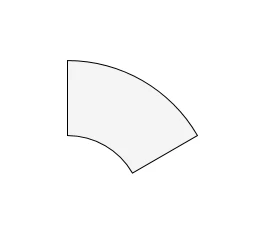
can someone tell me how I can create this shape? 

Can someone tell me how I can create this shape? 

This topic has been closed for replies.
Correct answer Larry G. Schneider

Draw concentric circles, select both and use Object>Path>Compound Path>Make. Draw two paths across the compound path and with them selected use Object>Path>Divide Objects Below.

3 replies

Doug A Roberts
Community Expert
Community Expert
June 14, 2023

Draw an ellipse (I). Overlay it on your image and adjust size to match.

Using the scissors tool, cut it where the curve in your image ends.

Give it a thick stroke. Colour it grey.

Object > Path > Outline Stroke.

Give the new shape a thin black stroke.

Jacob Bugge
Community Expert
Community Expert
June 14, 2023

Kguavafrry,


"Can someone tell me how I can create this shape?"


Based on a literal interpretation, and assuming you have the shape as a raster image and need it as vector artwork, as an elaboration on what Larry said, you can, Smart Guides being your friends (see link below):


0) Lock the raster image and work on top of that, (in the same Layer or a new Layer):

1) With the Line Segment Tool, ShiftClickDrag (hold Shift and ClickDrag) downwards from the top left corner of the shape, further than the centre of the circles that the shape was made from; this will be along the left vertical side;

2) ShiftClickDrag downwards to the left from the top right corner of the shape along along the slanting right side to snap to the first line (Smart Guides say path when you are within snapping distance), this will be the centre of the circles that the shape was made from;

3) With the Ellipse Tool Shift+Alt/Option ClickDrag (hold Shift and Alt/Option and ClickDrag) from the centre of the circles (Smart Guides say anchor when you are within snapping distance) just far enough to have the new circle fit the inner curve of the shape, and repeat for the outer curve;

4) Select the two circles from 3) and Ctrl/Cmd+8, or Object>Path>Compound Path>Make as Larry said;

5) Select each of the lines from 1) and 2) and make sure the Reference Point in the Transform panel is the lower left or centre one, then increase either the W or H value to make sure that the line crosses the outer curve of the new compound path, then use Object>Path>Divide Objects Below as Larry said;

6) Delete the unwanted lower left object (as the obvious last step before hiding the original shape).


You can search for and read about Smart Guides, Line Segment Tool, and whatever, here:


https://helpx.adobe.com/search-results.html?q=&scope=%5B%22helpx%22%5D&subscope=%5B%5D&limit=10&start_index=0&sort_orderby=relevancy&sort_order=desc&post_facet_filters=%7B%22applicable_products%22%3A%5B%5D%7D


Larry G. Schneider
Community Expert
Larry G. SchneiderCommunity ExpertCorrect answer
Community Expert
June 14, 2023

Draw concentric circles, select both and use Object>Path>Compound Path>Make. Draw two paths across the compound path and with them selected use Object>Path>Divide Objects Below.