Known Participant
May 27, 2023
Answered

How to create this effect?

  • May 27, 2023
  • 3 replies
  • 1093 views

Dear team


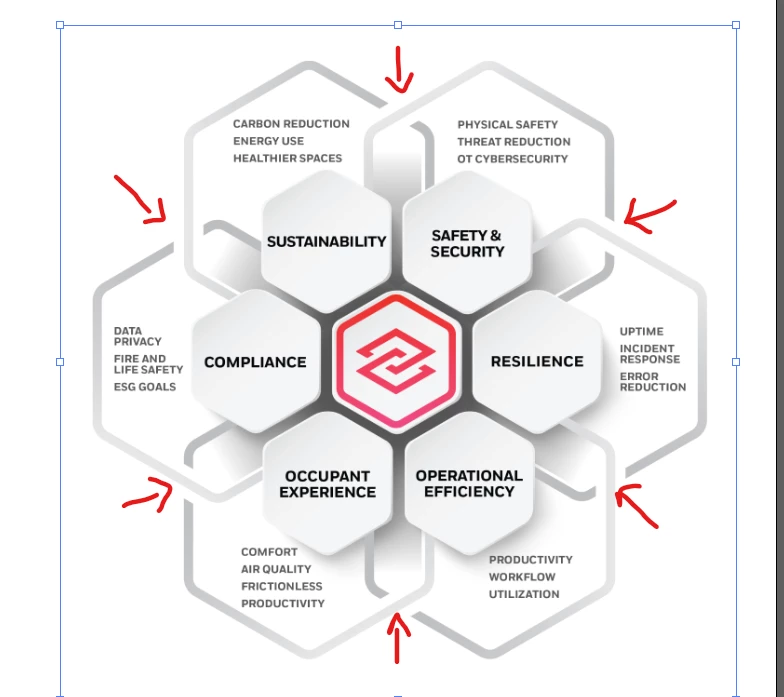
I am looking for guidance to create the following infographic:


- How can i create these interlocking hexagons with gaps at the intersections?

- How can i make the area around the center hexagon that contains the logo darker?


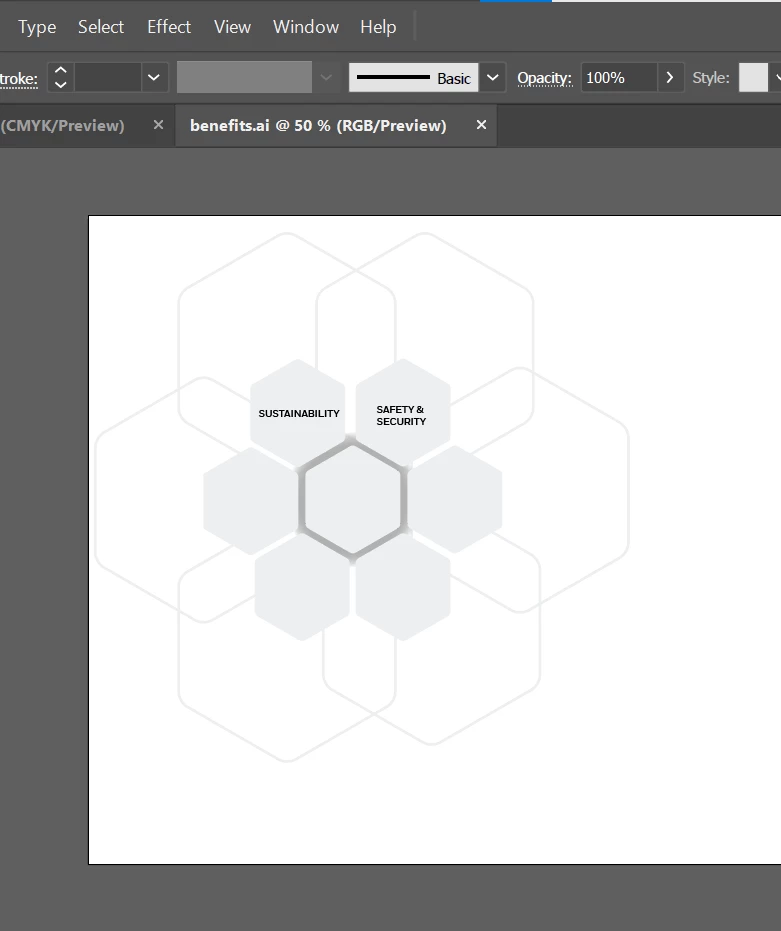
The following is the progress that i have made thus far, but it's certainly not up to scratch.


Any guidance would be greatly appreciated.


Thanks for your time!

This topic has been closed for replies.
Correct answer Jacob Bugge

29632062lql3,


You can also:


1) Create a black fill/nostroke rectangle with a width equalling the desired cutout of the lower hexagon at the upper left (or lower right intersection) and centred on the left vertical part of the other/upper hexagon;

2) Rotate 5 copies of the rectangle made in 1) round the centre of the artwork with the Rotate Tool at 60 degrees;

3) Select each rectangle and the corresponding lower hexagon and click Make (Opacity) Mask in the Transparency panel.


This ought to hide the undesired parts of the lower hexagons.


You can determine the centre in different ways, unless known already.


You can look up relevant explanations by a search here (empty, ready for insertion, ignore error message), add Illustrator to avoid hits for other applications, choose pages and read/search in them:


https://helpx.adobe.com/search-results.html?q=&scope=%5B%22helpx%22%5D&subscope=%5B%5D&limit=10&start_index=0&sort_orderby=relevancy&sort_order=desc&post_facet_filters=%7B%22applicable_products%22%3A%5B%5D%7D


Edit: Hi Mylenium, still feels like early spring here.

 

3 replies

kphotopage
Legend
May 27, 2023

29632062lql3, hi.


Here I started with a stroked Hexagon. Then Object>Path>Outline. Now I am working with Fills.

Next, Object>Path> Offset. I gave it an offset of 4 and color pink.

Group the Green and Pink.


Next, Effect >Transform. Expand Transform.

Next, Object>Live Paint. Expand Live Paint.

Lastly, select all your Hexagons, Pathfinder Unite.

K

Known Participant
May 29, 2023

Hi @kphotopage 

Thank you for sharing your approach. However, i'm afraid i'm unable to decypher your instrucitons.

May i please request if you could create a video or break down the instructions so that i may replicate them.

Thanks for your time!

Known Participant
May 29, 2023

Hi @kphotopage 


I have been able to get this far:

However, i am hitting a wall at the following steps:

Next, Effect >Transform. Expand Transform.

Next, Object>Live Paint. Expand Live Paint.

Lastly, select all your Hexagons, Pathfinder Unite.


May i please seek your guidance.


Thanks!

Jacob Bugge
Community Expert
Jacob BuggeCommunity ExpertCorrect answer
Community Expert
May 27, 2023

29632062lql3,


You can also:


1) Create a black fill/nostroke rectangle with a width equalling the desired cutout of the lower hexagon at the upper left (or lower right intersection) and centred on the left vertical part of the other/upper hexagon;

2) Rotate 5 copies of the rectangle made in 1) round the centre of the artwork with the Rotate Tool at 60 degrees;

3) Select each rectangle and the corresponding lower hexagon and click Make (Opacity) Mask in the Transparency panel.


This ought to hide the undesired parts of the lower hexagons.


You can determine the centre in different ways, unless known already.


You can look up relevant explanations by a search here (empty, ready for insertion, ignore error message), add Illustrator to avoid hits for other applications, choose pages and read/search in them:


https://helpx.adobe.com/search-results.html?q=&scope=%5B%22helpx%22%5D&subscope=%5B%5D&limit=10&start_index=0&sort_orderby=relevancy&sort_order=desc&post_facet_filters=%7B%22applicable_products%22%3A%5B%5D%7D


Edit: Hi Mylenium, still feels like early spring here.
 

Jacob Bugge
Community Expert
Community Expert
May 29, 2023

29632062lql3,


Have you tried the rotating and masking suggestion 1) - 3) above?


It is fully reversible/editable and ensures the right cutouts.

Known Participant
May 29, 2023

Hi Jacob

I'm afraid i am blanking at the last step: Make opacity mask.

Presently, i am using the Shape builder tool to carve out the parts of the hexagon i don't need.

Mylenium
Legend
May 27, 2023

Apply a thick white stroke for the gaps, use the Intertwine tool to define the overs and unders.


Mylenium