
Known Participant
July 24, 2013
Answered

How to create tick marks within an arched area

  • July 24, 2013
  • 4 replies
  • 8427 views

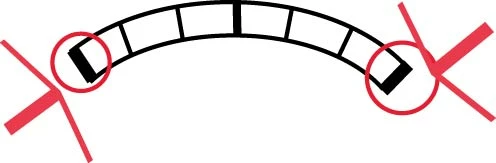
I need to recreate this dial and I've learned how to create evenly spaced tick marks within a circle, but this is an ellipse.  Here, I attempted to draw two ellipse then used the scissors to cut them to size.  Then I used the line tool and drew each of the tick marks.  Then I adjusted the weights of each tick.  This is not a good method because the end ticks are not meeting the ends of the ellipse perfectly, leaving a tiny bit of tick mark outside the ellipse.  There must be a better way to do this. Here is what I ended up with:
But this is what I need to create:
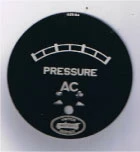
(I only need to create the arched part with tick marks of this dial)

Any help is appreciated, but please note that I am familiar with only the very basics of illustrator, I simply don't do this type of work often enough to completely understand the software.

Thanks!!!!

This topic has been closed for replies.
Correct answer Jacob Bugge

Jber,

If you wish to have the tick marks follow an ellipse and at the same time have constant widths (two different widths), you may:

0) Lock the image of the dial;

1) Create the thickest tick mark and move a copy to the right, then create a one step blend;

2) Create the thinnest tick mark and move a copy to the right, then create a five steps blend;

3) Create the two ellipses corresponding to the two arcs, then create a one step blend and Object>Blend>Expand to get a midway ellipse;

4) With the midway ellipse Object>Path>Add Anchor Points a few times (see below), and copy the midway ellipse;

5) Select the original midway ellipse and the thin blend and Object>Blend>Replace Spine;

6) Select the copy midway ellipse and the thick blend and Object>Blend>Replace Spine.

Now you should have the whole dial with the thickest tick marks on top of the thinnest ones on top of the elliptic arch set.

If you wish to extend the thick tick marks upwards, you may select that blend and:

7) Object>Blend>Expand;

8) Select each of the thick tick marks and select the appropriate bottom Reference Point in the Transform palette ((Right for left, Center for centre, Left for right), then multiply the H value by the deisred amount and click Ctrl/Cmd+Enter to make them a bit longer up/outwardly.

The Object>Path>Add Anchor Points in 4) is to get a even distribution of the thin tick mark blend (not necessary for the thick tick marks blend because it only has one step).

4 replies

JETalmage
Inspiring
July 25, 2013

JET

Jacob Bugge
Community Expert
Jacob BuggeCommunity ExpertCorrect answer
Community Expert
July 24, 2013

Jber,

If you wish to have the tick marks follow an ellipse and at the same time have constant widths (two different widths), you may:

0) Lock the image of the dial;

1) Create the thickest tick mark and move a copy to the right, then create a one step blend;

2) Create the thinnest tick mark and move a copy to the right, then create a five steps blend;

3) Create the two ellipses corresponding to the two arcs, then create a one step blend and Object>Blend>Expand to get a midway ellipse;

4) With the midway ellipse Object>Path>Add Anchor Points a few times (see below), and copy the midway ellipse;

5) Select the original midway ellipse and the thin blend and Object>Blend>Replace Spine;

6) Select the copy midway ellipse and the thick blend and Object>Blend>Replace Spine.

Now you should have the whole dial with the thickest tick marks on top of the thinnest ones on top of the elliptic arch set.

If you wish to extend the thick tick marks upwards, you may select that blend and:

7) Object>Blend>Expand;

8) Select each of the thick tick marks and select the appropriate bottom Reference Point in the Transform palette ((Right for left, Center for centre, Left for right), then multiply the H value by the deisred amount and click Ctrl/Cmd+Enter to make them a bit longer up/outwardly.

The Object>Path>Add Anchor Points in 4) is to get a even distribution of the thin tick mark blend (not necessary for the thick tick marks blend because it only has one step).

Jber505Author
Known Participant
July 24, 2013

Thank you very much Jacob! This all seems like stuff I understand, but I won't get a chance to try out your method till the morning.  If I have any problems with it, I'll post back.

Much appreciated.

Jacob Bugge
Community Expert
Community Expert
July 24, 2013

You are welcome, Jber. I should mention that the dial photo shows a total of four thick tick marks, in which case you should make a two step blend in 1).

I believe Mike meant that you can create the straight version in whichever way you want, then Arc it (hopefully not Argh it).

To correct what I said before, this may tick marks with thicknesses that grow upwards, corresponding to the difference in the lengths of the curved top and bottom.

One way that results in constant thickness tick marks might be to (using Stroke>Round Cap/Join or Stroke>Projecting Cap/Miter Join or Stroke>Butt Cap and Miter Join depending on the desired end shape and length, see below):

1) Apply the Rectangular Grid Tool with the desired width and height and with 0 Horizontal Dividers and 5 Vertical Dividers;

2) Direct Select the tick marks to be thick and Ctrl/Cmd+C+F+X+C to create independent paths in front, then increase their Stroke Weight as desired, then if you want to have them extend past the grid at the top as in the photo (instead of both at the top and the bottom) use Round or Projecting Cap and move them up by half the difference in Stroke Weight (if they are 2pt and the grid is 1pt move them up by 0.5 pt), and if you want to have them fit the height of the grid use Round or Projecting Cap and decrease their length by the difference in Stroke Weight or use Butt Cap and increase their length by the difference in Stroke Weight;

decrease their length;

3) Group the grid and the thick tick marks;

4) Effect>Warp>Arc.


Mike_Gondek10189183
Community Expert
Community Expert
July 24, 2013

I would draw this  straight, then use

Object >> Envelope Distort >> Warp

Jacob Bugge
Community Expert
Community Expert
July 24, 2013

And live with the widening tick marks, Mike?

Jacob Bugge
Community Expert
Community Expert
July 24, 2013

Jber,

I believe it is (close enough to be considered) a circle, at least when taking the irregularities into account. The two outermost tick marks seem to point to the largest circle below AC, and if you measure the distance from that to the ends and to the middle of the arc, I believe you will find that they are just about the same.