Participant
July 31, 2019
Answered

How to crop a layer with a gradient with the effect of texture > grain?

  • July 31, 2019
  • 4 replies
  • 3729 views

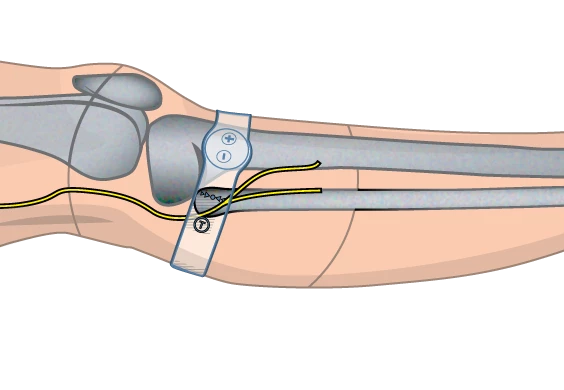
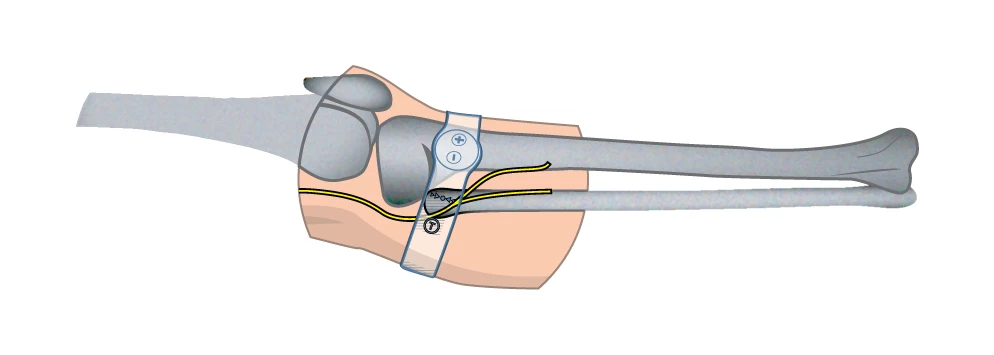
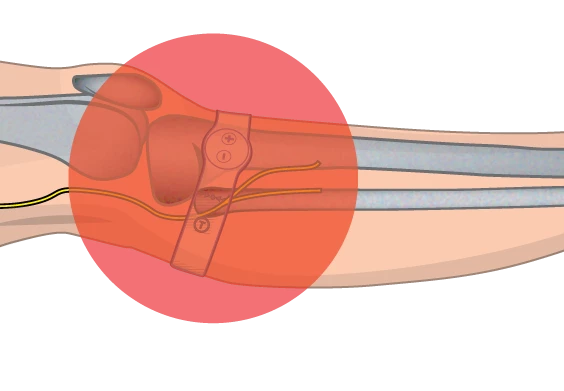
Hi guys, I'm trying to crop all the elements outside of the circle but I didn't find a proper way to delete the gradients with the effect of texture. Any idea about how to deal with it? I've been trying with pathfinders and other alternatives but no one works properly. I drop you here what I did and a dew pics:

-Group all the elements I'm going to crop

-Object > Expand: Fill, Stroke and Expand Gradient To Specify 255 Objects.

-Create the cropping shape which I'm going to use. A solid circle on the top of it.

-Object > Path > Divide Objects Below.

-Ungroup and start removing the outside elements.
    This topic has been closed for replies.
    Correct answer Eric Dumas

    Hi,

    Can you confirm the version of illustrator and the Operating System you are using?

    Have you considered using a mask instead? (hide the rest instead of cutting it?)

    4 replies

    Participant
    July 31, 2019

    Thank you very much guys, really appreciated. In this singular case, I will go for Eric's option because is simpler, but both of them work perfectly.

    Jacob Bugge
    Community Expert
    Community Expert
    July 31, 2019

    For my part you are welcome, Miguel.

    Only do the dirty destructive deed if you really have to get rid of the outlying parts, and in that case make sure you keep a copy of the undestroyed artwork.

    In all other cases just use the Clipping Mask as suggested by Eric: this will let you keep everything as it is, and you can access and edit it by just releasing the Clipping Mask, and then reapply it.

    Participant
    July 31, 2019

    Windows 10 Pro 64 bits & Illustrator CC 23.0.3 64 bits

    Jacob Bugge
    Community Expert
    Community Expert
    July 31, 2019

    Miguel,

    How about Shape Builder?

    Or the dirty destructive deed, with the Clipping Mask selected (exact way depending on version)?

    1) With the circle on top of the artwork Ctrl/Cmd+7,

    2) Object/Edit>Flatten Transparency, just keep the defaults including 100% Vector;

    3) Shudder (optional, unless unavoidable).

    This will crop everything to the Clipping Path (or to its Bounding Box in case of raster images), with the possible exception of some empty paths, remnants of the pattern tiles that have been cut to fit the Clipping Path, or something similar; if there are such paths, you may:

    4) With the Direct Selection Tool, Click an empty spot to deselect, then ClickDrag along and outwards from each side of the former Clipping Path and press Delete (twice) to get (completely) rid of the empty paths;

    With this, everything should be cleaned up.

    Edit: Obviously, what Eric said in case you just wish to hide everything outside; I assumed the opposite.

    Eric Dumas
    Community Expert
    Eric DumasCommunity ExpertCorrect answer
    Community Expert
    July 31, 2019

    Hi,

    Can you confirm the version of illustrator and the Operating System you are using?

    Have you considered using a mask instead? (hide the rest instead of cutting it?)