Known Participant
April 6, 2020
Answered

How to crop an pattern to irregular shape

  • April 6, 2020
  • 4 replies
  • 4096 views

Hi


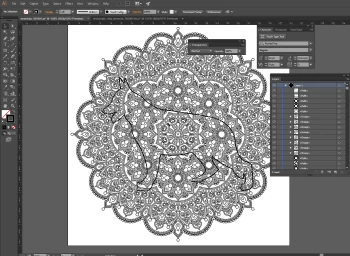
I try to make a zentangle dog graphic like this:


But I tried :

1. Pattern fill, not suit for import to other sofware.

2  Using clipping mask - I cannot clear the unneccesy parts (outside the dog shap) and remove the cliping path

3.Pathfinder - I cannot clear the unneccesy parts (outside the dog shap)


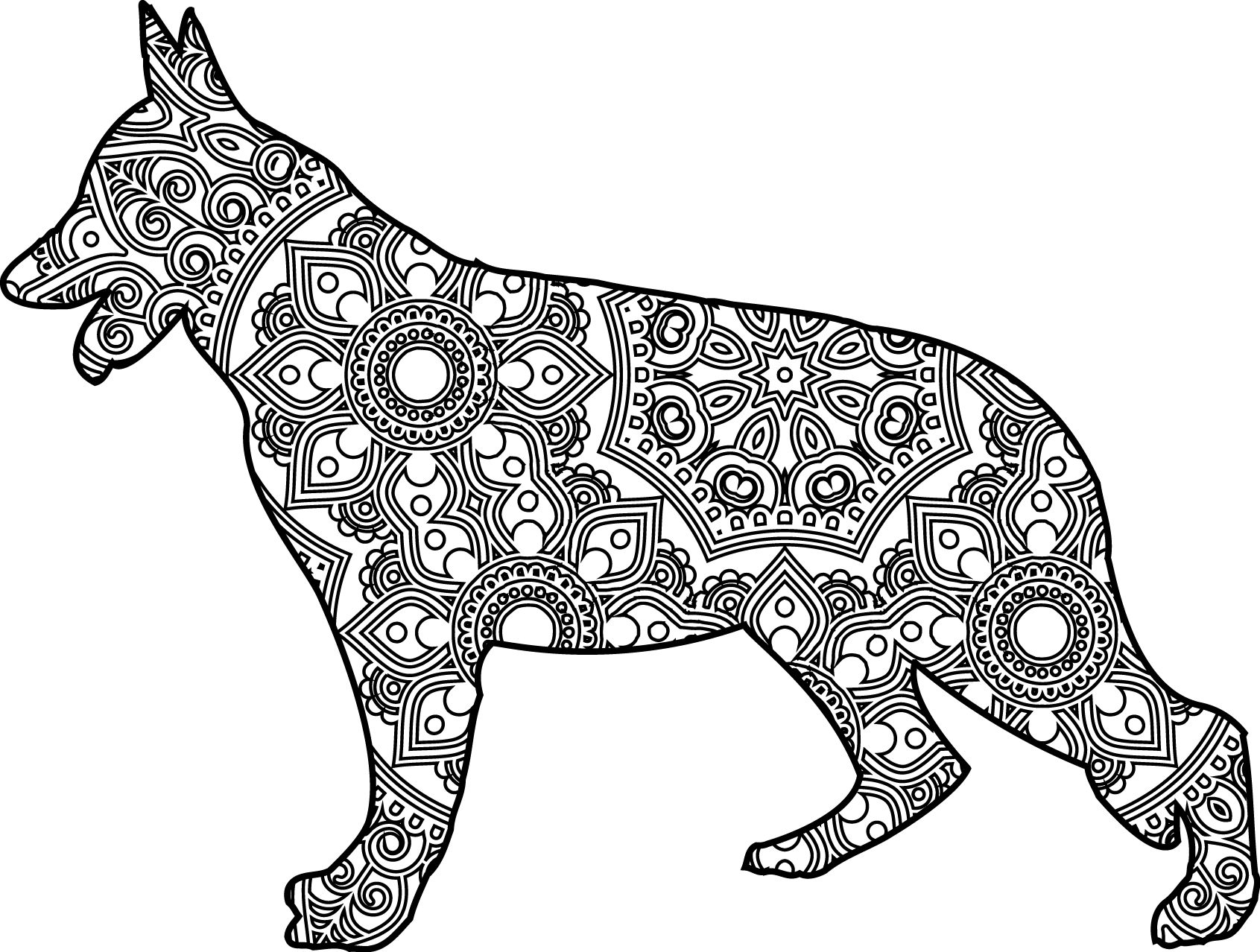
here is orginal image


Is there any method to make this done (crop and clear) ?


Thanks


This topic has been closed for replies.
Correct answer Katie Houghton

So the clipping path still has the content outside of the clipping path which is what is causing the problem becuase the object still exists. If the pattern was a pattern fill you would not have the problem or you can use the Pathfinder instead of using a Clipping path. 


Why it is happening:
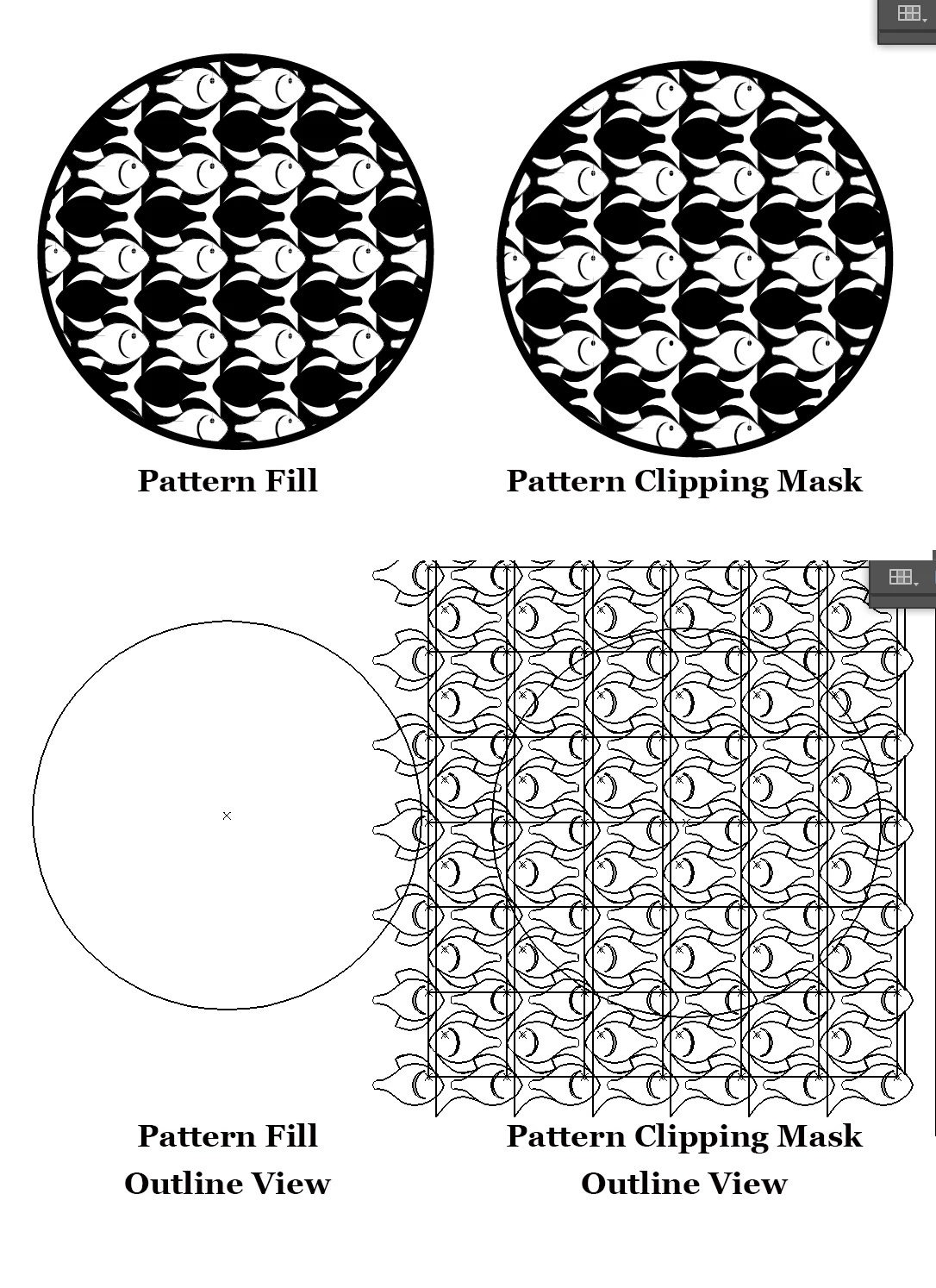
How to fix the clippng path issue:

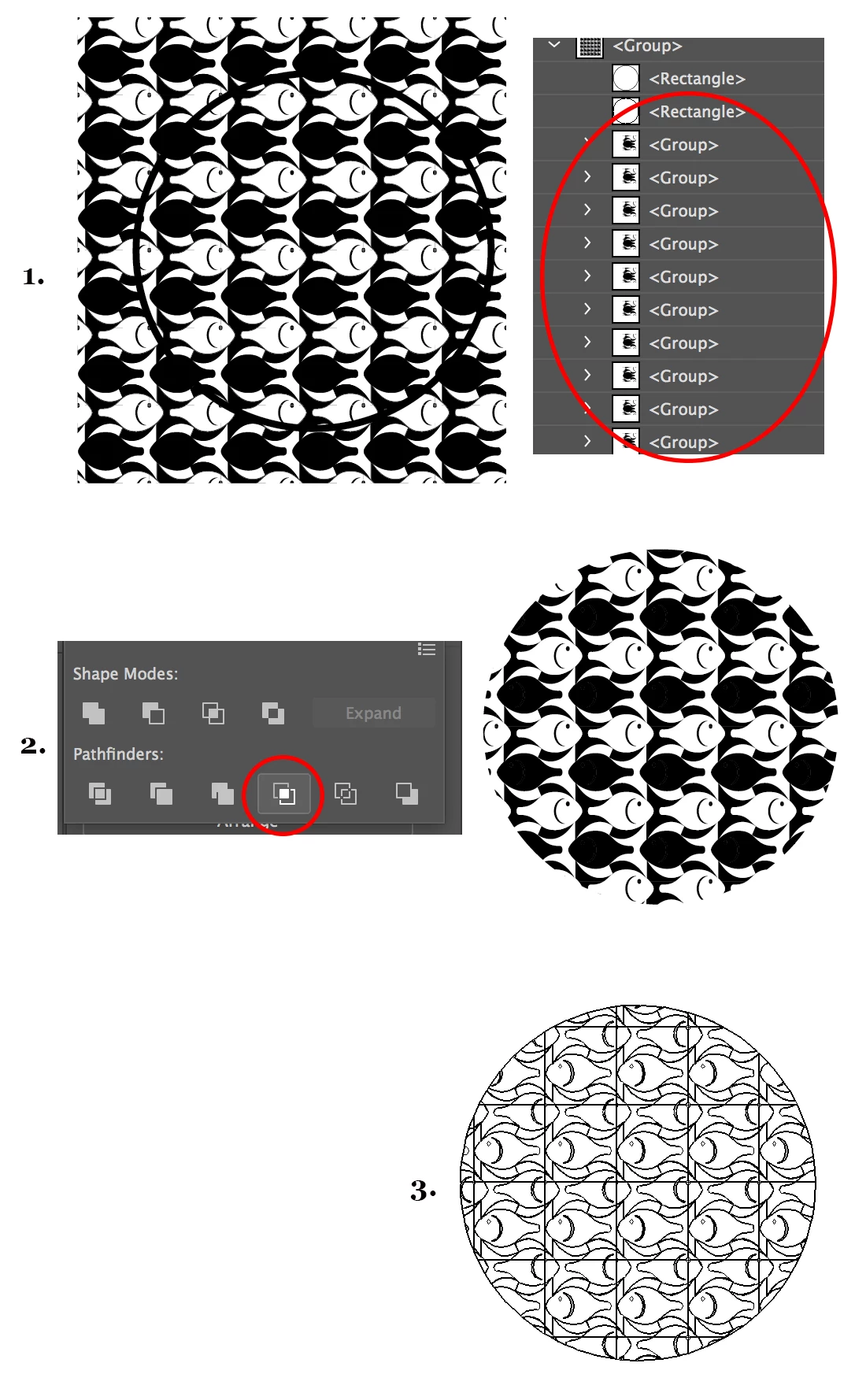
Step 1: If you have a clipping path, release it Object> Clipping Path> Release or Make/Release Clipping mask in the Layers Panel 


Step 2: Select the pattern and the Clipping Path. (Make sure you have a copy of the Clipping Mask Path to keep for the outline stroke) Once all the items are selected with the non-pattern path on top, Choose the Crop Icon in the Pathfinder Section of the Pathfinder Panel.


Step 3. This is not a step but if you choose the outline view you will see that the path does not exist outside of the original clipping path area. So problem fixed.

 

4 replies

Jacob Bugge
Community Expert
Community Expert
April 6, 2020

calvin,


With the Clipping Mask selected, what happens if you:


1) Object/Edit>Flatten Transparency, just keep the defaults including 100% Vector;
2) Shudder (optional, unless unavoidable)?


This ought to crop everything to the Clipping Path, with the possible exception of some empty paths, remnants of the pattern tiles that have been cut to fit the Clipping Path, or something similar; if there are such paths, you may:


3) With the Direct Selection Tool, Click an empty spot to deselect, then ClickDrag along and outwards from each side of the former Clipping Path and press Delete (twice) to get (completely)

rid of the empty paths.


With this, everything should be cleaned up.


Katie HoughtonCorrect answer
Inspiring
April 6, 2020

So the clipping path still has the content outside of the clipping path which is what is causing the problem becuase the object still exists. If the pattern was a pattern fill you would not have the problem or you can use the Pathfinder instead of using a Clipping path. 


Why it is happening:

How to fix the clippng path issue:

Step 1: If you have a clipping path, release it Object> Clipping Path> Release or Make/Release Clipping mask in the Layers Panel 


Step 2: Select the pattern and the Clipping Path. (Make sure you have a copy of the Clipping Mask Path to keep for the outline stroke) Once all the items are selected with the non-pattern path on top, Choose the Crop Icon in the Pathfinder Section of the Pathfinder Panel.


Step 3. This is not a step but if you choose the outline view you will see that the path does not exist outside of the original clipping path area. So problem fixed.
 

キィィ─!!!
Participating Frequently
April 6, 2020

Hi, wkcalvin.

Expands a pattern object.
Outline Stroke
Dog objects in the front.
Crop in Pathfinder.

michelew83603738
Community Expert
Community Expert
April 6, 2020

What are you ultimately trying to do that you need to delete what is beyond the clipping mask? It seems as if the mask would be the ideal solution.

wkcalvinAuthor
Known Participant
April 6, 2020

Thanks


I need to save it to SVG and upload to another sofware which not allow clipping path.


So I need corp it and delete unnecessary and create a coumpound path.


Yes, I need make it simplest graphic - no mask, no pattern fill, only with strokes


Any idea ?