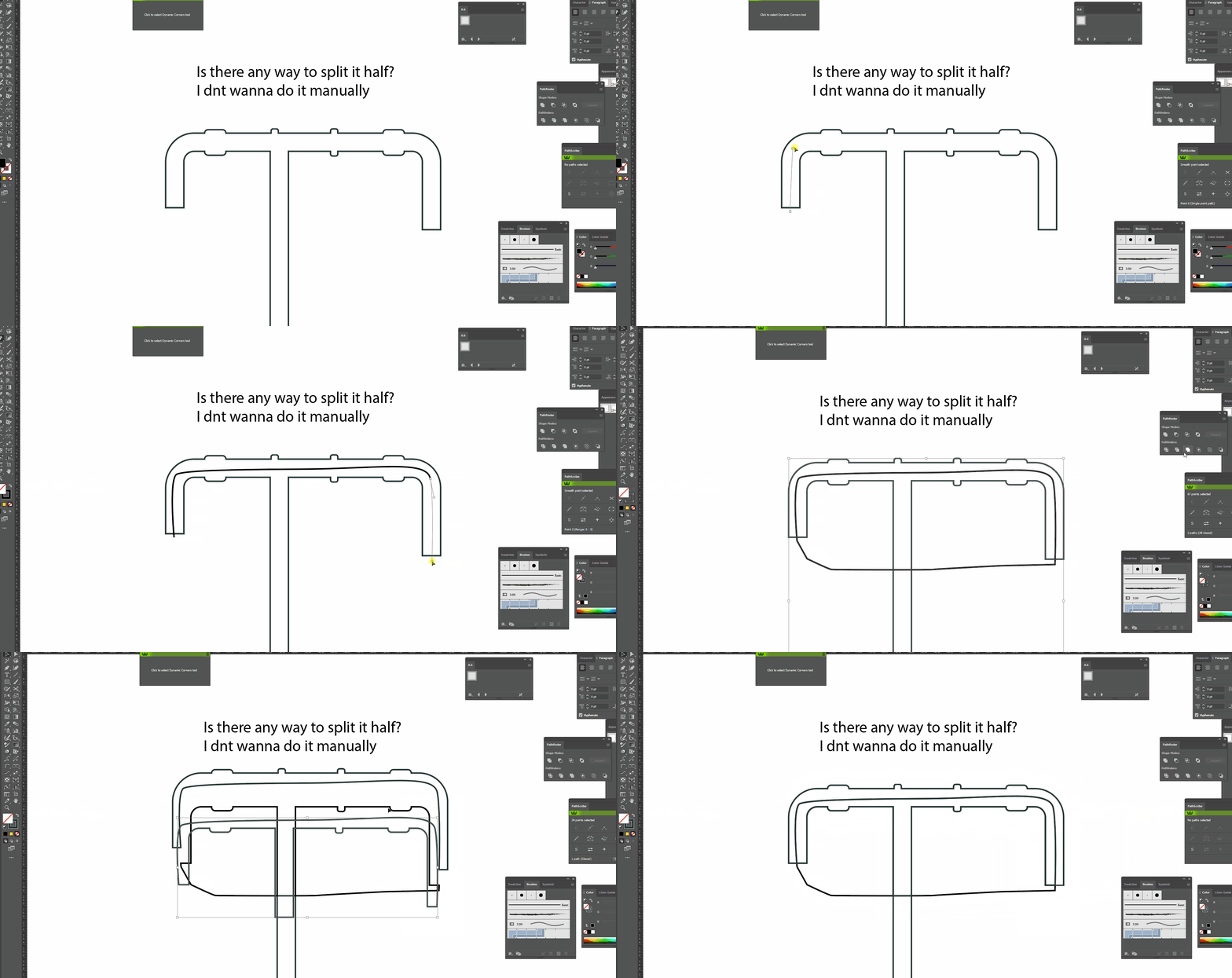
S_ A
Inspiring
April 5, 2024
Answered

how to cut/split a shape exacthly half in the middle in illustrator

  • April 5, 2024
  • 3 replies
  • 1554 views

I need to cut a shape exatly in the middle position maintaining/keeping its outer shape/design. I dnt wanna use pen tool, neither I wanna do it manually. I need to color this two parts in different colors.


is there any trick or way to do it? please help :'(

This topic has been closed for replies.
Correct answer Jacob Bugge

Suraiya,


Based on "I need to cut a shape exatly in the middle position maintaining/keeping its outer shape/design", a way to create the path in your video as desired is to follow the steps below, shown simplified (you can Click the image and see the details in a new Tab):


1) Copy the original path in front (Ctrl/Cmd+C+F, hold Ctrl or Cmd then press C then press F) and lock the original (shown in black);

2) Using the Direct Selection Tool and Delete, remove all parts of the path except the relevant parts at the sides (shown in red on top of the black original); deselect before you select and delete a new part;

3) For each side Click the top (or bottom) Anchor Point of both the outer and the inner path (for correct control), then Object>Blend>Blend Options with the settings 1 Specified Step and Align to Path, then Object>Blend>Make;

4) For each side select the Blend, then Object>Blend>Expand, then ShiftCtrl/Cmd+G to Ungroup, so the step becomes an immediately accessible real path (shown in blue);


These two blue paths are the crucial parts of the cutting path, exactly midway between the relevant  outer and inner parts;


5) For each side delete the original parts of the Blend;

6) Join the two paths into one;

7) Add an Anchor Point to the bottom segment, then Drag it down (with the Down Arrow or whatever) to avoid cutting into the original shape.


This blue path is the cutting path, exactly midway between the relevant outer and inner parts.
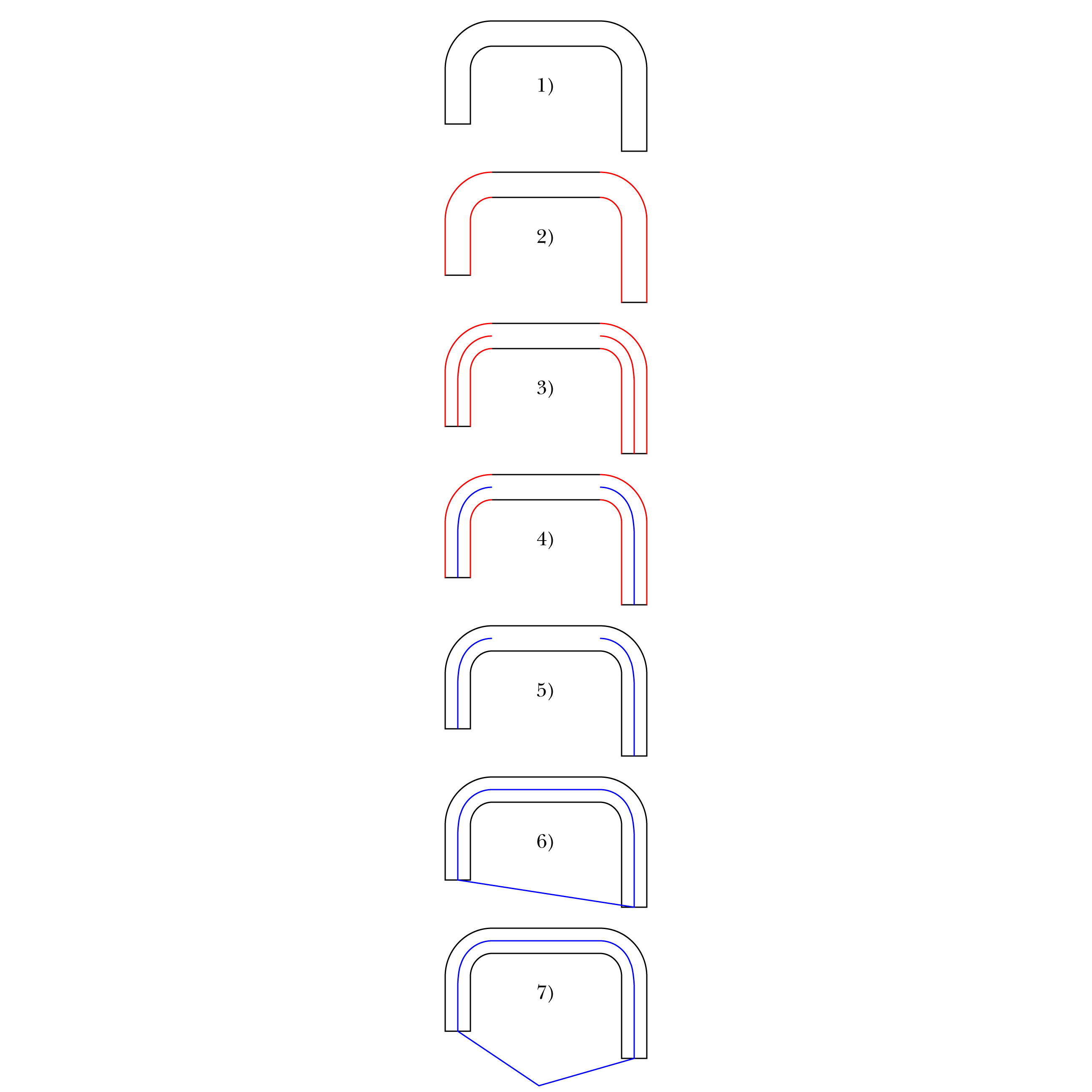


Click to see in full, Click again to zoom in and scroll to see details

 

3 replies

Jacob Bugge
Community Expert
Jacob BuggeCommunity ExpertCorrect answer
Community Expert
April 5, 2024

Suraiya,


Based on "I need to cut a shape exatly in the middle position maintaining/keeping its outer shape/design", a way to create the path in your video as desired is to follow the steps below, shown simplified (you can Click the image and see the details in a new Tab):


1) Copy the original path in front (Ctrl/Cmd+C+F, hold Ctrl or Cmd then press C then press F) and lock the original (shown in black);

2) Using the Direct Selection Tool and Delete, remove all parts of the path except the relevant parts at the sides (shown in red on top of the black original); deselect before you select and delete a new part;

3) For each side Click the top (or bottom) Anchor Point of both the outer and the inner path (for correct control), then Object>Blend>Blend Options with the settings 1 Specified Step and Align to Path, then Object>Blend>Make;

4) For each side select the Blend, then Object>Blend>Expand, then ShiftCtrl/Cmd+G to Ungroup, so the step becomes an immediately accessible real path (shown in blue);


These two blue paths are the crucial parts of the cutting path, exactly midway between the relevant  outer and inner parts;


5) For each side delete the original parts of the Blend;

6) Join the two paths into one;

7) Add an Anchor Point to the bottom segment, then Drag it down (with the Down Arrow or whatever) to avoid cutting into the original shape.


This blue path is the cutting path, exactly midway between the relevant outer and inner parts.


Click to see in full, Click again to zoom in and scroll to see details

 

S_ A
S_ AAuthor
Inspiring
April 6, 2024

Thank you so much. this is exactly what I needed.

Jacob Bugge
Community Expert
Community Expert
April 6, 2024

You are welcome, Suraiya, and thank you for your kind words.


Community Expert
April 5, 2024

Duplicate your original shape, then draw another shape to mark the edges where you want to cut. As Monika suggested a rounded rectangle might do it, some modification of the corner angles might be necessary. Then select the duplicated shape and the new rectangle and choose Minus Front from the Pathfinder section of the Properties panel.

Monika Gause
Community Expert
Community Expert
April 5, 2024

Draw a rectangle and round the corners.