
Knubbi
Known Participant
June 26, 2017
Answered

How to exclude visible layers from export

  • June 26, 2017
  • 4 replies
  • 11019 views

Is there a way to exclude layers from export?

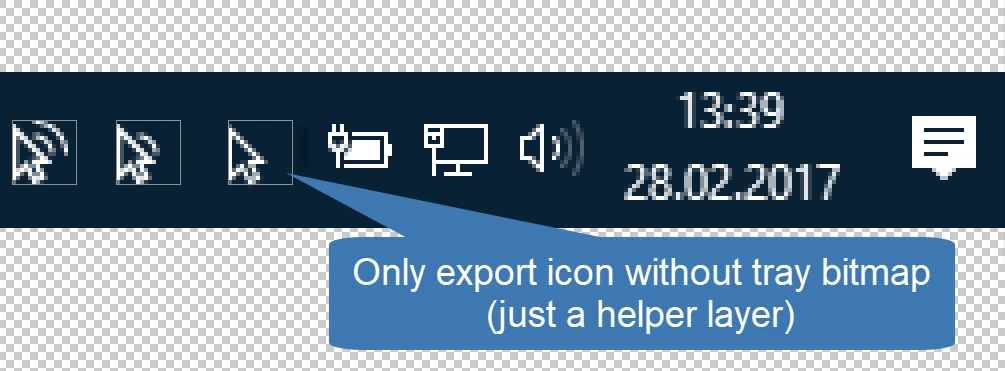
Certain layers are only used as visual guides and should be visible but not exported.

Application: We create tray bar icons and use a bitmap image of the Windows tray as a visual guidance:
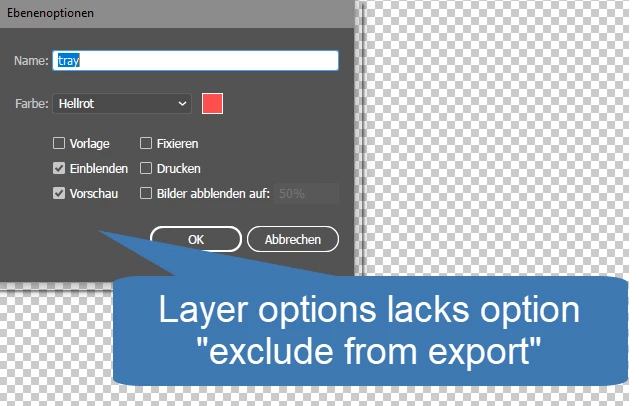
However, the layer option lack an option to be "excluded from export":
Any idea, except toggling layer visibility over and over again?
    This topic has been closed for replies.
    Correct answer Doug A Roberts

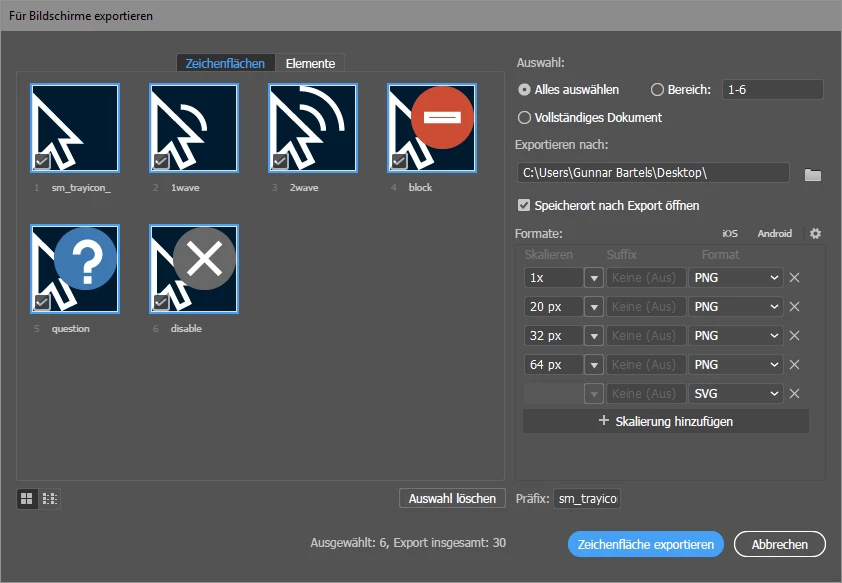
    File > Export > Export for displays


    seems like a bug/oversight. exporting to PNG, using either Export for Screens or Export As, template layers are included.

    JPEGs seem to work correctly in both; template layers are excluded

    non-printing has no effect on export, to raster files at least.

    the old Save for Web dialog seems to work correctly for both JPEG and PNG (template layers are excluded).

    4 replies

    Inspiring
    December 15, 2022

    I am using Illustrator 2023. If you want to see a layer on your canvas but don't want it to show when you print then try this (which worked for me): 


    1) Double Click Layer (you should then see "Layer Options"

    2.) Uncheck "Print". 

    If you also don't want to see your layer when exporting file (to screen), then I would try this (which also worked fine for me): 

    1) Double Click Layer (you should then see "Layer Options"
    2.) Check "Templates". Make sure "Dim Images" is unchecked.


    This will make layer non-printable and also will not export layer. 


    In German this would be "Vorlage" (Template) and "Drucken" (Print) and "Bilder abblenden auf"  (Dim Images).

    Hope that helps. 

    NOTE: There is a bug in Illustrator when checking "Templates" and unchecking "Dim Images". For some reason, when you reopen the "Layer Option" dialoque, it will have "Dim Images" checked again and set to 50%. It keeps bouncing back. But it does seem to keep the layer visibility at 100%. You can also set Dim to 100%, that will work as well. 

    Mike_Gondek10189183
    Community Expert
    Community Expert
    June 26, 2017

    What are you abel to do different to the items that you do not want to export.

    1. Lock what you do tho want to export
    2. Select All
    3. File >> Export Selected

    Setting the layers to not print will work only for .PDF if you change this setting to visible layers, and meal the layers you want hidden to no print. Yes this work son .pdf the stein is not labeled well.

    You could then run a batch action in Photoshop to convert .pdf to bitmapped format you like.

    jane-e
    Community Expert
    Community Expert
    June 26, 2017

    What happens when you make the layer non-printing?

    Also, confirm that the objects are actually on the correct layers.

    Can you just turn off visibility when you export to an image?

    Doug A Roberts
    Community Expert
    Community Expert
    June 26, 2017

    make them into template layers. i don't know the german translation.

    Knubbi
    KnubbiAuthor
    Known Participant
    June 26, 2017

    Doesn't work. Template layers seem also to be exported if set visible.

    Doug A Roberts
    Community Expert
    Community Expert
    June 26, 2017

    how are you exporting things, and to what file type?