Known Participant
January 30, 2024
Answered

How to export text cleanly

  • January 30, 2024
  • 2 replies
  • 1587 views

The text in my illustrations usually exports as a complete mess in SVG - our developers need something cleaner. i.e. instead of getting something like this:

 
      <text id="RMOD-A" class="cls-2" x="329" y="403.79" text-anchor="middle">(rmod val)</text>
      <text id="RMOD-B" class="cls-2" x="287" y="175.5" text-anchor="middle">(rmod val)</text>
      <text id="R-CFG" class="cls-2" x="244" y="403.79" text-anchor="middle">(cfg val)</text>
 

I usually get a mess like this:


      <g id="RMOD-B">
        <text class="cls-2" transform="translate(259.96 174.84)"><tspan x="0" y="0">(rmod </tspan><tspan class="cls-20" x="35.3" y="0">v</tspan><tspan x="41.03" y="0">al)</tspan></text>
      </g>
      <g id="RMOD-A">
        <text class="cls-2" transform="translate(301.83 403.79)"><tspan x="0" y="0">(rmod </tspan><tspan class="cls-20" x="35.3" y="0">v</tspan><tspan x="41.03" y="0">al)</tspan></text>
      </g>
      <g id="R-CFG">
        <text class="cls-2" transform="translate(222 403.79)"><tspan x="0" y="0">(cfg </tspan><tspan class="cls-20" x="24.29" y="0">v</tspan><tspan x="30.02" y="0">al)</tspan></text>
      </g>
 
As you can see above, the text is (for some reason) being sliced into multiple "tspan" elements. This is not the most extreme example - in some cases the text can be split (seemingly randomly) into a great many "tspans" instead of being a single "text" entry.
 
 As a result, I am currently having to parse and fix all of my SVG exports by hand, which is a very time-consuming business. Any advice on how to eliminate/minimise this would be gratefully received.

Correct answer Doug A Roberts

OK - I have now got a repeatable example:


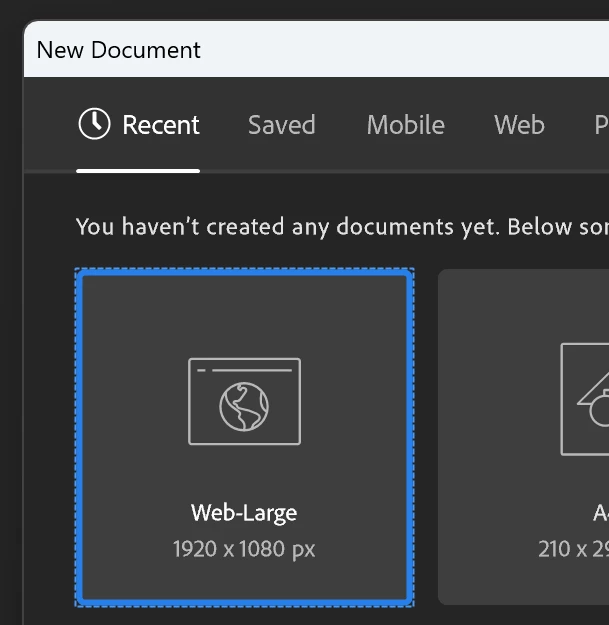
1. Create a new Illustrator file:


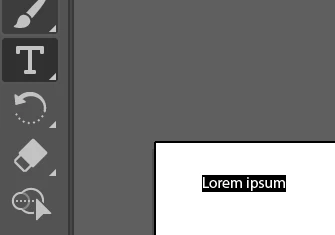
2. Using the text ("T") tool, click anywhere on the artboard to create "Lorum Ipsum"


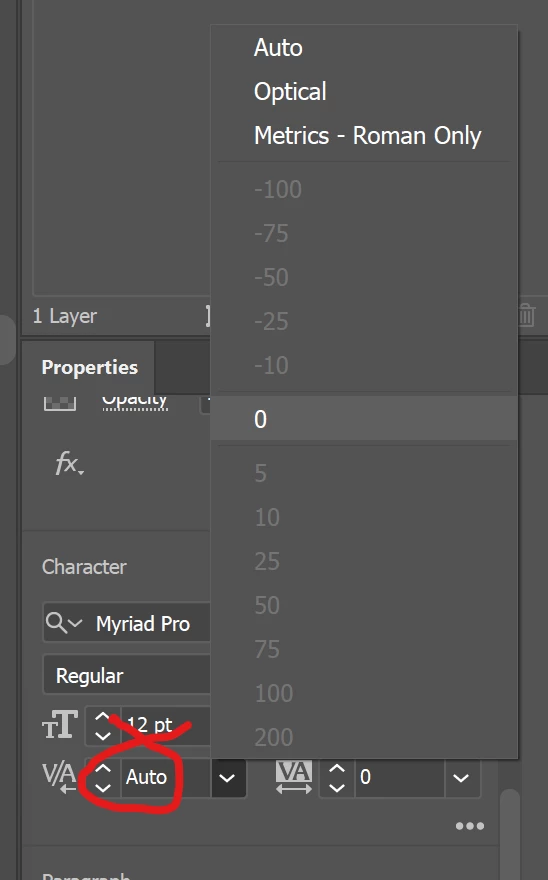
3. In the Character properties panel, change the Kerning from "Auto" to "0":


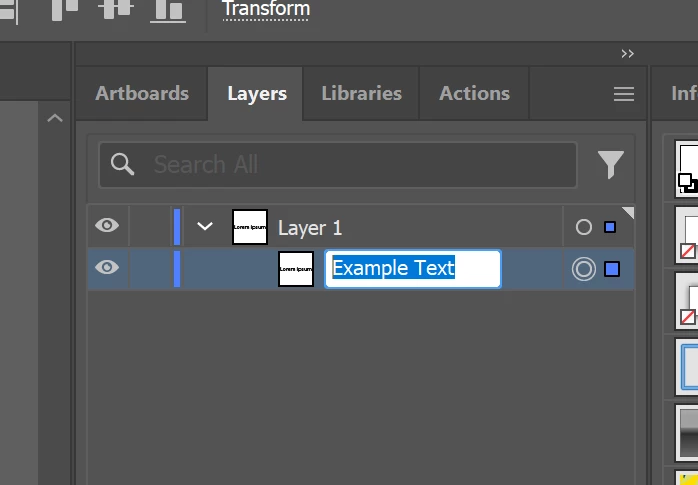
4. In the layers panel, rename it to "Example Text" (this step is important):


5. Now export as an SVG and see sow the ID is associated with the <text> section (this is what we want):


So far, so good... But now, this is where it goes wrong...


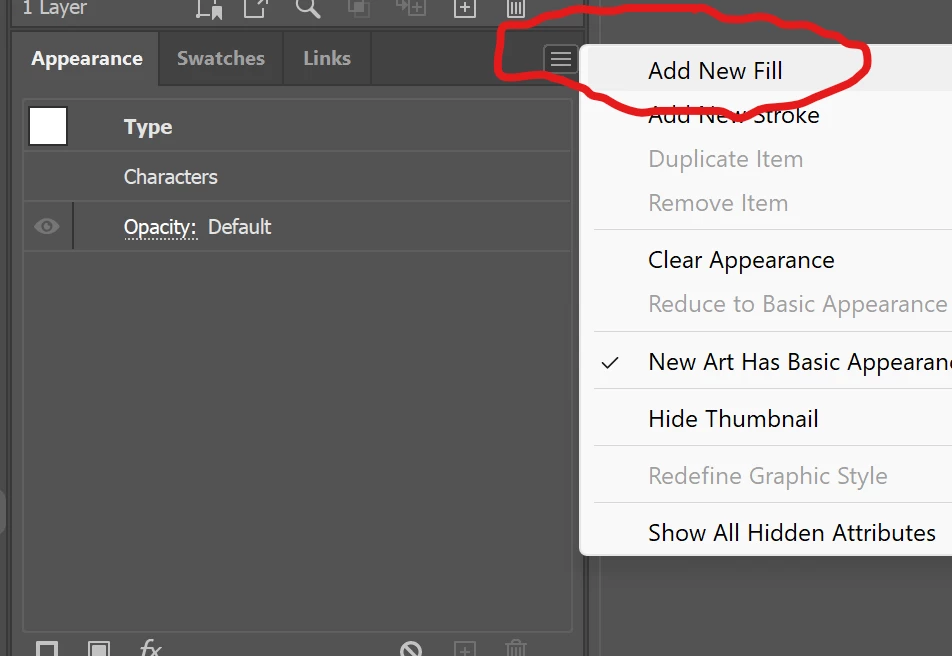
6. Now add a new fill from the menu on the Appearance properties panel:


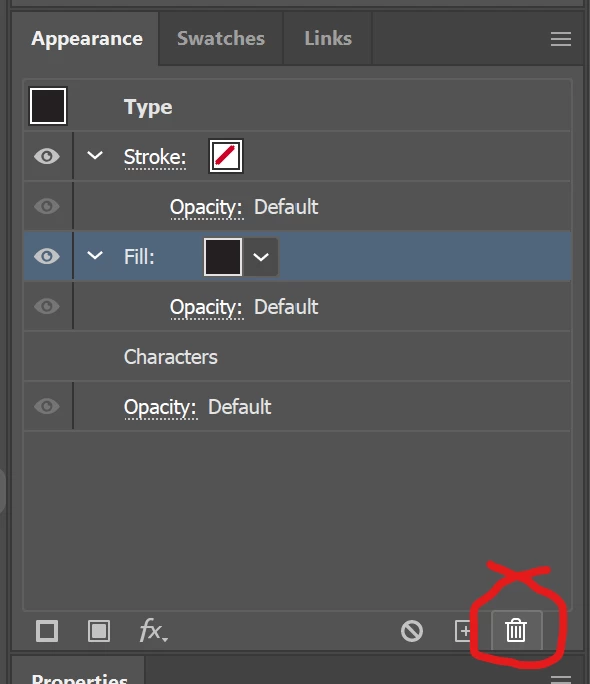
7.  Next, immediately press the Trashcan icon in the appearance panel to delete that new fill that you added:


8. Theorectically, you are now back at step 5 - however, when you perform the export, you'll see now it has gained a group, and it is that group which receives the ID:


I've not found a manual way to reset things to step 5, other than by creating a style from freshly-made text, and applying it to the offending item.


What about clearing appearance rather than trashing the fill?

2 replies

Participant
November 4, 2025

I couldn't get any of the "Correct answers" to work for me (setting kerning to Metrics, clearing appearance), but here's a potentially useful regex that removes the extraneous <tspans> from <text> elements. Use carefully because it will alter text wraps and line breaks.
<tspan class="cls-\d*" x="[0-9.-]*" y="[0-9.-]*">|<tspan x="[0-9.-]*" y="[0-9.-]*">|</tspan>


Doug A Roberts
Community Expert
Community Expert
January 30, 2024

One possible cause of this is nonstandard kerning. Is your type set to something other than 'Metrics'?

__JMW__Author
Known Participant
January 30, 2024

Actually, we need to set it to zero - but you're right inasmuch as it wasn't set to zero, but "auto".

But how can I get "<text id="blah blah"> - currently illustrator SVG export always wraps text in a "<g>" group and names that instead. Our (custom) application that takes our SVGs expects the text to get the ID (as is specified in my illustrator files), not a group (which is non-existent in the illustrator original).

Doug A Roberts
Community Expert
Community Expert
January 30, 2024

I get non-split text objects when using Metrics.

Are you using Save As or Export? What settings? Using 'Layer names' as object ID adds those <g> elements.