
Participating Frequently
August 5, 2014
Answered

How to fill a shape with a dot grid

  • August 5, 2014
  • 4 replies
  • 69275 views

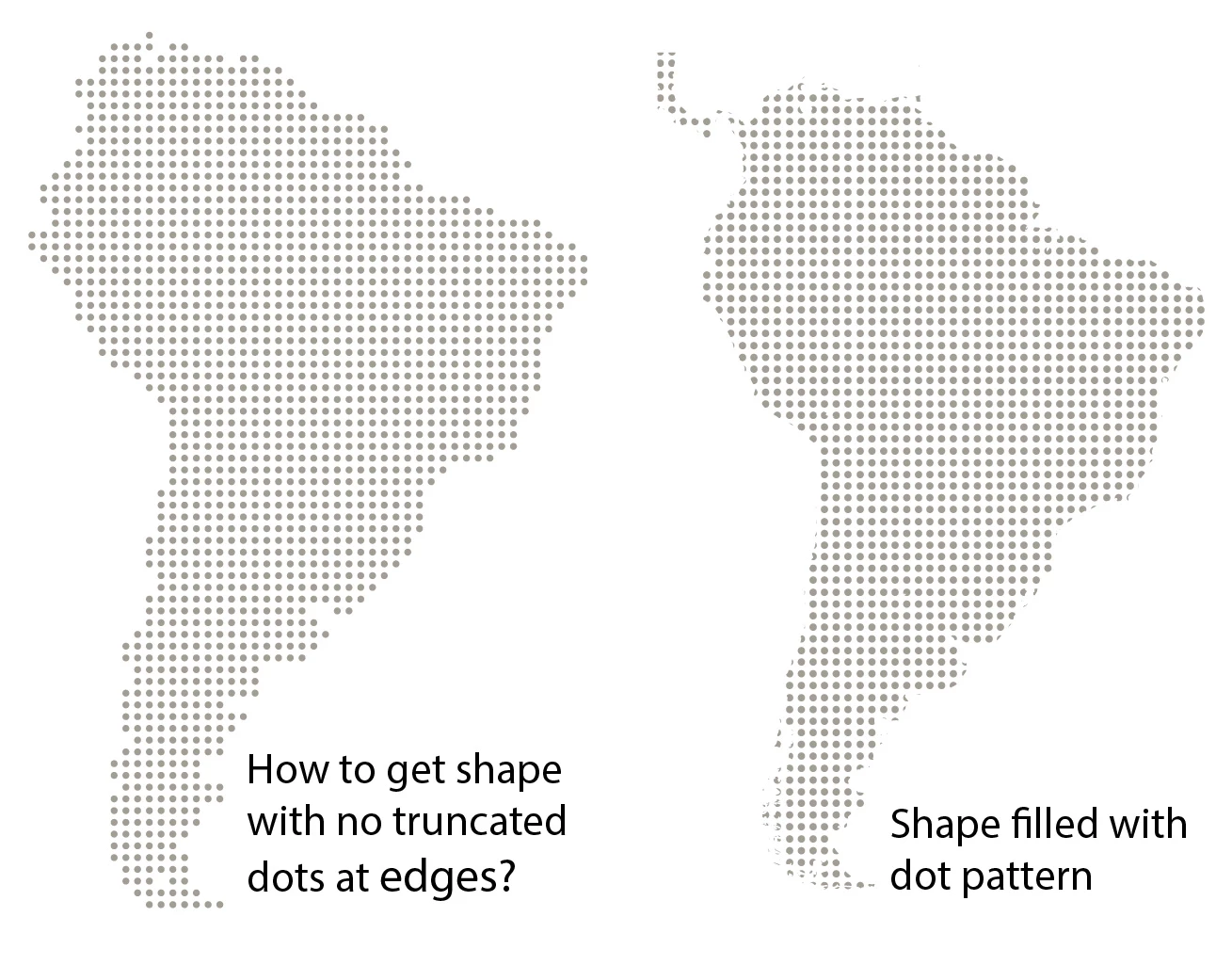
I am trying to recreate the style shown at left, where an irregular vector shape (a map) is filled with a grid composed of whole dots, no partial dots.

When I create a dot pattern swatch and fill a shape, I get the appearance shown at right, where the edge of the shape truncates dots.

How is this done?
    Correct answer Monika Gause

    See this on how not to get mad with deleting:

    Vektorgarten - Pathfinder-Special

    4 replies

    JETalmage
    Inspiring
    August 7, 2014

    1. Apply a solid fill to the path.

    2. Object>Rasterize.

    3. Object>Create Object Mosaic. Use Ratio. Delete Raster.

    4. Ungroup.

    5. Select one of the resulting white rectangles. Select>Same>Fill & Stroke.

    6. Delete.

    7. Select all the remaining rectangles.

    8. Effect>Convert To Shape>Ellipse. Absolute.

    That will give you whole circles.

    JET

    mpc888Author
    Participating Frequently
    August 7, 2014

    JET -

    Now that's a really elegant solution! I tried it on some simple freehand shapes and it worked quickly and it seems to be the most painless technique.

    I'm trying it on my world map (10" x 5") right now, but in order to get a result with reasonable detail, I need dots that are 0.1" in size, so that's 500,000 mosaic tiles even though most of them (the oceans) will get deleted.

    It looks like it will take 2-3 hours or more on my 2.66 GHz Mac (i5 processor). It's chugging away right now...

    (Nice to see you back in the forum. I've learned a lot from the techniques you post to other people's questions)

    mpc888Author
    Participating Frequently
    August 7, 2014

    Update: I just recalculated the grid I need and it's only 34,000 tiles. That rendered quickly. After deleting the oceans, it's only 12,000 tiles.

    The original one with too many tiles was going nowhere - looked like it was going to be 12 hours if Illustrator didn't crash in the process.

    Steve Fairbairn
    Inspiring
    August 7, 2014

    You can do something like this by creating an object mosaic of the map. Then use Round Corners and Transform Each to modify the mosaic tiles.

    karolcholewa
    Known Participant
    August 5, 2014

    I know it sounds trivial, but using Area Type Tool works quite well. Simply type zillions of dots, inside the map shape, in a preferred font family (Arial Rounded?), adjust the font size, leading, baseline shift, and tracking for best result. I promise interesting and diversified results . After you're satisfied, create outlines.

    hsiaohaha
    Inspiring
    June 13, 2020

    I think your idea is brilliant the easiest and efficient one! 

    Jacob Bugge
    Community Expert
    Community Expert
    August 5, 2014

    mpc,

    You may create a large dot pattern extending past the factor shape and expand it so you have individual dots, then simply delete the unwanted dots; you can do that in larger numbers, and decide whether each individual dot that is both inside and outside should extend past the factor shape or be deleted.

    To create and expand the dot pattern, you may start with a single dot, then use Effect>Distort&Transform>Transform with a horizontal Move and many copies, then the same vertical move with many copies, then Object>Expand Appearance.

    mpc888Author
    Participating Frequently
    August 5, 2014

    Thanks Jacob, I was afraid of that - a manually intensive process. I was wondering if there was some automatic way, perhaps a script, but I guess not.

    Karol: thanks for an alternate possibility. Unfortunately it doesn't give me a geometric grid that I need for this case.

    Monika Gause
    Community Expert
    Monika GauseCommunity ExpertCorrect answer
    Community Expert
    August 5, 2014

    See this on how not to get mad with deleting:

    Vektorgarten - Pathfinder-Special