Participant
August 7, 2017
Answered

How to fix lines not meeting up properly

  • August 7, 2017
  • 1 reply
  • 375 views

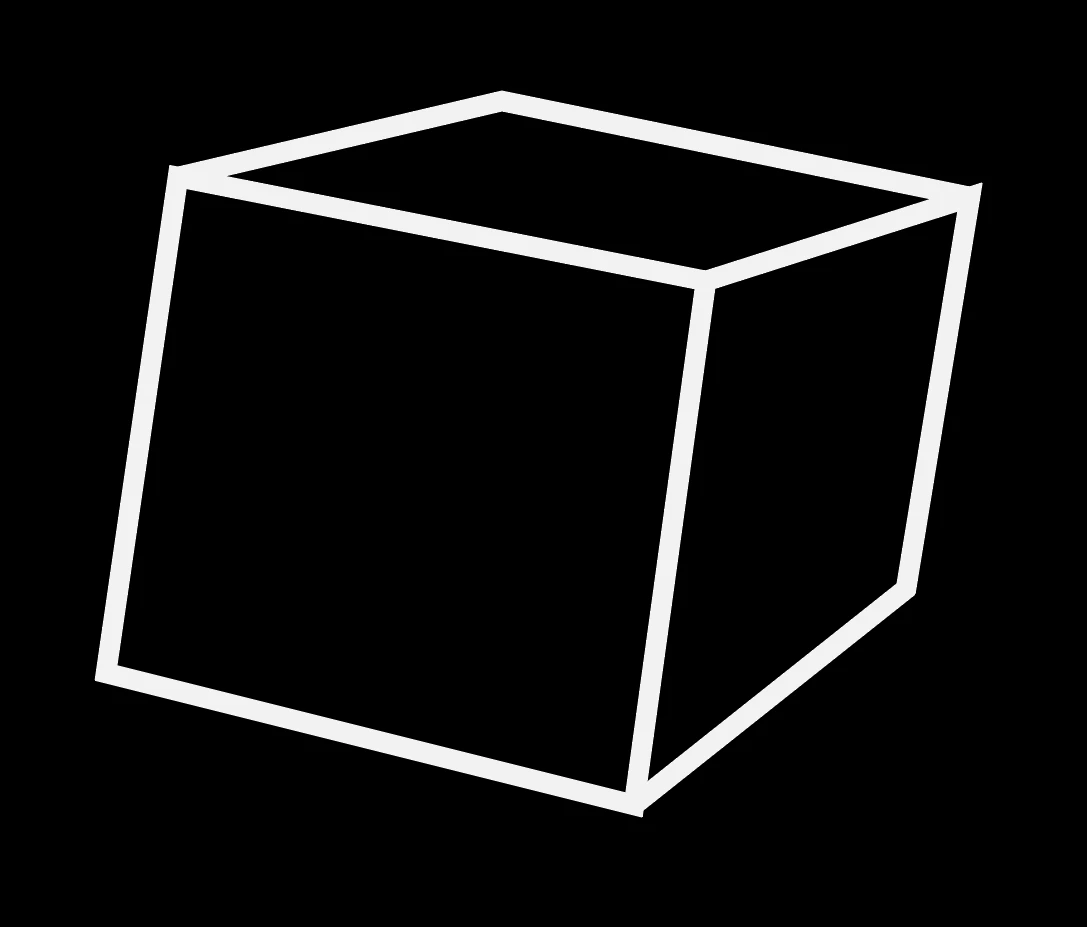
So This seems like a really basic issue, but I cant seem to figure out why I cant get these lines to match up evenly, Does it have something to do with align stroke?

Thank you for your help!
    This topic has been closed for replies.
    Correct answer Jacob Bugge

    Alan,

    This reflects your choice of Miter Joins in combination with the (closed) paths.

    You may use Round Joins throughout.

    Or you may have just one closed path, namely the outermost shape, which will give you the right shape of sharp corners with the Miter Joins, and then have the inner paths open (you can have one with two segments, or just three straight paths).

    1 reply

    Jacob Bugge
    Community Expert
    Jacob BuggeCommunity ExpertCorrect answer
    Community Expert
    August 7, 2017

    Alan,

    This reflects your choice of Miter Joins in combination with the (closed) paths.

    You may use Round Joins throughout.

    Or you may have just one closed path, namely the outermost shape, which will give you the right shape of sharp corners with the Miter Joins, and then have the inner paths open (you can have one with two segments, or just three straight paths).

    alanhuopaAuthor
    Participant
    August 7, 2017

    Thank you for your help Jacob!

    This was very helpful information.

    However, Im wondering, is there no way to easily have sharp edges on a cube?

    Jacob Bugge
    Community Expert
    Community Expert
    August 8, 2017

    Alan,

    For the special case of a standard isometric cube, you may start with a hexagon (Polygon) and add the inner lines (you can start with one between the centre and a corner and rotate copies, or one between opposite corners then Add Anchor Points and cut then rotate (a copy of) one of them).

    For other cases you may:

    1) Create the closed paths that form the sides;

    2) With the (normal) Selection Tool select each and and then with the Scissors Tool Click each of the Anchor Points coinciding with those of the other paths;

    3) Select the three new open outer paths and Ctrl/Cmd+J to join them;

    4) For each of the double inner lines deselect and then with the Direct Selection Tool Click and press Delete.

    This should give you the outer hexagon as a closed path with the right sharp corners, and the inner lines as straight paths.