qasems94761906
Participant
January 14, 2018
Answered

How to have multiple selections on a letter (for example "G")?

  • January 14, 2018
  • 2 replies
  • 359 views

Hello guys.

I wan to have different selected areas on letter "G" and give each part a different gradient.

Can you guys help me how to do this?

This topic has been closed for replies.
Correct answer cinziamarotta

Hi,

If you don't want it to be live text, you can use Live Paint:
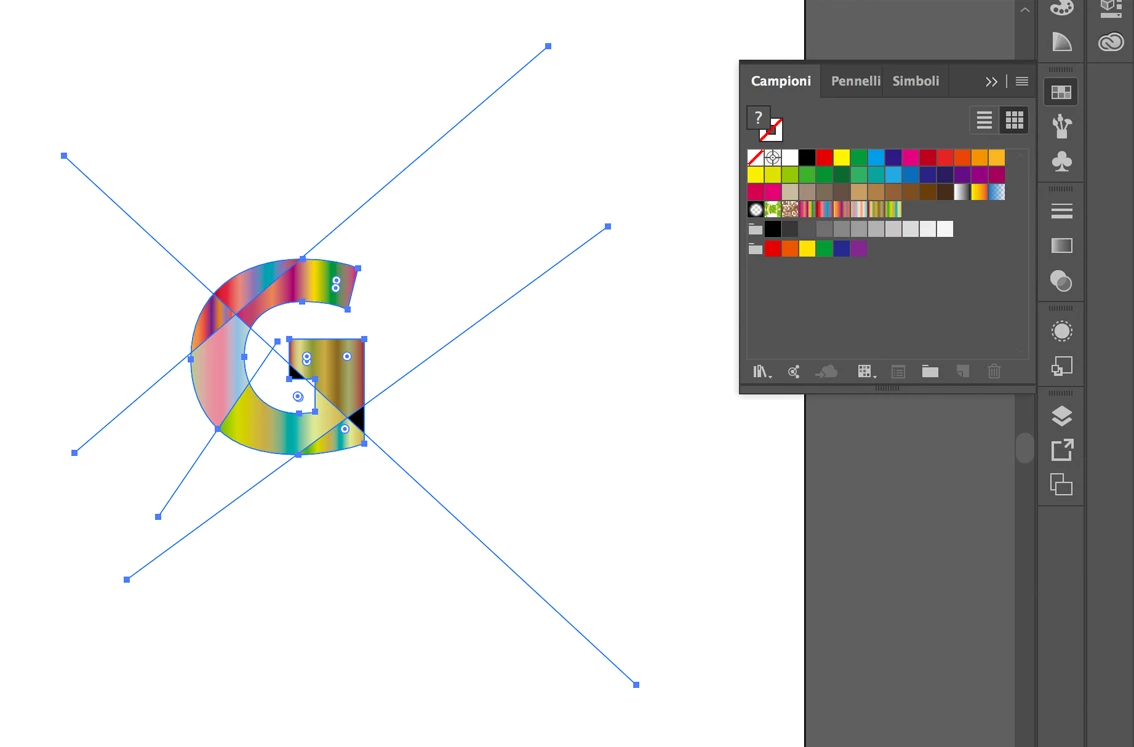
  1. Convert G to outline
  2. Draw other paths or lines to slice the G
  3. Select them and convert to a live paint group (Choose Object > Live Paint > Make)
  4. Fill each part using Live Paint Bucket tool
  5. Move each path (using direct selection tool) to change the intersections, Illustrator automatically reapplies fills to the new regions that are formed by the edited paths

2 replies

cinziamarotta
cinziamarottaCorrect answer
Participating Frequently
January 14, 2018

Hi,

If you don't want it to be live text, you can use Live Paint:

  1. Convert G to outline
  2. Draw other paths or lines to slice the G
  3. Select them and convert to a live paint group (Choose Object > Live Paint > Make)
  4. Fill each part using Live Paint Bucket tool
  5. Move each path (using direct selection tool) to change the intersections, Illustrator automatically reapplies fills to the new regions that are formed by the edited paths

jane-e
Community Expert
Community Expert
January 14, 2018

Do you want the "G" to be live text, or would it work to convert it to an outline and make it a Gradient Mesh?

qasems94761906
Participant
January 14, 2018

I dont want it to be live text.

Monika Gause
Community Expert
Community Expert
January 14, 2018

Draw some objects with gradients.

Put the letter G on top of them

Make clipping mask