
Inspiring
June 17, 2018
Question

How to increase size of text box without causing distortion?

  • June 17, 2018
  • 2 replies
  • 2386 views

This is such a basic question, but: how do i increase the size of a text box without introducing distortion? I've got loads of boxes in a figure; I want to increase the point size of the text.
    This topic has been closed for replies.

    2 replies

    Bill Silbert
    Community Expert
    Community Expert
    June 17, 2018

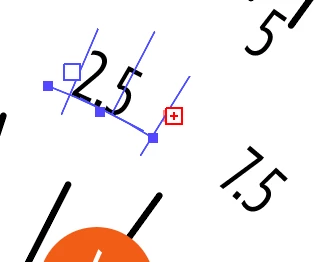
    When you set text along a curve the vertical lines that appear at the beginning and the end of the text are actually defining the limits of a text box. The red square with a plus sign in it in your screen shot is showing that there is text that has flowed outside of this (sort of virtual) text box. Use the black arrow selection tool to select the whole text object and then drag on the vertical line that has the red square in the direction of the curve. This will open up the "on a curve" text box and reveal the run-over text.

    Inspiring
    June 18, 2018

    Sorry but I'm not following. I start with this:

    See the "5R" in the center? I want to increase the text size. Doing that gives me the text overflow warning, and the "R" disappears. I can't find any handle to tuge, pull, drag, click etc. that makes the "R" reappear. All they do is change the size and/or distort the shape of the "5".

    Monika Gause
    Community Expert
    Community Expert
    June 18, 2018

    you have type on a path and the path is too short for the larger text size.

    michelew83603738
    Community Expert
    Community Expert
    June 17, 2018

    Your question and screen shot don't seem to agree - this seems to be type on a path rather than type in a text box. If you have text in a box, you should be able to highlight it and just increase the font size without a problem. There might be text overflow so then you would need to decide whether to increase the box size or flow the text. If you increase the box size, go to the corner handle and pull it till it all fits.

    If you are typing on a path, you can also highlight the text and increase the font size. If you run out of path room, just increase the path or again you will have overflow text. You can also use a second path for the overflow.

    If your question is something else, please further explain and give a screenshot with your layer panel as well.