Known Participant
January 15, 2025
Answered

How to make a gradual blur in Illustrator?

  • January 15, 2025
  • 2 replies
  • 2910 views

Hi!

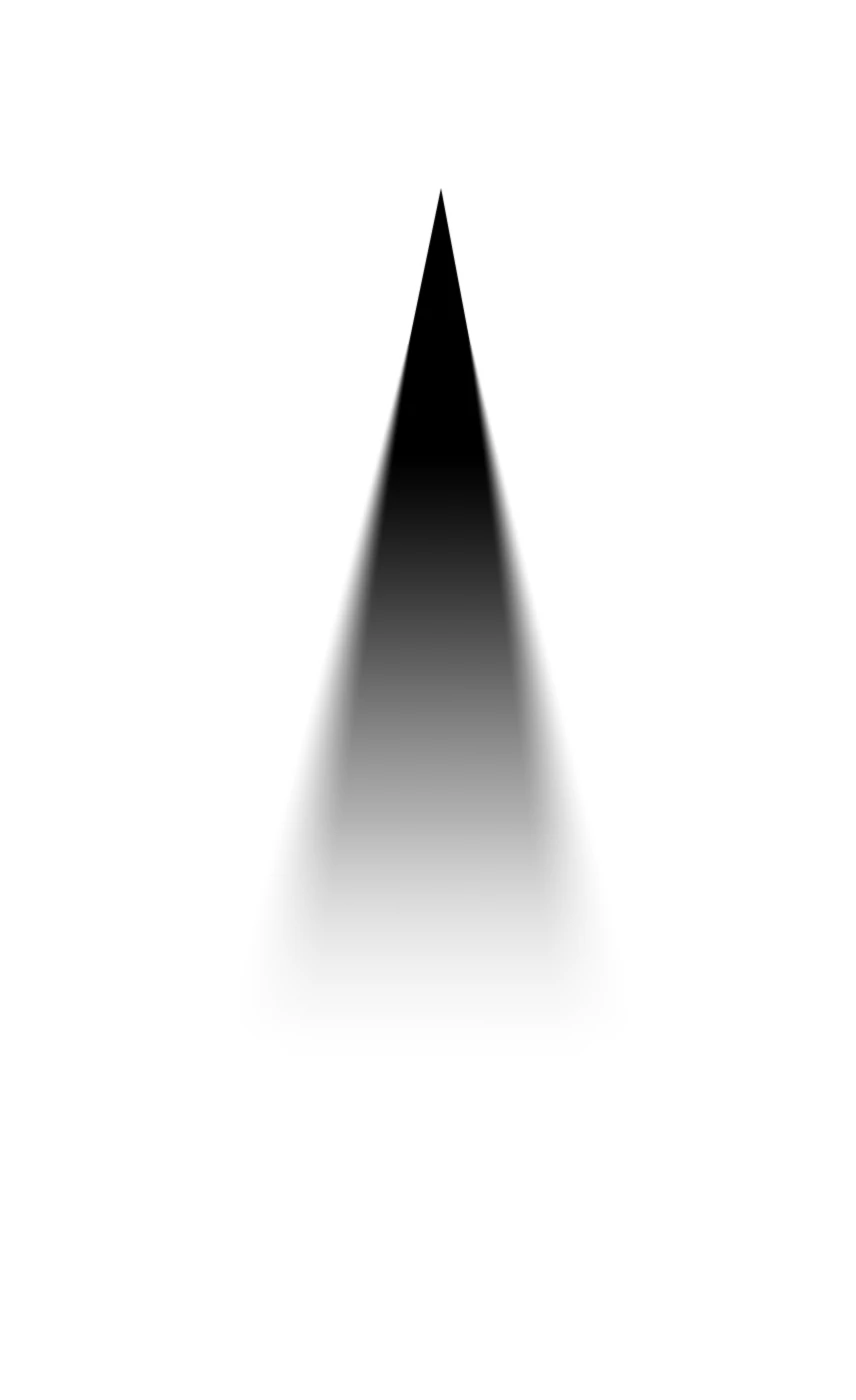
I’m trying to create a gradual blur in Illustrator, similar to this:


The goal is to use it to illustrate plane trails, like this example:


Could you guide me on how to achieve this effect, please?

Thank you!


Chris.
Correct answer Monika Gause

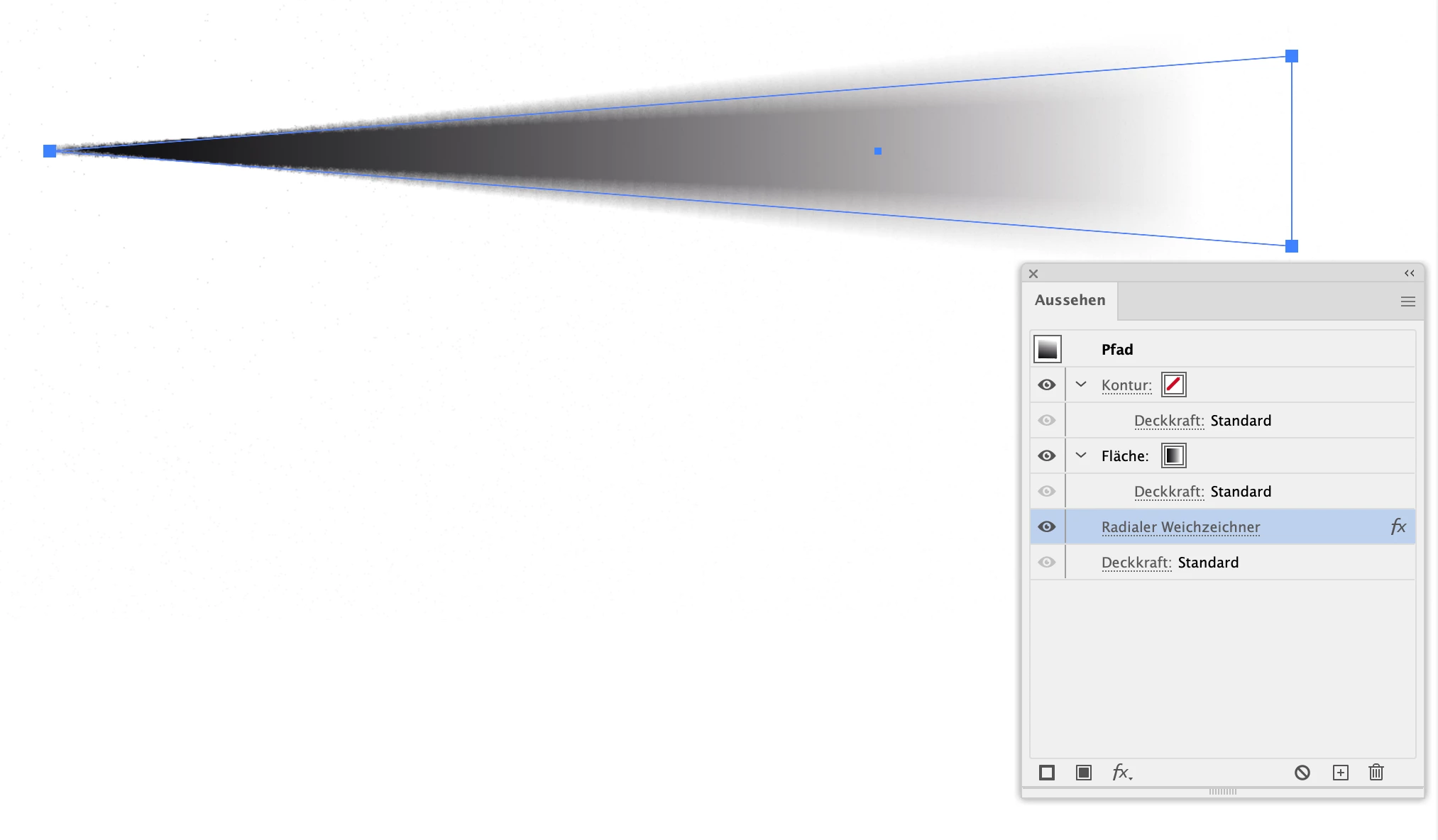
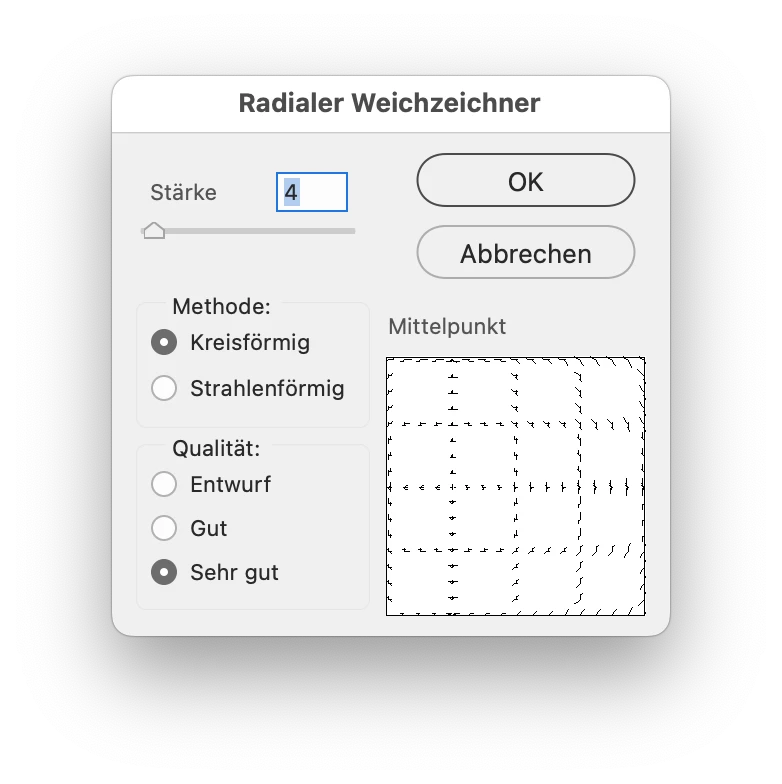
radial blur, set up like this?


But if that is not what you are looking for, then take a look at the options named above.

2 replies

Conrad_C
Community Expert
Community Expert
January 15, 2025

The demo below is only one of the many ways to do it, but it’s a method I use a lot.


It just applies a linear gradient fill. At one end, the gradient stop Opacity is set to 0% so that it fades out to transparent at that end, to blend in with the colors behind it. The command Effect > Stylize > Feather is applied to soften the edges. The quality of the gradient in the demo is a little rougher than in reality because something about the Adobe forum software degrades animated GIF uploads.


Syntax_One
Known Participant
January 16, 2025

Thank you so much for your effort! However, this isn’t quite what I was aiming for. Let me show you the method I used (although I think it might be unnecessarily complicated).

Here’s the result:


As you can see, the blur transitions gradually from top to bottom.

To achieve this effect, I overlapped two identical shapes—one with a Gaussian Blur applied and the other without. I then used a Transparency Mask with a gradient on both shapes to blend them, revealing one and concealing the other.

Monika Gause
Community Expert
Monika GauseCommunity ExpertCorrect answer
Community Expert
January 16, 2025

radial blur, set up like this?


But if that is not what you are looking for, then take a look at the options named above.

Kurt Gold
Community Expert
Community Expert
January 15, 2025

There are many ways. For example, Blends, Art Brushes, Bristle Brushes (possibly combined with blending modes on the blue background and / or opacity masks, a bit of gaussian blur etc.).