Stanislav Ledenev
Participant
March 3, 2018
Answered

How to make a part of path dotted?

  • March 3, 2018
  • 1 reply
  • 3567 views

Hello,

I need to create a continuous path with several anchor on it and some path segments between

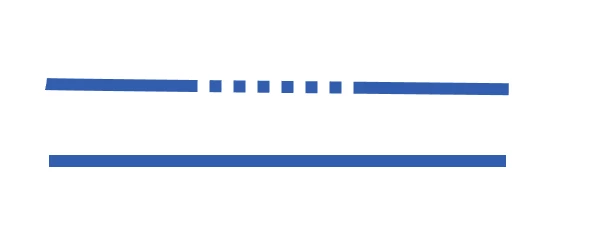
anchors must be dotted. My purpose is to show that part of path lying under something.

I can do this by cutting off piece of path and make it dotted. But It would be great and more

convenient if this path act as whole. Is it possible in Illustrator?

    This topic has been closed for replies.
    Correct answer JETalmage

    You can't stylize individual segments of  a path. You can create an ArtBrush to make several differently-styled paths act as one path, but I suspect you will want more on-page, per-instance control over where the dashed portions end and begin.

    If your purpose is to create leader lines as in an exploded assembly, the typical way is to just:

    1. Set up two Graphic Styles (ex: Leader and LeaderHidden).
    2. Draw the entire leader as a single path start-to-end. Apply the Leader style.
    3. Cut it where it passes "behind" an object. Apply the LeaderHidden style to the "behind" portions.

    You could, if you want, create a Group from three (or more) such individually-styled paths, move copies of it around, and then use the white pointer to select and move the coincident endpoints. But again, I think you'll find that more tedious than just cutting a path and applying two styles as needed, as described above.

    JET

    1 reply

    JETalmage
    JETalmageCorrect answer
    Inspiring
    March 3, 2018

    You can't stylize individual segments of  a path. You can create an ArtBrush to make several differently-styled paths act as one path, but I suspect you will want more on-page, per-instance control over where the dashed portions end and begin.

    If your purpose is to create leader lines as in an exploded assembly, the typical way is to just:

    1. Set up two Graphic Styles (ex: Leader and LeaderHidden).
    2. Draw the entire leader as a single path start-to-end. Apply the Leader style.
    3. Cut it where it passes "behind" an object. Apply the LeaderHidden style to the "behind" portions.

    You could, if you want, create a Group from three (or more) such individually-styled paths, move copies of it around, and then use the white pointer to select and move the coincident endpoints. But again, I think you'll find that more tedious than just cutting a path and applying two styles as needed, as described above.

    JET

    Stanislav Ledenev
    Participant
    March 3, 2018

    Thank you for your reply. I'll try "Graphic Styles" approach.

    JETalmage
    Inspiring
    March 3, 2018

    I use it pretty much every day, and don't find it to be too onerous. The frustration I have with Graphic Styles is often finding their inheritance behavior unreliable, and they tend to duplicate too often, so I'm frequently clearing the Graphic Styles palette of auto-generated repeats.

    My habit in exploded diagrams (regardless of the program I'm using) is to dedicate a separate layer named "Callouts" above the artwork layer(s). That lets me lock the artwork layer(s), so I can I add and cut and move all the leaders and callouts without selecting the artwork.

    Both my graphic styles consist of two strokes: the narrow weight solid or dashed stroke, and a wider weight white stroke behind it. That creates what is commonly called a "halo" which helps avoid visually confusing the leader lines with object edges in the artwork, and I find also helps with the "behind" appearance of hidden portions. (Same principle as the "halo" treatment to create breaks between separate objects which sometimes have to partially overlap.)

    So in the overall workflow, I arrange all the elements of the explosion before adding any leaders or callouts. Only after the arrangement is pretty much nailed down for space efficiency and clarity do I start adding leader lines on the dedicated layer. I find this reasonably expedient.

    But the idea of a stroke feature that would do exactly what you want is a good one. It would be powerful for much more than just hidden lines. I personally would find it much more useful than Illustrator's on-page "variable stroke weight" settings. And I dare say it would probably be less involved to implement. I think I'll start recommending it to vendors of software that I will not rent. ;-)

    It's related to a group of continual frustrations I've always had over one of Illustrator's actual competitive advantages: Its Brushes implementation. It took a long time for Art Brushes to gain the ability to restrict the stretching of the base art to distances inboard of a path's endpoints. But that adjustment has to be done in the Brush's modal dialog; it can't be adjusted on the individual paths, on the page. And, of course, for the purpose of hidden line portions of a path, it wouldn't serve anyway, because you often need more than one hidden portion of a "single" leader line. So you would need to be able to set as many "key points" as needed on a per-path basis, just as you can set as many stroke weight markers, independent of the position of the path nodes.

    JET