
Inspiring
January 28, 2022
Question

How to make evenly spaced lines using the blend tool.

  • January 28, 2022
  • 5 replies
  • 1304 views

Hi community.


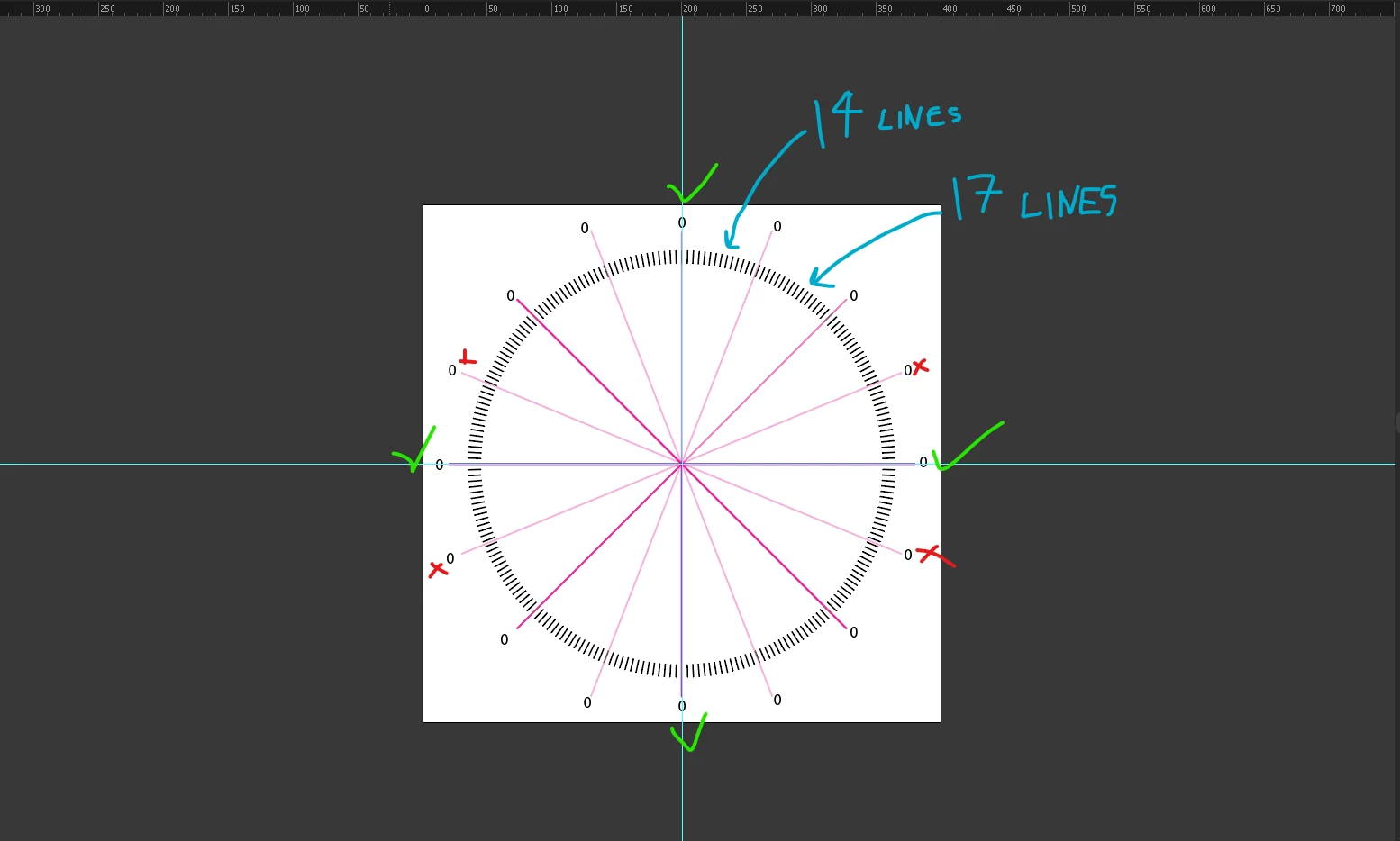
I'm trying to make a speedometer where the black lines will be even in between the magenta lines. 

I have tried with the blend tool to use the specified steps and specified distance option, but I cannot figure out how to space the black lines evenly. The magenta lines when I rotate them around to make quarters to fall exactly on the black lines, some match up some are misaligned. The only ones matching are the North, South, East, West, magenta lines to be exactly on the black lines.


Also in between the magenta line, some black lines have 14 lines, others 17 lines. 


Is there another way to achieve this with a more accurate technique? 


This topic has been closed for replies.

5 replies

Kurt Gold
Community Expert
Community Expert
January 30, 2022

Jacob,


whenever there is a question about speedometers, you are in full cry.


Did you produce speedometers in your earlier life?


Jacob Bugge
Community Expert
Community Expert
January 30, 2022

Never, Kurt, and I know nothing about their inner workings, only that they seem to exaggerate the speed of road vehicles, probably to boost performance impression, and to avoid lawsuits in connexion with speeding so almost everyone keeps below the speed limit, until whoever tries to overtake and can be trapped in the outer/opposite lane.


But every new case is different, and they all need to be made in the right way to work in real life, so it is always stronger than I.


Jacob Bugge
Community Expert
Community Expert
January 28, 2022

inquestflash,


If we are talking replacement/improvement of an existing speedometer, it is always best to (also) have a photo of the original, whichever state it is in.


Inspiring
January 29, 2022

Its more for training purposes and learning more skills for accurate graphics.

This is the design I'd like to learn how to do. 


As seen the below image the white lines are evenly spaced, then they have nicely placed thick orange line, and then 4 thin orange lines to the left and right. The whole design is accurate. I'd like to know the best method for this type of accurate design.


Anna Lander
Inspiring
January 29, 2022

For me, the easiest and most controllable way is using the Rotate tool. For example, in your case, that's what you can do.

1. Draw the circle, drag the guides from the rulers, and set them crossing in the center of the circle.

2. Using the Line tool, draw the first dash. I prefer to start from the horizontal or vertical one, but you can use any angle.

3. Analyze the finally wanted image. In this case, we have 110 small gaps at 180° angle. So, each small gap is about 1,64°. Select the dash and use the Rotate tool. Click on the center point (the crossing point of guides) holding the ALT (OPT) button down. You'll get the rotation tool options window to set the rotation around the selected point. Set the amount as needed. A negative value rotates clockwise, a positive one counterclockwise.

Click COPY.

3. Using CTRL (CMD) + D create copies to have the main pattern. Set the appearance of the dashes.

5. Repeat the rotation with the pattern selected. Remember that now we have the 10*gap.

6. Add the needed items under the horizontal guide, adjust the circle, remove the unneeded circle part using the Scissors tool.

7. Done! 🙂

Jacob Bugge
Community Expert
Community Expert
January 28, 2022

Inquestflash,


"Is there another way to achieve this with a more accurate technique?"


Certainly, and more than one, but which may be (most/more) usable/suitable will depend on exactly how many black tick marks/lines you need and the angle between them, and also where you wish to have the magenta one, in other words how many black ones for each magenta one.


And is the speedometer going full circle, or where does it end in the/each of the sides and how many black/magenta ones?


Apart from all that, one frightfully easy kind of mistake is to overlook the crucial difference in between number of distances and number of tick marks/lines (including both of the latter at the ends will be one more than the former), and correspondingly for Blends (number of steps being one less than the number of distances).


Mohammad.Harb
Community Expert
Community Expert
January 28, 2022

You could try Define pattern

Inspiring
January 29, 2022

Hi this seems like an interesting method, I'm not aware of the define pattern at all, could you please post a tutorial or give some more information how this could be acheived?


Legend
January 28, 2022

Have you tried creating your tick marks with the polar grid tool?