Answered
How to make Gradient effect in Adobe Illustrator
May I know how to make the gradient effect (the reference is left-hand side picture) on the yellow color template one?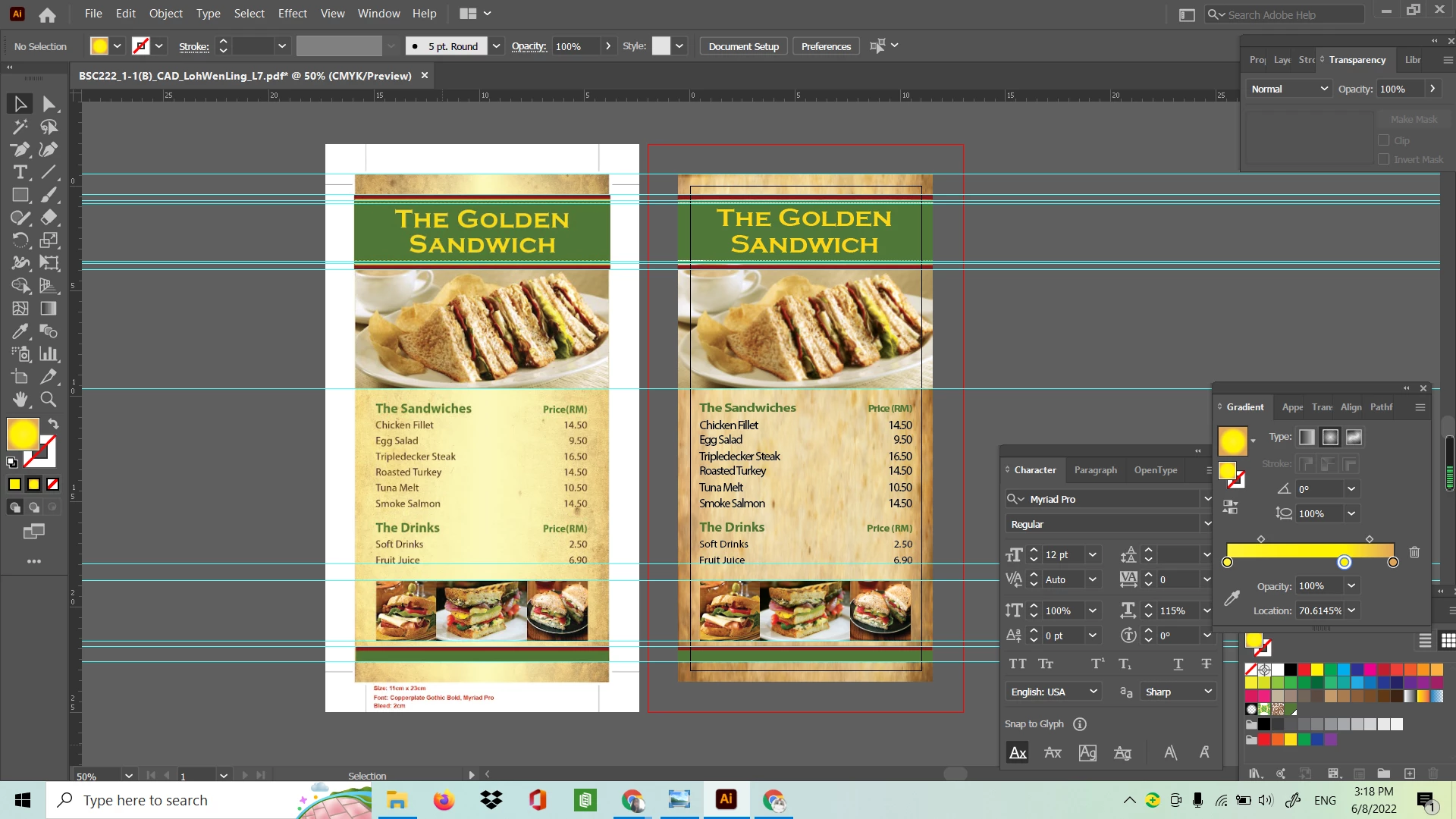

May I know how to make the gradient effect (the reference is left-hand side picture) on the yellow color template one?
This question should be posted to the Illustrtor forum, not InDesign.
By gradient effect I assume you meant the gradient behind the prices below the photo of the sandwich.
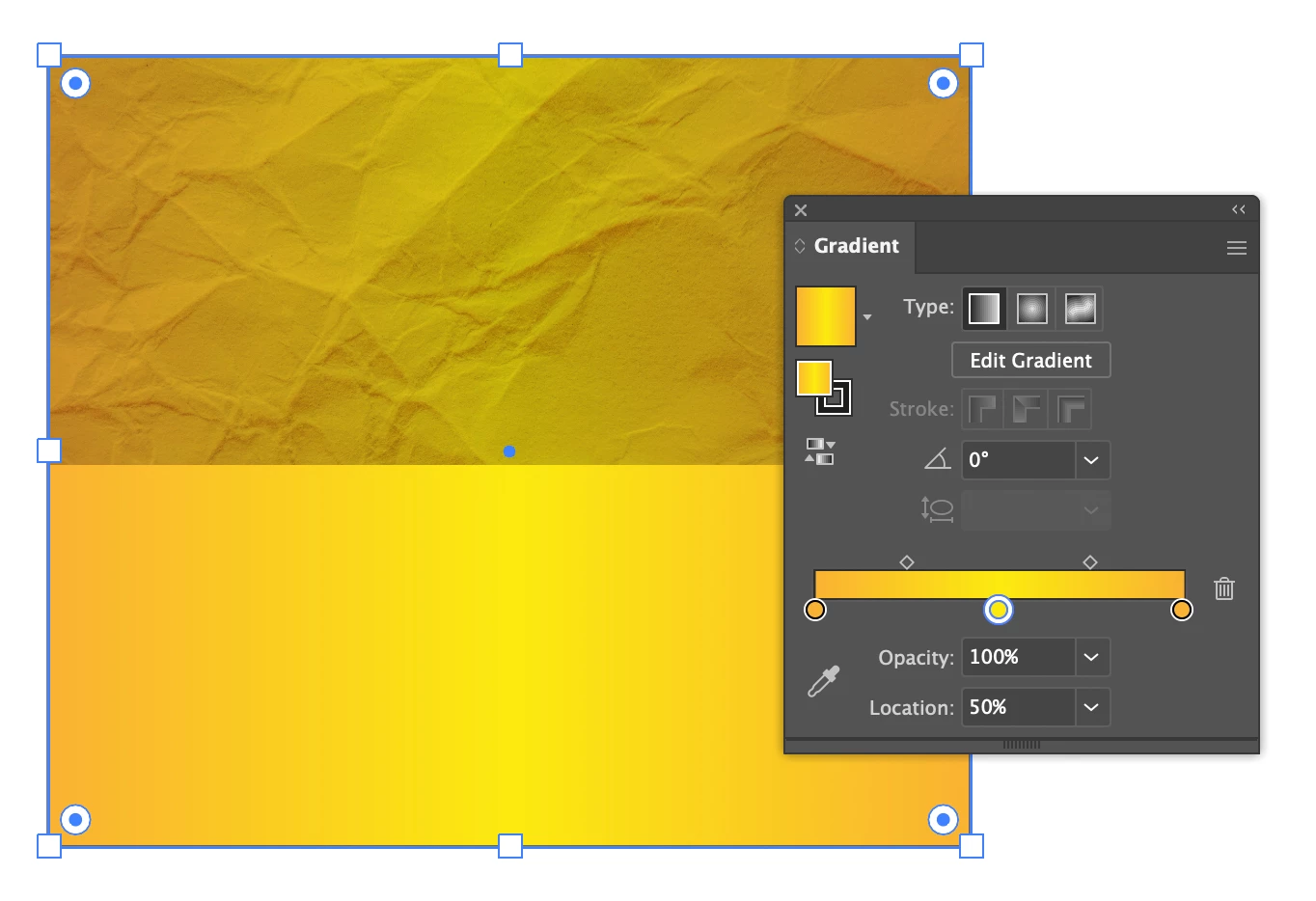
Open the Gradient panel and select a linear gradient (leftmost of the thee icons as the top). Click to add gradient stops then either enter colour values for the gradient stops or drag swatches from the Swatches panel. In the example I used an orange-yellow swatch for the left and right ends and yellow for the middle. To make sure the middle swatch is in the exact middle of the gradient I clicked on the point in the Gradient Slider then entered 50% in the Location field (bottom of the panel).
If I want a texture to show through I can adjust the transparency or play with opacity modes in the Transparency panel. In this example I used Multiply. I would probably prefer to mix the gradient with the background texture in Photoshop where I have more control.
Already have an account? Login
Enter your E-mail address. We'll send you an e-mail with instructions to reset your password.
 AdChoices