



curious_dare7257
Participating Frequently
January 28, 2026
Question

How to make it transparent ?

  • January 28, 2026
  • 5 replies
  • 158 views

Okay so I am learning Illustrator, the steps that the teacher make is : 

Open freepik, download the rose; extract it, then opens the PSD file in Photoshop. hides the background, clicks Command + A (i am with windows so i guess its Ctrl???)

then Command + C; opens illustrator, Command +  V 

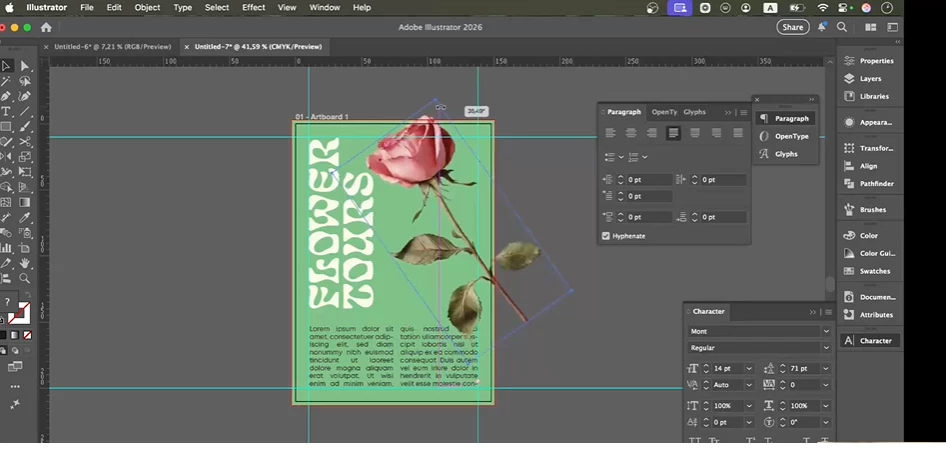
This is what it looks 
And this is what happens to me 
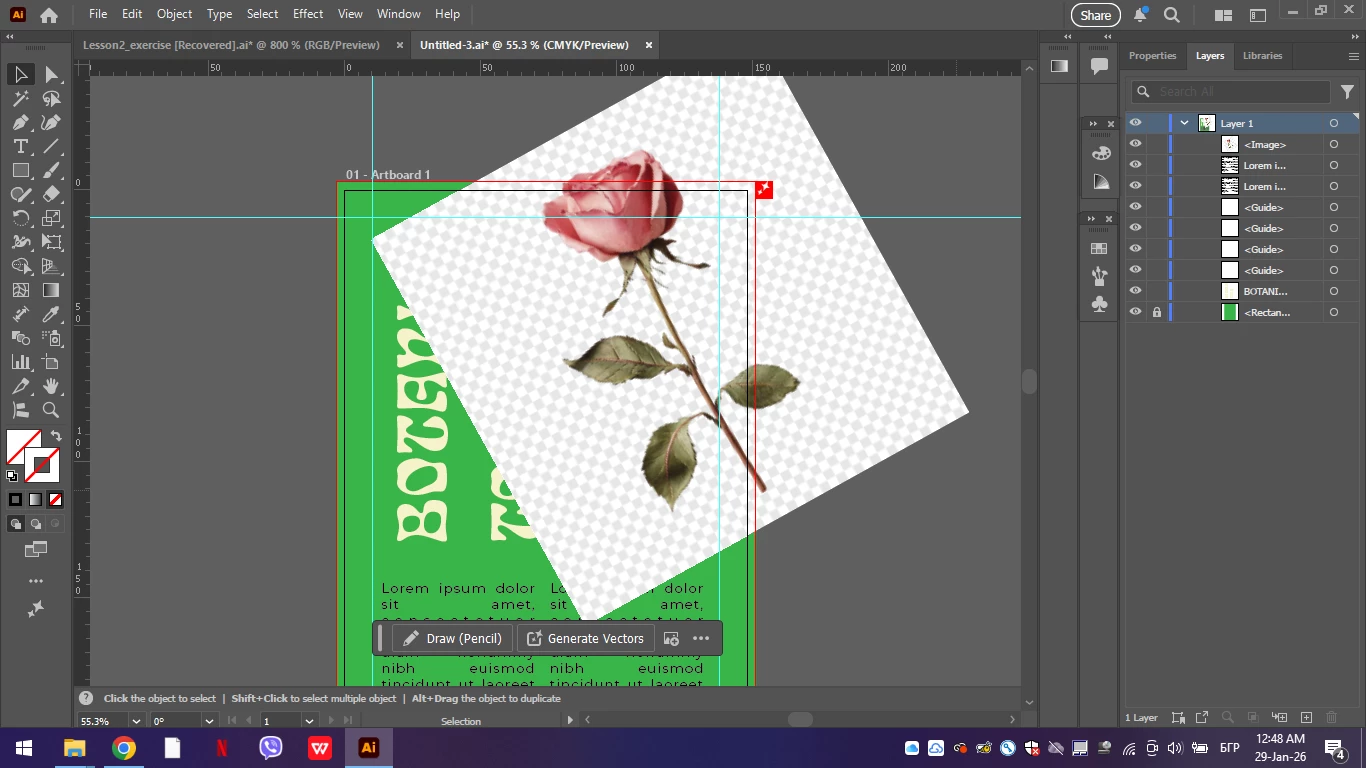
 I am stuck at this point for hours and i get mad because i cannot continue if i cannot solve this problem… Thank you !! 

    5 replies

    fozi master
    Participant
    January 30, 2026

    I ran into the same issue while working on a laminate flooring abu dhabi design project for an Abu Dhabi interior concept. I needed to bring a decorative element from Photoshop into Illustrator, but it kept coming in with a white background instead of being transparent. Copying and pasting directly from Photoshop does not always preserve transparency, which was causing the problem.

    What helped me was making sure the background layer in Photoshop was completely hidden or removed so the checkerboard showed. Then I saved the file as a PNG instead of copying and pasting. In Illustrator I used File Place to bring the image in, which kept the transparency intact.

    Once I did that, the design element worked perfectly with the laminate flooring layout, and I could layer it exactly how I wanted for the Abu Dhabi project. If your image comes in as a solid box, placing the file instead of pasting usually solves the issue.

    curious_dare7257
    Participating Frequently
    January 30, 2026

    i texted the mentors. they told me the same, that sometimes this happens and it'’s better to first save it as png in photoshop and place it in AI. but no, it doesnt come out better, its okay outside the document, but the same in the green rectangle


    Conrad_C
    Community Expert
    Community Expert
    January 29, 2026

    Something is odd about the pasted rose in the bottom of the original screen shot: There should be no transparency checkerboard behind the rose, because that’s just a view option and should not be part of the image. If that is supposed to be a transparency checkerboard indicator, it is shown both oversized and (this is the big red flag) rotated. The rotation is so wrong that it looks as if the rose was not properly copied; instead it looks as if a screen shot was taken (like with the Print Screen button) and placed on the clipboard and then that screen shot was pasted into the Illustrator document at an angle. If so, that would be the wrong way to do it. 


    If the rose was copied properly from an open original document in Photoshop (not from a screen shot), there should be no checkerboard background at all.

    Monika Gause
    Community Expert
    Community Expert
    January 30, 2026

    Often in clip art the designers put that kind of background into the file in order to indicate that it’s transparent.

    KatarinaJovanovic
    Community Expert
    Community Expert
    January 29, 2026

    Seems that you have not applied the mask in Photoshop before selecting all (ctrl+A), copying (ctrl+C) and pasting into illustrator (ctrl+V).
    Copying and pasting is optional, I prefer placing artwork/psd file.
     

    curious_dare7257
    Participating Frequently
    January 29, 2026

    I wrote exactly what the teacher does.

    how can i manage that ? 

    KatarinaJovanovic
    Community Expert
    Community Expert
    January 29, 2026

    As I understood per what you wrote, the assignment is to remove the background using photoshop (masking) and then bring isolated PNG to illustrator. If that is the case then you’d be looking into additional resources for masking in Photoshop. I find object selection efficient. In any ways, since it seems you are following course or doing an assignment, best is to check with instructor/teacher. There is a lot of methods that can be implemented but the question is which is suggested to use.

    Celine_Ayt
    Participating Frequently
    January 29, 2026

    If you need transparency in Illustrator, it’s best to prepare the image in Photoshop first.
    Export it as a PNG with transparency, or place a PSD file directly. Illustrator will keep the transparent areas.

    Monika Gause
    Community Expert
    Community Expert
    January 28, 2026

    Don’t copy and paste from Photoshop. Just hide the background layer, save the PSD and then place it in Illustrator. File > Place

    curious_dare7257
    Participating Frequently
    January 28, 2026

    This happens when i do it that way…….. :( 

    Monika Gause
    Community Expert
    Community Expert
    January 28, 2026

    Does it get better in CPU preview?