Participant
March 7, 2017
Answered

How to make multiple contour lines with Illustrator?

  • March 7, 2017
  • 4 replies
  • 17077 views

Hey dear community,

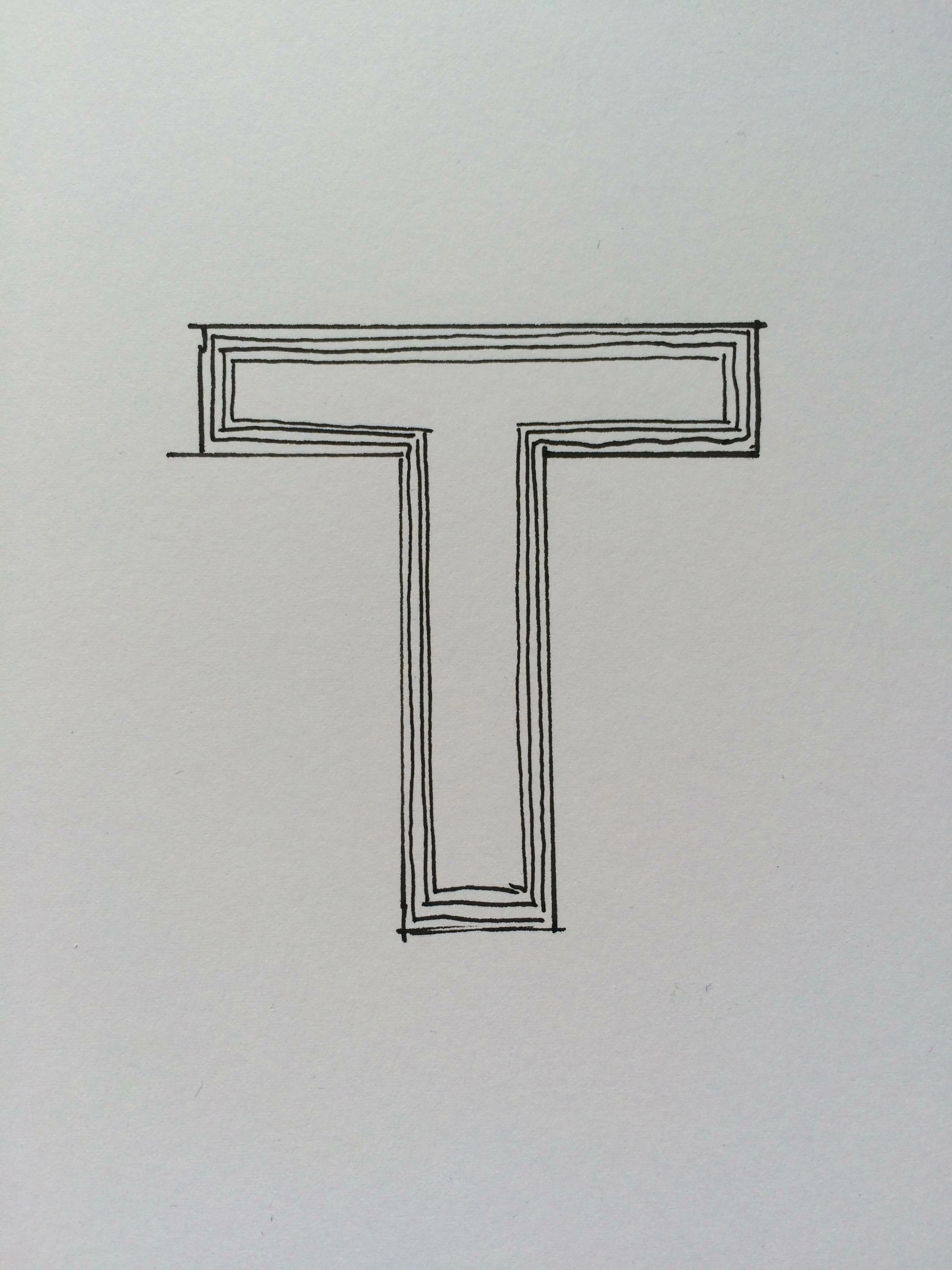
I'm relatively new to Illustrator and I have a question regarding multiple contour lines for a path. I converted a text into a path and want to create multiple outlines  You can see a quick sketch of my idea below.

The space between the lines should be the same and there should be at least 5 of these lines with a thickness of 1pt.

Can you give me some advice on how to do that?

Looking forward

Adrian
    This topic has been closed for replies.
    Correct answer chanaart

    And you can change colors part of the blend!  or expand the blend

    4 replies

    chanaart
    Community Expert
    Community Expert
    March 7, 2017

    Adrian:

    Hope this works for you. I love the blend tool. will let you use specified distance as well as specified steps and colors.

    Jacob Bugge
    Community Expert
    Community Expert
    March 7, 2017

    Adrian,

    If you wish to go both outwards and inwards from the original shape, with Offset Path you need to go both ways (both positive and negative).

    If you wish to have just one path, depending on whether you wish to have a fill colour within the outer(most) bounds and/or you wish to have them go both outwards and inwards or only either, you may add new strokes in the Appearance palette, and (it is important to have the object selected and to have the relevant stroke highlighted):

    With a fill:

    You may add two kinds of new strokes behind the original one with the right increase in Stroke Weight, visible (inner/outer parts of) strokes in the stroke colour and intermediate strokes in the fill colour.

    If you wish to have the strokes to go only outwards, you may drag the new strokes down beneath the Fill.

    Without a fill:

    You may add new strokes and offset them in the usual way through Effect>Path>Offset Path, outwards and/or inwards.

    chanaart
    Community Expert
    Community Expert
    March 7, 2017

    You can also use the blend tool to specify distance...

    chanaart
    Community Expert
    chanaartCommunity ExpertCorrect answer
    Community Expert
    March 7, 2017

    And you can change colors part of the blend!  or expand the blend

    sishamIAGD
    Community Expert
    Community Expert
    March 7, 2017

    Hi Adrian,

    You can get this effect by selecting the individual letter then going to Object>Path>Offset Path.

    You can then add either a positive or negative offset and set the distance...

    Then just repeat the process to get the multiple lines.

    asoovAuthor
    Participant
    March 7, 2017

    Great! Thank you for this reply. Unfortunately Illustrator makes false lines with different spaces (picture below). Any idea how to fix this?

    Inspiring
    March 7, 2017

    Try having no stroke and no fill when offsetting path, then add the stroke after.

    Doug A Roberts
    Community Expert
    Community Expert
    March 7, 2017

    you could:

    1. use Object > Path > Offset path... several times.

    2. add several strokes in the Appearance panel, and use Effect > Path > Offset Path on each